


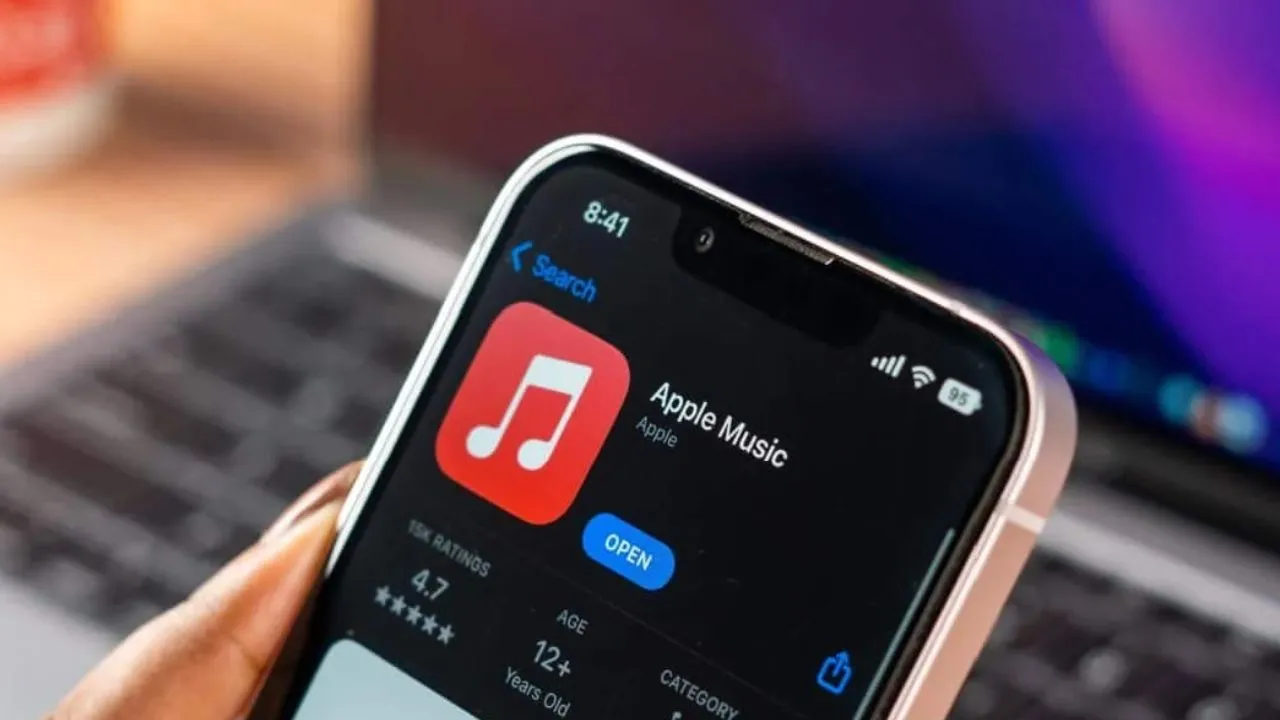
You open Apple Music, tap a song, and nothing happens. The progress bar might move, or the song might skip, or it might just sit there. It is a frustrating moment, especially when you just want to hear a specific track. The good news is that most of these problems have a clear cause, and you can usually fix them yourself without contacting Apple.
This guide walks through the real solutions, starting with the easiest ones. Work through them in order, and you will likely find the one that matches your situation.
The Quick Fixes to Try First
Before you dig into settings, try the simplest actions. They solve a surprising number of playback problems.
Force close the Music app and open it again. On an iPhone, swipe up from the bottom of the screen and pause. Find the Music app preview and swipe it away. On a Mac, right-click the Music icon in the Dock and choose Quit. This clears out temporary glitches that can stop playback .
Restart your device. A full restart clears memory and resets background processes. It sounds basic, but it is one of the most reliable fixes for app problems. Turn your iPhone or Mac off completely, wait a moment, and turn it back on .
Check your internet connection. Apple Music streams most of its content. If your Wi-Fi or cellular signal is weak, songs will not load. Open a web browser and load a page. If that fails, the problem is your connection, not Apple Music. Try switching from Wi-Fi to cellular data, or the other way around, to see if one works better .
Check if Apple Music Is Down
Sometimes the problem is not on your device at all. Apple’s servers occasionally have outages. When that happens, no amount of troubleshooting on your end will help.
Open a browser and go to Apple’s System Status page. Look for Apple Music in the list. If the dot next to it is green, the service is running normally. If it is red or yellow, Apple is dealing with an issue. In that case, you simply have to wait for Apple to fix it .
This step takes thirty seconds and saves you from wasting time on fixes that cannot work.
Read Also: How To Transfer Spotify Playlist To Apple Music
Verify Your Subscription and Account
A common reason songs will not play is that your subscription has lapsed or your payment method failed. Apple Music checks your account status every time you press play. If that check fails, the song will not start.
Open Settings on your iPhone, tap your name at the top, and select Subscriptions. Find Apple Music and confirm that it shows as active. If there is a payment problem, you will see a message asking you to update your billing information .
Another account issue involves signing in with the wrong Apple ID. If you have multiple accounts, you might be signed into one that does not have an active Apple Music subscription. Go to Settings, tap your name, then Media & Purchases, and sign out. Sign back in with the correct account and try playing a song again .
Deal with Downloaded Songs That Will Not Play
If only your downloaded songs fail to play while streaming works fine, the download files may be corrupted. This happens sometimes when a download is interrupted or when the app updates.
The fix is simple. Find the song in your library, delete the download, and then download it again. To delete a download on iPhone, long-press the song and choose Remove, then Delete Download. After that, tap the download icon again to get a fresh copy .
If the problem affects many downloaded songs, you can remove all downloads from your library and re-download them. This takes time but often resolves persistent playback issues tied to offline files.
Refresh the Sync Library Setting
Apple Music uses a feature called Sync Library to keep your music consistent across devices. Sometimes this feature gets stuck, and songs will not play because the app is confused about what is available in your library.
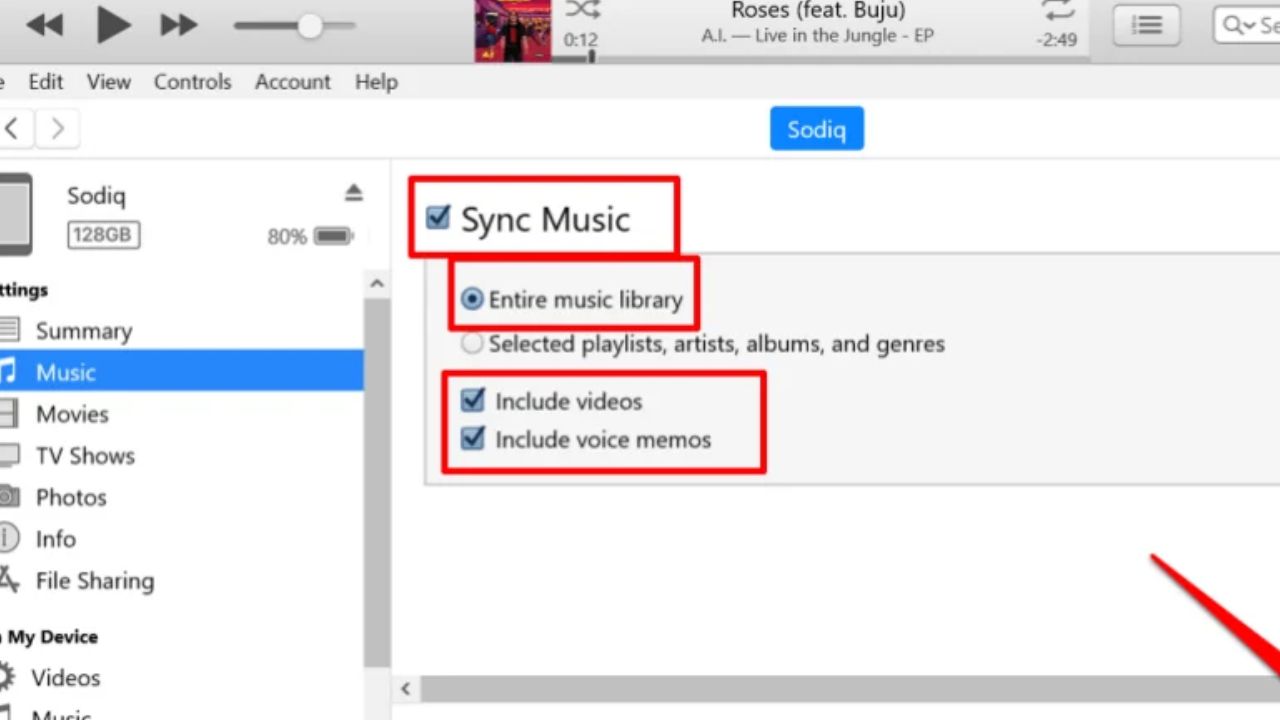
On an iPhone, go to Settings, then Music. Find Sync Library and turn it off. Wait about thirty seconds, then turn it back on. Open the Music app and give it a minute to sync. On a Mac, open the Music app, go to Settings, then General, and toggle Sync Library off and on the same way .
This forces Apple Music to rebuild its connection to your library and often fixes songs that appear available but refuse to play.
You May Also Like: Why Apple Music Not Showing Offline Songs
Check for Region and Licensing Problems
Not every song is available everywhere. Record labels make deals that vary by country, and sometimes a song that used to play becomes unavailable because a licensing agreement ended .
If a specific song will not play but others do, search for it in Apple Music. If you find another version of the same song that plays fine, the original version in your library is likely no longer available. Delete the old version and add the new one. If the song is grayed out or shows a message about regional availability, there is nothing you can do to force it to play. The label has removed it from your region .
This is not a bug in your app or device. It is a business decision by the rights holder, and Apple cannot override it.
Update Your Software
Old versions of iOS, macOS, or the Music app can contain bugs that interfere with playback. Apple releases updates that fix these problems, but they only help if you install them.
On an iPhone, go to Settings, then General, then Software Update. Install any update that is available. On a Mac, open System Settings, then General, then Software Update .
Also check the Music app itself on your iPhone. Open the App Store, tap your profile icon, and scroll down to see if Music has an update pending. Installing it can resolve playback issues that were fixed in a recent release.
What to Do If Nothing Works?
If you have tried all of these steps and songs still will not play, the issue may be deeper than a simple setting. Sign out of your Apple ID entirely on your device, restart it, and sign back in. This forces a complete refresh of your account credentials and permissions .
If that still does not work, contact Apple Support. At that point, the problem is likely tied to your specific account record or a regional restriction that only Apple can investigate. You can reach them through the Apple Support app or the website.