


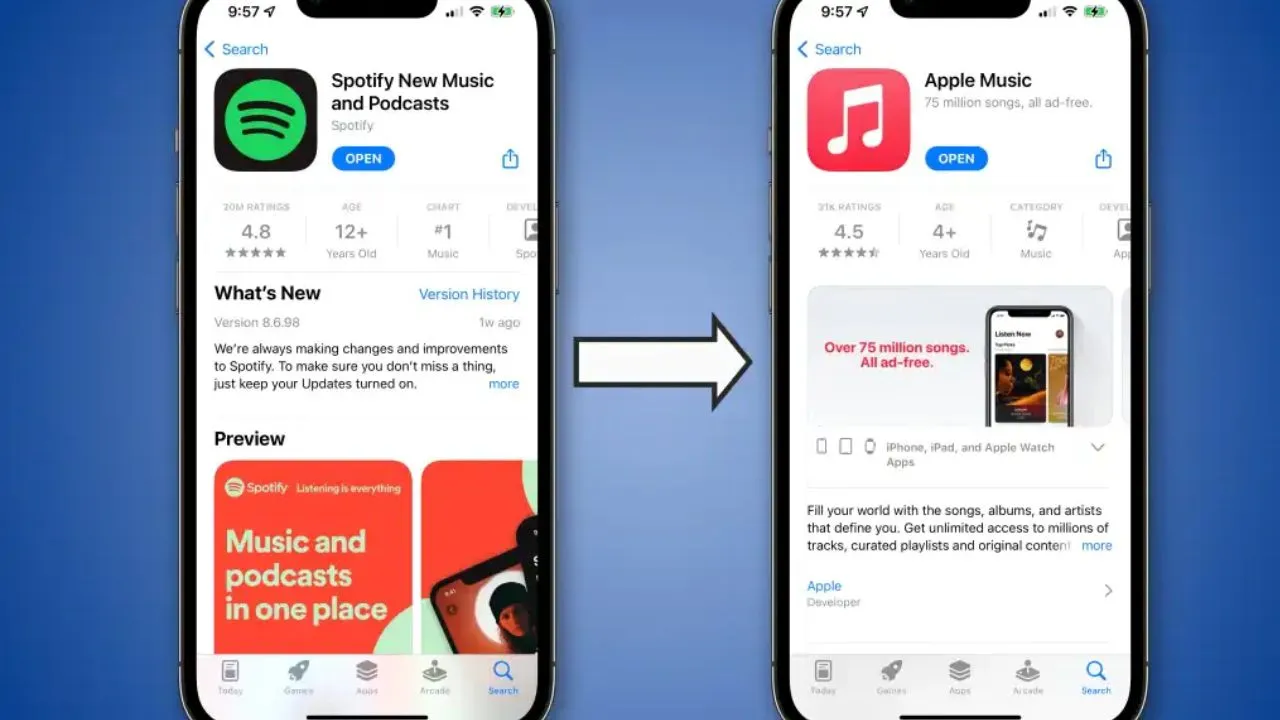
Moving your music from Spotify to Apple Music is a practical task that many people face when they decide to switch services. The good news is that you do not need to rebuild your playlists one song at a time. Apple now offers a built-in tool that handles this process, and there are also reliable third-party options if the official method does not work for you. This guide walks through the exact steps, explains what to expect during the transfer, and shows you how to fix any songs that do not match perfectly on the first try.
What You Need Before You Start?
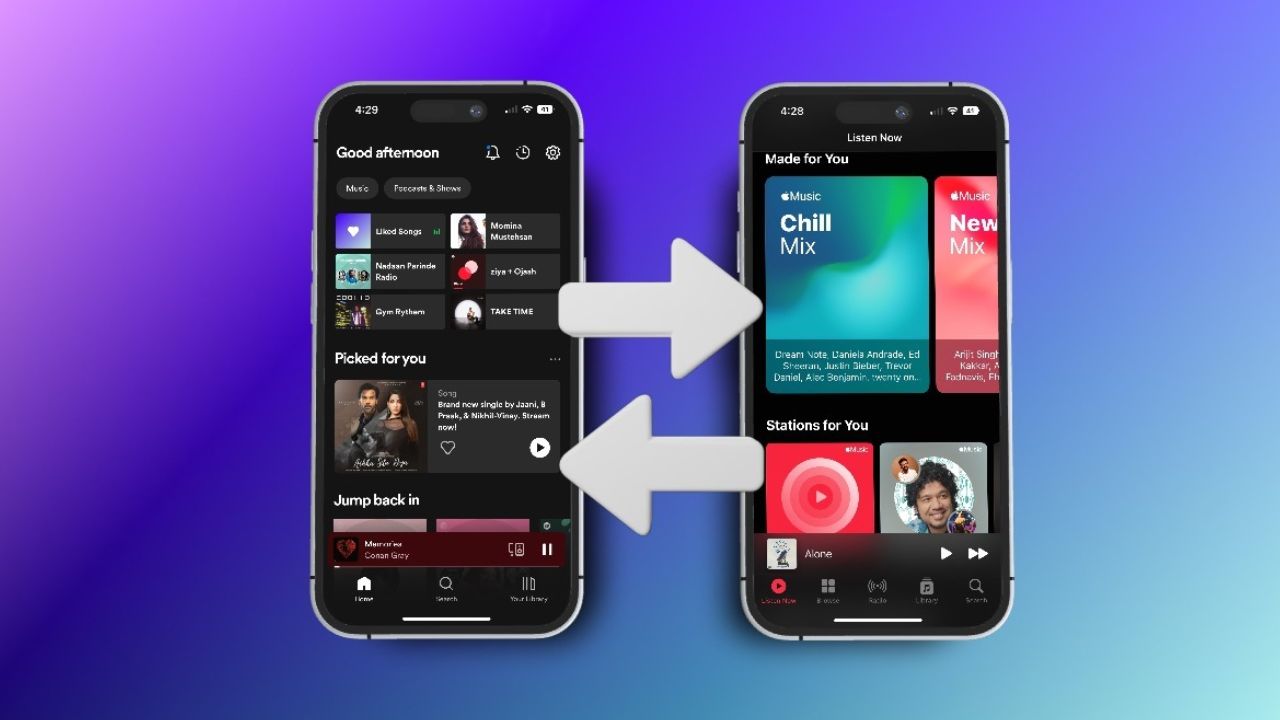
Before you begin the transfer, make sure you have a few things in place. First, you need an active Apple Music subscription. The transfer tool only works if you are signed in to an Apple Music account that is currently paying for the service . Second, your iPhone or iPad needs to be running iOS 18.4 or a newer version. You can check this by going to Settings, then General, then About. Third, you need your Spotify username and password ready. The tool will ask you to sign in to Spotify so it can read your playlists and transfer spotify playlist to apple music .
You should also turn on Sync Library in your Apple Music settings. Go to Settings, tap Apps, then Music, and make sure Sync Library is switched on. Without this setting, the transferred music will not appear on all your devices. This step takes only a moment, but it prevents a lot of confusion later .
Read Also: How To Recover Deleted Apple Music Playlist
Using Apple's Built-In Transfer Tool
Apple added a native feature that moves your playlists and saved music from Spotify directly into your Apple Music library. The company built this tool with help from a third-party service called SongShift, but you do not need to download anything separate to use it . The entire process happens inside the Apple Music app.
Finding the Transfer Option on iPhone or iPad
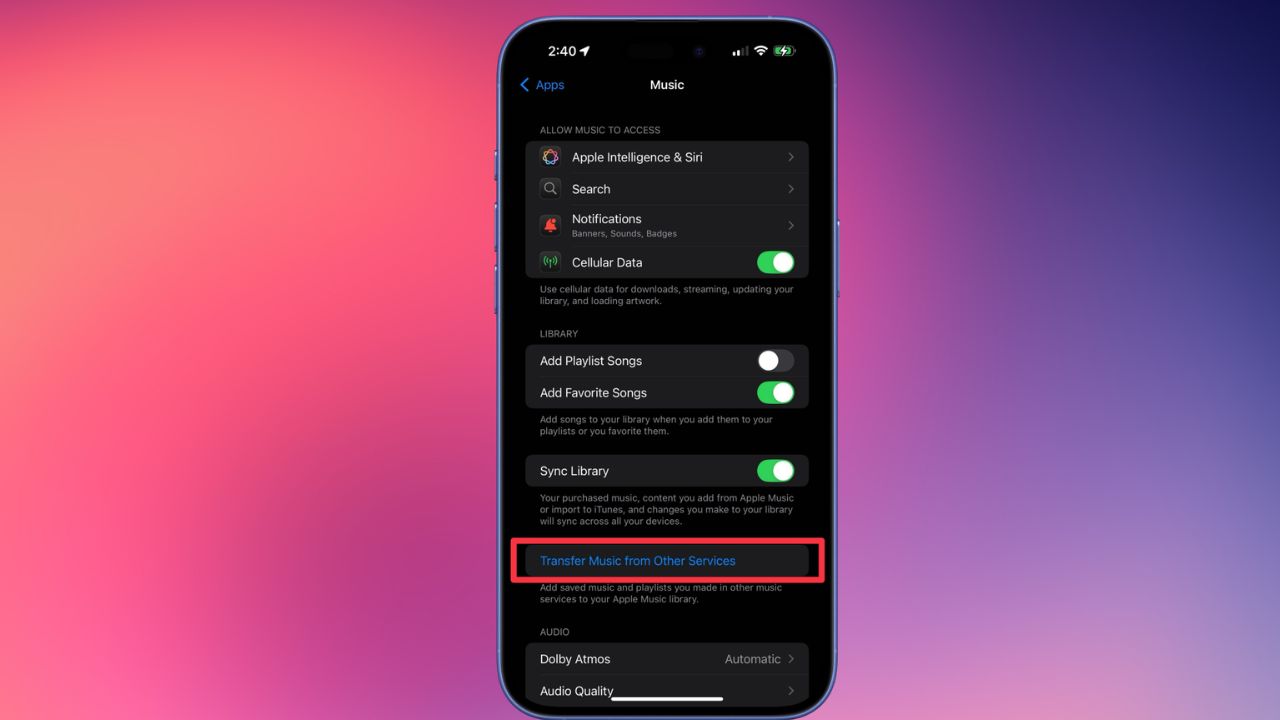
Open the Music app on your iPhone or iPad. Tap your profile picture in the top right corner of the screen. A menu will appear, and among the options you should see one that says "Transfer Music from Other Services." Tap that option . If you do not see it, you may need to sign in to your Apple Account first. The option only appears when you are logged in properly .
Signing In to Spotify
Once you tap the transfer option, Apple Music will show you a list of supported music services. Select Spotify from the list. You will then be asked to sign in to your Spotify account. Enter your username and password in the fields provided. This step gives Apple permission to read your Spotify library so it can find the same songs in the Apple Music catalog .
Choosing What to Transfer
After you sign in, you get to decide what moves over. You can transfer everything, which includes all your playlists and your liked songs. Or you can pick specific playlists if you only want to move some of your music. Make your selection and tap "Add to Library" . The transfer process will begin immediately.
What Happens During the Transfer
Apple Music will start matching each song from your Spotify library with a version in the Apple Music catalog. This matching process is not instant. If you have a large library with hundreds or thousands of songs, it can take several minutes or longer. You do not need to keep the app open the entire time, but you should stay on the same Wi-Fi network so the process can finish without interruption .
When the matching finishes, you will see one of two messages. If everything matched perfectly, you will see "Transfer Complete." If some songs could not be matched exactly, you will see "Some Music Needs Review" .
Fixing Songs That Did Not Match
The review step is where you handle songs that Apple Music could not find an exact version of. This does not mean the song is missing from Apple Music. It usually means the version on Spotify, such as a live recording or a deluxe edition, is not available in the Apple Music catalog. In other cases, the song title or artist name might be spelled slightly differently, which confuses the matching system .
Reviewing Alternative Versions
Tap the "Review Now" button that appears in the message. Apple Music will show you a list of songs that need your attention. For each one, it will suggest alternative versions that are available. You can tap on a suggestion to preview it and hear whether it is the right track. If it sounds correct, tap "Save" to add it to your library .
What to Do When There Is No Good Match
Sometimes Apple Music cannot find any version of the song you are looking for. This happens when a track is only available on Spotify due to licensing agreements. When this occurs, the song will be listed under a section called "Unavailable." You cannot transfer these songs, but you can still listen to them on Spotify. Nothing is removed from your Spotify account during this process .
You have 30 days from the time of the transfer to review these unmatched songs. You cannot start a new transfer on the same device until you finish reviewing the current one .
You May Also Like: How to Set iPhone Ringtone from Apple Music
Using Third-Party Tools Instead
If Apple's built-in tool is not available in your country, or if you want more control over the transfer process, third-party apps can handle the job. These tools have been around longer and sometimes offer features that Apple's tool does not, such as the ability to keep your playlists in sync automatically.
SongShift for iPhone and iPad
SongShift is the app that Apple's transfer tool is based on, so it works very similarly. You can download it from the App Store for free. The free version lets you transfer playlists one at a time. If you have a large library and want to transfer everything at once, you would need the paid version, which starts at $6.99 per month . SongShift supports transfers from Spotify to Apple Music and also works with other services like YouTube Music, Tidal, and Amazon Music .
Soundiiz for Android and the Web
If you use an Android phone or prefer to manage transfers from a computer, Soundiiz is a strong option. It works in any web browser and has an app for Android devices. The free version lets you transfer playlists individually, with a limit of 200 songs per playlist. If your playlist has more than 200 songs, only the first 200 will transfer unless you upgrade to a paid plan . Soundiiz also offers a sync feature that keeps your Spotify and Apple Music playlists matched up over time, so any changes you make on one service appear on the other .
Important Things to Know About the Transfer
There are a few limitations that apply no matter which method you use. Understanding them ahead of time will save you from frustration later.
Only Your Playlists Transfer
The transfer tool moves playlists that you created yourself. Playlists that Spotify made for you, such as Discover Weekly or Release Radar, will not transfer. Those are generated by Spotify's algorithms and do not exist as saved playlists in the same way . If you want to keep a Discover Weekly playlist, you need to save it as your own playlist in Spotify first, then transfer it.
Your Spotify Account Is Not Affected
Nothing is deleted from Spotify when you transfer to Apple Music. Your playlists, liked songs, and saved albums remain exactly where they are. The transfer only copies information to Apple Music; it does not move or remove anything from the source . This means you can try Apple Music without giving up your Spotify account right away.
Matching Is Not Perfect
No transfer tool can guarantee that every single song will match correctly. Streaming services have different licensing agreements, which means some songs available on Spotify are not available on Apple Music at all. Other songs might have slightly different titles or artist credits that cause the matching system to miss them. Some users report that even with careful review, a small percentage of songs end up needing manual fixes . This is normal and not a sign that you did something wrong.
Country Availability Matters
Apple's built-in transfer tool is not available in every country. It does not work in China, Myanmar, or Russia . If you are in one of those regions, you would need to use a third-party tool like Soundiiz, which may still work depending on local regulations.
Conclusion
Transferring your Spotify playlists to Apple Music is a straightforward process that takes only a few minutes to set up. Apple's built-in tool handles the heavy lifting for most users, and when songs do not match perfectly, the review system gives you control over what gets added to your library. If you prefer a third-party app or live in a region where the native tool is unavailable, SongShift and Soundiiz are reliable alternatives that transfer spotify playlist to apple music.
The key takeaway is that you do not have to start over. Your playlists can come with you, and while a few songs might need manual attention, the vast majority will transfer without any issues at all. Take your time with the review step, and do not cancel your Spotify subscription until you are sure everything you want is safely in Apple Music.