

When you play games, sound matters a lot. You want to hear the footsteps. You want to feel the explosion. You want the music to pull you inside the game world.
Many people think the HomePod Mini is only for music. That is not true. You can use the HomePod Mini for gaming. But you need the right setup. This article gives you real HomePod Mini gaming setup ideas. No fancy words. No tricks. Just clear steps.
Let us start from the beginning.
Why Use a HomePod Mini for Games?
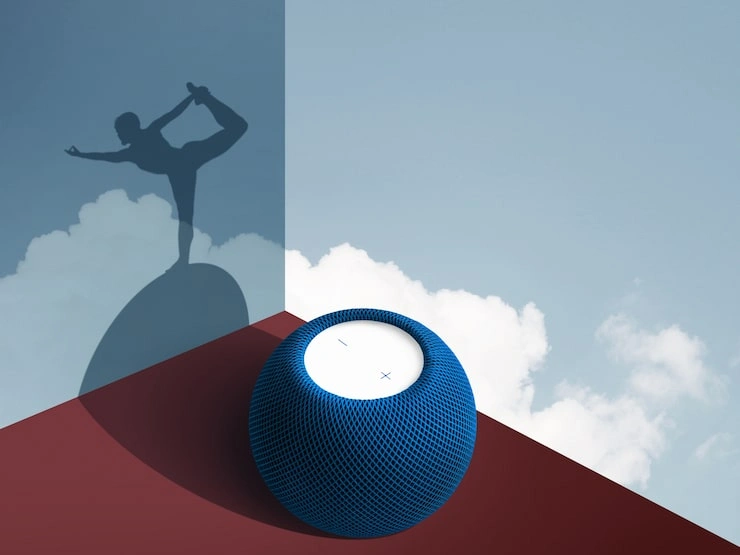
The HomePod Mini is small. It looks simple. But it has good sound for its size. It can fill a small room with clear audio. It also works very well with Apple devices. If you already have a HomePod Mini at home, you do not need to buy new speakers for gaming. You can use what you have. That saves money. The HomePod Mini also looks clean on a desk. No wires hanging around. No big boxes taking space.
But there is a problem. The HomePod Mini has a small delay. This means the sound comes a little late after the action on screen. For fast games like shooting games or racing games, this delay can bother you. For slow games like story games or puzzle games, you may not notice it. So before you build your setup, know this. The HomePod Mini works best for casual gaming. Not for serious competition.
Read Also: How To Fix HomePod Not Responding
What You Need Before You Start?
You cannot just take the HomePod Mini and plug it into a game console. It does not have a wire input. It only works wirelessly with AirPlay.
Here is what you must have.
- First, an Apple device. This can be a Mac computer, an iPhone, an iPad, or an Apple TV box. The HomePod Mini talks directly to these devices.
- Second, a good wifi connection. Since everything goes through the air, bad wifi breaks the sound. The sound will stop and start. That ruins the game.
- Third, a game that does not need perfect timing. If you play slow games, the small delay will not hurt you.
Now let us look at real HomePod Mini gaming setup ideas. Each idea is for a different type of player.
Setup Idea One: The Small Desk Setup for Mac Gaming
This is the simplest idea. You put the HomePod Mini on your desk next to your Mac computer. You open your game on the Mac. Then you tell the sound to go to the HomePod Mini. How do you do that? On your Mac, click the sound icon at the top of the screen. Pick the HomePod Mini from the list. That is all. Now the game sound comes out of the HomePod Mini.
This setup works best for games from Apple Arcade. These games are not very fast. They work fine with a small delay. Examples are games like Sneaky Sasquatch or Mini Motorways. You can also play older games from Steam if they run on Mac. But test the sound first. If the delay feels strange, go back to the Mac built in speaker. One good trick. Put the HomePod Mini right in front of you. Not to the side. Not behind the screen. In front. This makes the sound feel more direct. The delay feels smaller because the sound travels a short distance.
Setup Idea Two: The Living Room Setup with Apple TV
This is for people who play on a big TV. You put the Apple TV box behind your TV. You connect the Apple TV to the TV with an HDMI wire. Then you tell the Apple TV to send sound to the HomePod Mini. Here is the important part. The HomePod Mini has less delay when used with Apple TV. Apple made them work better together. The delay is still there, but it is smaller. To do this, go to the settings on Apple TV. Find the section for video and audio. Look for the option called audio output. Pick your HomePod Mini.
Now any game you play on Apple TV will send sound to the HomePod Mini. What games work well here? Games on Apple Arcade that are made for TV. Also games you play through the PlayStation Remote Play app or Xbox app on Apple TV. But do not expect perfect sync for fast fighting games.
This setup is very clean. No speaker wires. No big sound bar. Just a small white speaker near your TV.
Setup Idea Three: The Two Speaker Setup for Big Sound
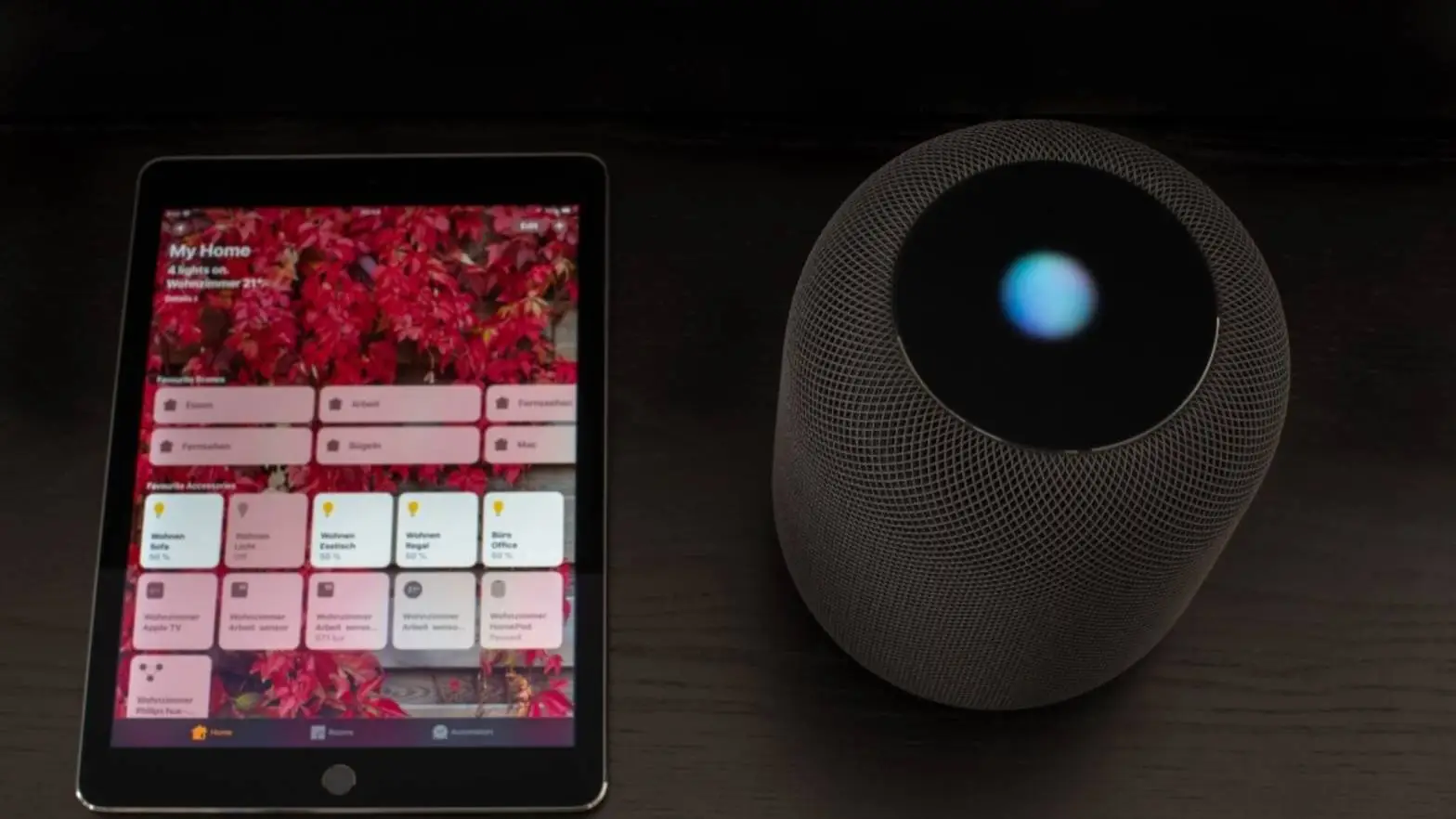
One HomePod Mini sounds good. Two HomePod Minis sound much better. When you put two together, they make a stereo pair. One plays left sounds. The other plays right sounds. This helps in games. You can hear if an enemy comes from the left or the right. You can hear a car passing from one side to the other. To make a stereo pair, you need two HomePod Mini speakers. They must be the same model. Put them on the same wifi network. Then open the Home app on your iPhone. Press and hold one of the speakers. Look for the option to create a stereo pair. Follow the steps.
Once they are paired, they act as one speaker. You pick the pair from the sound menu on your Mac or Apple TV. Where should you put the two speakers? Put them on both sides of your screen or TV. Keep them at the same height as your ears when you sit down. This gives you the best left right feeling. This setup works very well for story games. Games like Oceanhorn 2 or The Pathless feel more real with two speakers.
The Delay Problem and How to Live With It
Let us talk clearly about the delay. The HomePod Mini uses AirPlay. AirPlay takes a short time to send sound over wifi. This short time is about two seconds for some devices. For Apple TV, it is less. But it is still there. What does two seconds mean in a game? It means you shoot a gun. The sound comes two seconds later. It means you jump. The jump sound comes two seconds later. This feels wrong. For very fast games like Call of Duty or Fortnite, you should not use the HomePod Mini. Use wired headphones or wired speakers instead. But for many other games, you can ignore the delay. Slow games. Turn based games. Puzzle games. Building games. Story games. These do not need perfect sound timing. So be honest with yourself about what games you play. If you play fast games, this speaker is not for you. If you play slow games, the HomePod Mini works fine.
Games That Work Well with HomePod Mini
Let me give you real game names. These games do not need perfect sound timing. They still feel good with a small delay.
On Mac and Apple TV:
- Sneaky Sasquatch
- Mini Motorways
- Oceanhorn 2
- The Pathless
- What the Golf
- Assemble with Care
- Grindstone
- Creaks
On iPhone or iPad with the HomePod Mini:
- Monument Valley
- Prune
- Alto's Odyssey
- Hidden Folks
- Reigns
These games focus on thinking, exploring, or relaxing. The sound matters, but the exact timing does not.
What Not to Do?
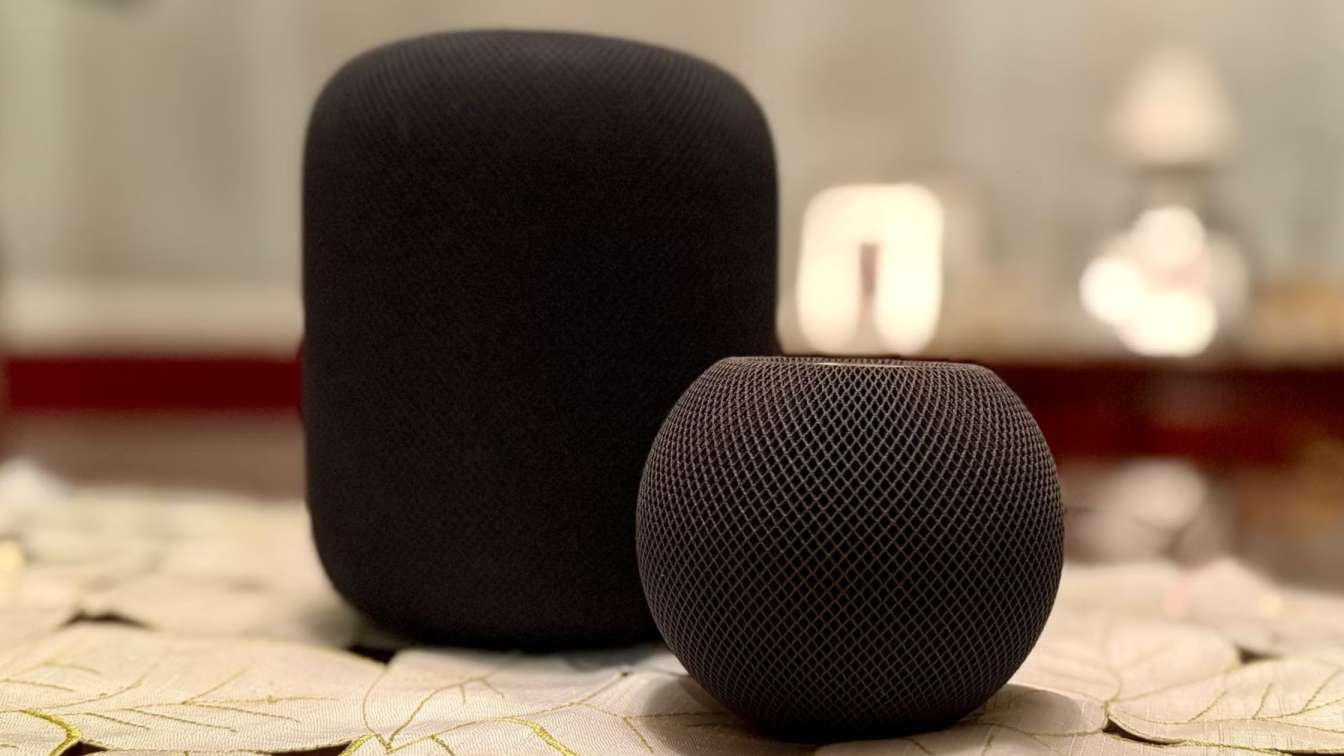
Many people make mistakes with the HomePod Mini for gaming. Here are things to avoid.
Do not try to use the HomePod Mini with a PlayStation or Xbox directly. It will not work. Those consoles do not speak AirPlay. You need extra boxes and wires. The sound delay becomes very big. You will be unhappy. Do not put the HomePod Mini inside a shelf or behind a book. It needs open space. The sound comes out from the bottom. If you cover the bottom, the sound gets stuck and becomes quiet and unclear. Do not use only one HomePod Mini for a big room. One small speaker cannot fill a large living room with clear sound. You will feel like the sound is far away. Use two speakers for big rooms. Do not expect the same sound as a gaming headset. A headset covers your ears. You hear every small detail. The HomePod Mini plays sound into the room. You will not hear tiny details like footsteps far away. It is a different experience.
How to Make the Delay Smaller?
- You cannot remove the delay completely. But you can make it smaller. Try these steps.
- First, use Apple TV. As I said before, Apple TV has a shorter delay than Mac or iPhone. If you play on a TV, get an Apple TV box.
- Second, put your wifi router close to the HomePod Mini. The closer they are, the faster the signal travels. Do not put them in different rooms.
- Third, do not use many devices on the same wifi when you play. If someone is watching a movie on another device, your game sound may slow down even more.
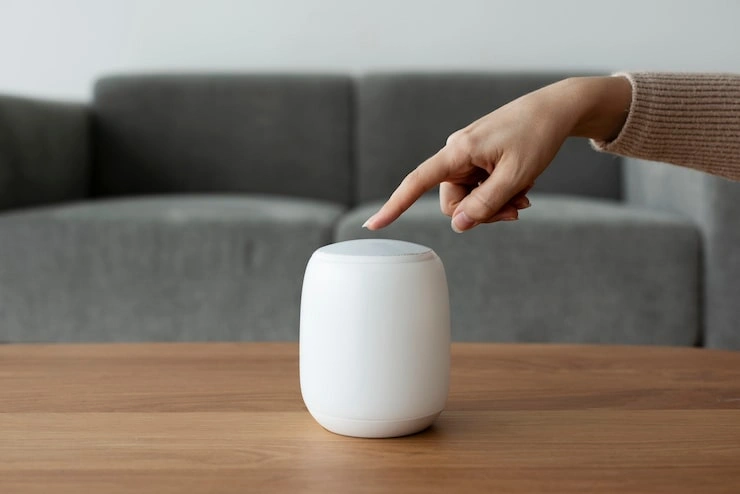
- Fourth, restart the HomePod Mini before you play. Hold your finger on the top of the speaker until the light turns red. Then let go and wait for it to start again. This clears small problems inside the speaker.
- These steps will not remove the delay. But they will make it less annoying.
Comparing One Speaker to Two Speakers
You might ask, is two speakers worth the money? Let me give you a clear answer.
One HomePod Mini gives you clear sound from one place. You can hear everything. But you cannot tell where sounds come from. Left, right, front, back, all sound the same. For many games, this is fine. Two HomePod Mini speakers give you left and right direction. You hear a bird on the left. You hear a river on the right. This helps you feel inside the game. It also fills the room with sound. If you play story games or adventure games, two speakers make the game feel alive. If you only play puzzle games on your phone, one speaker is enough. So think about your money. Two speakers cost more. But they sound much better for gaming.
You May Also Like: Tips to Optimize HomePod Sound Quality for Exceptional
Real User Experience from My Own Setup
I have used the HomePod Mini for gaming for six months. I play on a Mac Mini desk setup. My game is Mini Motorways. I also play Sneaky Sasquatch with my child. The delay is there. I cannot hide that. When I click a button, the sound comes a tiny bit late. But after a few minutes, my brain gets used to it. I stop noticing.
The sound quality is good for such a small speaker. Voices are clear. Music sounds nice. Explosions are not too loud or too soft. But I tried playing a fast racing game. That did not work well. Every time I turned a corner, the engine sound came late. It felt wrong. So I stopped playing fast games on this setup. Now I only use the HomePod Mini for slow games. For those games, it works great. The room looks clean. No wires. No big boxes. Just a small white speaker sitting on my desk.
Conclusion
The HomePod Mini is not a gaming speaker. It was made for music and Siri. But you can still use it for games if you know its limits. Here is the simple truth. Use the HomePod Mini for slow games. Use it with Apple devices only. Do not expect perfect timing. Put the speaker in front of you. If you have money, buy two speakers for left right sound. Do not use it for fast shooting games or racing games. Do not try to plug it into a PlayStation. Do not hide it inside a shelf. The best HomePod Mini gaming setup ideas are the simple ones. One speaker on a Mac desk. Two speakers next to a TV with Apple TV. These work. These are clean. These give you good sound without spending too much money.
Try the steps in this article. Start with one speaker. See how it feels. If you like it, add a second speaker later. If you do not like the delay, go back to headphones. No harm done. The goal is not to have perfect sound. The goal is to enjoy your game. And for many games, the HomePod Mini lets you enjoy just fine.