

We have all been there. You are cleaning up your music library, and you hit delete on a playlist. Then you realize your mistake. That playlist was your favorite for working out or driving. You had collected those songs for months or years. Now it is gone. You feel a sense of panic.
Do not worry. You can get it back. This guide will show you clear and simple ways to recover your lost playlists on Apple Music. We will cover methods for iPhone, iPad, Mac, and even Windows computers. Let us get your music back .
The Best and First Thing to Try
When you delete a playlist in Apple Music, the songs are not always gone forever. Apple keeps your music in iCloud if you have the service turned on. Most people use Apple Music with the Sync Library feature. This feature keeps your music the same on all your devices. If it is on, your playlists are stored in the cloud.
The easiest way to recover a playlist is to turn this feature off and on again. Think of it as a refresh button for your music .
Here is how to do it.
On iPhone or iPad
- Open the Settings app. It is the gray gear icon.
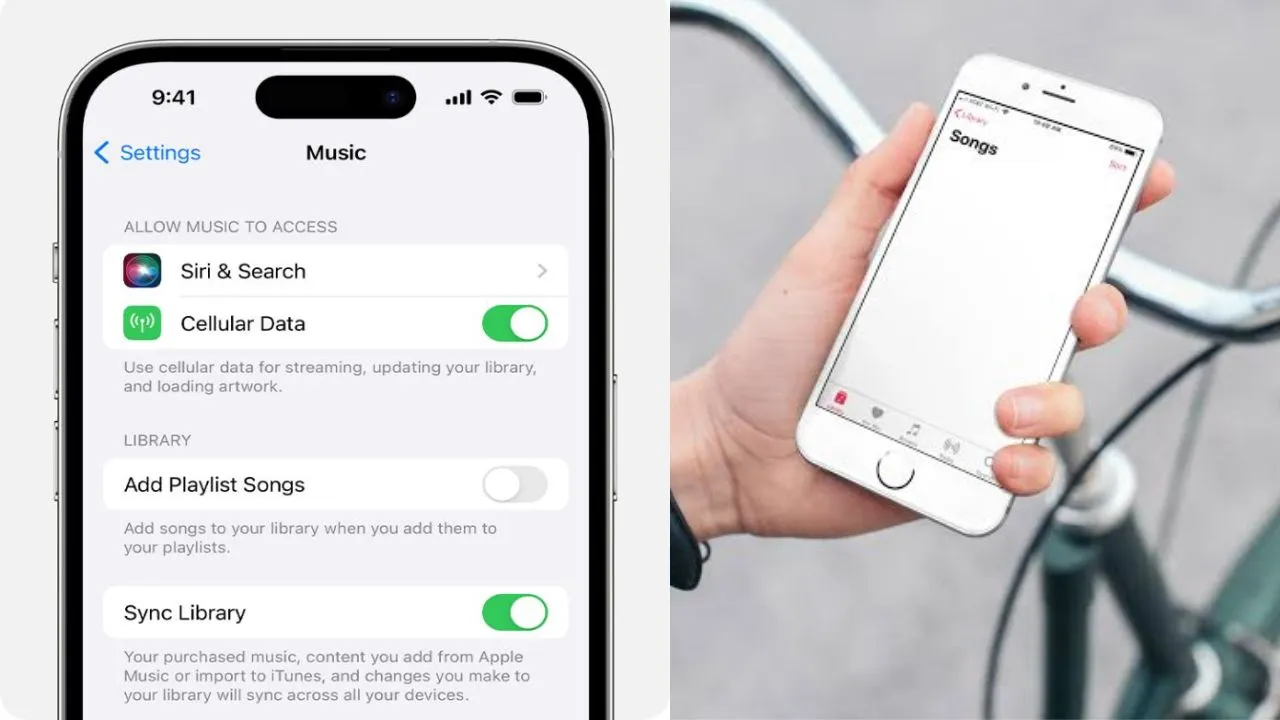
- Scroll down and tap on Music.
- Look for the option called Sync Library. It will have a switch next to it.
- Turn the switch off. Wait for a few seconds.
- Turn the switch back on. The switch should turn green .
Now, open the Apple Music app. Wait a moment for your library to reload. Your deleted playlist might appear again. This method is quick and works for many people .
On a Mac Computer
- Open the Music app on your Mac.
- Look at the top menu bar and click on Music. Then select Preferences or Settings from the drop-down menu.
- Click on the General tab at the top of the window.
- You will see a box for Sync Library. Uncheck the box.
- Wait a few seconds.
- Check the box again to turn it back on .
After this, your playlists will sync again. Your lost playlist may return.
On a Windows Computer
The process is similar but uses the iTunes app.
- Open iTunes on your computer.
- Click on the Edit menu at the top of the screen.
- From the menu, select Preferences.
- Click on the General tab.
- Look for the option called iCloud Music Library.
- Uncheck the box.
- Wait for a moment.
- Check the box again to turn it on .
After you do this, iTunes will sync your library from iCloud. Check to see if your playlist is back.
Read Also: How To Listen To Apple Music Without Internet
What is Sync Library?
It helps to understand what Sync Library does. This feature saves your music and playlists to iCloud. When you are signed in with your Apple ID, you can see your music on all devices. iPhone, iPad, Mac, and even a Windows computer with iTunes. It is the main reason why turning it off and on works .
This feature is only available if you have an Apple Music subscription or iTunes Match. When you enable it, all your playlists are stored in the cloud. When you delete a playlist, it is often a sync issue. The data is still on Apple's servers. Toggling the Sync Library switch forces your device to check the server again. It redownloads the list of your playlists .
A More Advanced Option
What if the first method does not work? There is another way. This method is for people who made a backup of their library before. You can export your library as an XML file. If you have this file, you can import it back into your music app.
This is a good habit to get into. It is like saving a copy of your favorite songs list. You can save it to a flash drive or a cloud folder. This protects your playlists for the future .
How to Export Your Library
If you want to protect your playlists from now on, follow these steps.
-
Open the Music app on your Mac or iTunes on Windows.
-
In the menu bar, click on File.
-
Hover your mouse over Library.
-
Select Export Library.
-
Choose a place to save the file, like your desktop or documents folder. The file will be saved in XML format.
Save this file somewhere safe. If you ever lose a playlist again, you can import this file. This will bring back the structure of your old library .
How to Import an Old Library
If you have an old XML file from a backup, you can restore it.
- Open the Music app or iTunes.
- Click on File in the menu bar.
- Hover over Library.
- Select Import Playlist.
- Find your saved XML file and select it.
The app will read the file. It will create playlists based on the information in the file. The songs must be available in Apple Music for them to play. If a song is not in the Apple Music catalog, it will not appear in the playlist .
Understanding XML Files
An XML file sounds technical. But it is simple to understand. It is a text file that contains a list of all your music. It includes the song names, artists, and album titles. It also contains your playlist structure.
Think of it like a shopping list. The list has the names of all the items you want. It does not contain the actual items. It only tells you what to buy. An XML file is the same. It has the names of your songs. It tells the Music app what to put in your playlists .
If you delete a song from your computer, the XML file will still have the name. But the song will not play because it is gone. When you import the file, the app creates the playlist again. It will then try to find the songs in the Apple Music catalog .
The Manual Recovery Process
There is a detailed method for people who want to rebuild their playlists from an XML file. This takes more time. It is for people who are very careful about their data.
You can open the XML file with a text editor. You can also open it with a program like Excel. The file shows the names of the songs and artists. You can copy the names of the songs one by one. Then you can search for them in Apple Music. You can create a new playlist and add each song back .
This is the slowest way to recover a playlist. But it works if you have no other choice. It also works if you have a file from a very old backup.
You May Also Like: Apple Music for Android High-Resolution Audio
Using a Third-Party App
There are apps in the App Store that can help you. These apps back up your playlists. They give you more control over your music library. Some apps can automatically save your playlists for you.
One example is an app called Hezel. This app can back up your Apple Music library. It saves all your songs and playlists. If you lose a playlist, you can open the app and restore it with one tap. It is a safety net for your music .
These apps are useful if you often change your playlists. They can back up your music even when you are not thinking about it. Some can even export your data as a CSV file. This is another type of text file that is easy to read .
Preventing Future Problems
The best way to recover a playlist is to not lose it in the first place. You can take simple steps to protect your music.
First, always make sure Sync Library is turned on. This keeps your music in the cloud. If your phone breaks, your music is safe .
Second, get into the habit of exporting your library. Do this once a month. Save the XML file to your computer. You can also save it to iCloud Drive or Google Drive. This is your safety copy .
Third, consider using a backup app. There are many good ones available. They take the work out of saving your playlists. They run in the background and keep your data safe .
What Not to Do?
Do not panic and delete your music app. This will not help. It might make things worse. Do not try to create a new Apple ID. Your music is tied to your current Apple ID. Logging in and out of your Apple ID can sometimes help. But do not create a new one.
Also, do not immediately create a new playlist with the same name. Wait until you try the sync method. If you create a new one, it might confuse the system. Give the refresh method a chance to work first.
Final Thoughts
Losing a playlist on Apple Music is frustrating. But you usually have a way to get it back. The easiest method works most of the time. Just toggle the Sync Library button on and off. This method is safe and quick. It is always the first thing you should try.
If that does not work, you have more options. If you have a backup, you can import it. You can use an app to restore your data. In very rare cases, you might have to rebuild it by hand.
Start protecting your playlists today. Turn on Sync Library. Export your library to a file. You will be glad you did. It only takes a few minutes. It can save you hours of frustration in the future. Now go and get your music back.