
I have set up a few HomePods in my time. Some went smooth. Some did not. I learned a lot from the ones that did not. Let me walk you through what homepod smart home setup tips.
Start With Your Phone
Your phone needs to be ready first. Go check your software version. Open settings. Tap general. Tap about. Look at the version number. If it is below 16.3, you need to update. Bluetooth must be on. Go to settings. Tap bluetooth. Flip the switch. Your Wi-Fi should be on too. Not a hotspot. Not cellular. Your home network. One more thing. Your Apple ID. Make sure two-factor is on. Go to settings. Tap your name. Tap sign in and security. Make sure it says on.
Read Also: Homepod Mini Gaming Setup Ideas
Plug It In
- Take the HomePod out of the box. Plug it in. Wait a few seconds.
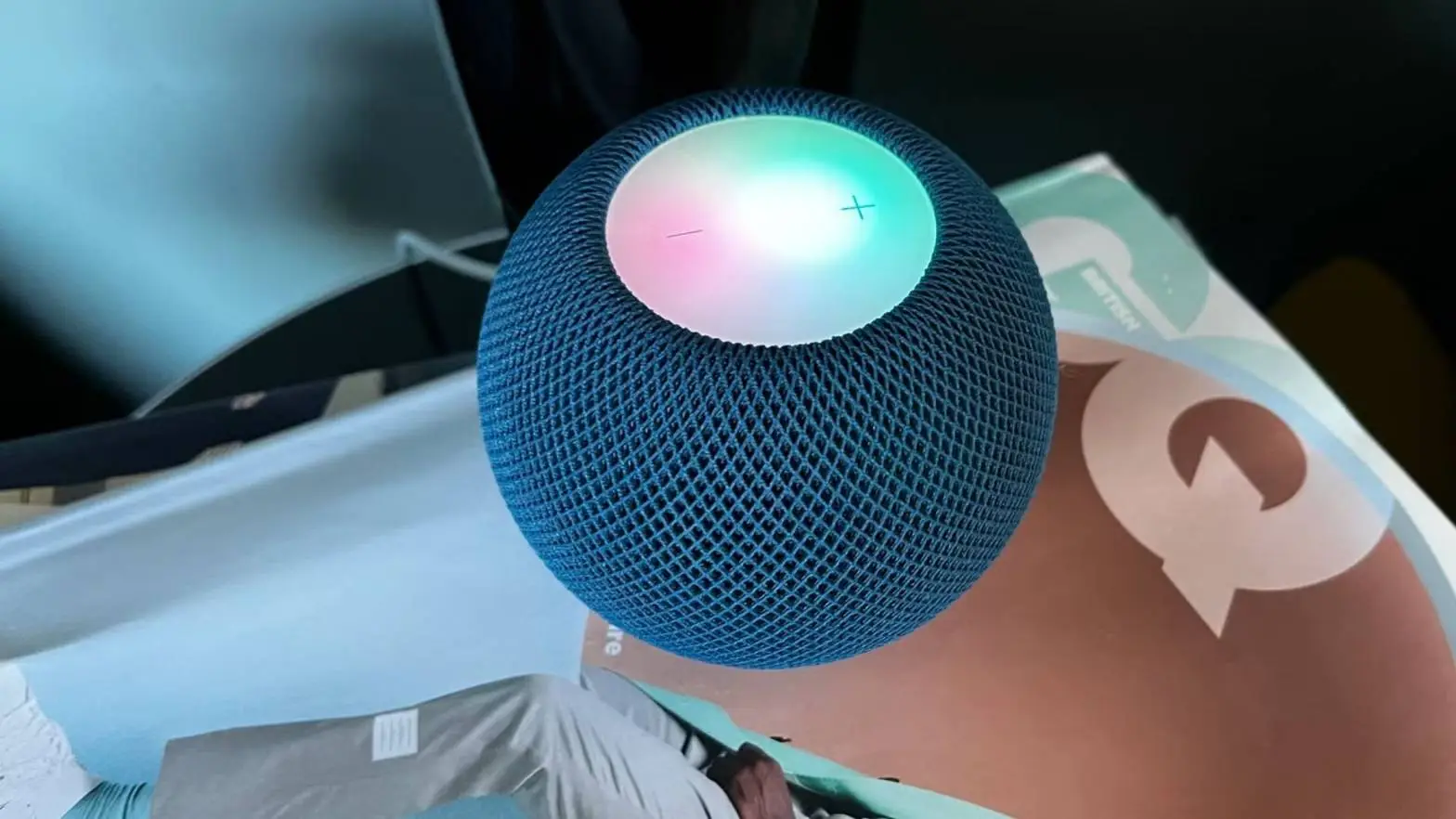
- You will see a white light. It pulses. You will hear a sound. That means it is awake and waiting for you.
Get the Screen to Show Up
Hold your phone near the HomePod. Really close. Like a few inches away. A screen should pop up. Tap set up. Follow what it says. If nothing shows up. Do not panic. This happens a lot. Open the Home app. It looks like a little house. Tap the plus sign. Tap add accessory. Tap more options. You should see your HomePod in the list. Tap it. If you still cannot find it. Reset the HomePod. Press the top and hold it. Keep holding for about fifteen seconds. The light turns red. You hear three beeps. Let go. Try again.
Wi-Fi Problems
This is where most people get stuck. Your HomePod wants the same network as your phone. If you get a message that says Wi-Fi incompatible. Here is what you do. Check your phone. Go to settings. Tap Wi-Fi. See what network you are on. If it is the right one. Forget it. Then reconnect. Go back to the Home app. Try again. If you have a new router. The kind with 6 GHz. There is a rule. All the bands must have the same name. 2.4 GHz. 5 GHz. 6 GHz. All the same name. If they are different. Your HomePod will not connect.
I always use 2.4 GHz for smart home stuff. It reaches further. It works with almost everything.
The Home Hub Thing
Your HomePod does more than play songs. It acts like a hub. That means when you are not home. You can still control your lights and locks. It also runs automations by itself. The good part. It does this automatically. You do not turn anything on. It just happens. But you must be signed into iCloud. With the same Apple ID you use for Home. If you have more than one HomePod. Or an Apple TV. They can all be hubs. The system picks the main one. You can check which one is active. Open the Home app. Tap the three dots. Tap home settings. Tap home hubs and bridges. You will see the list.
Adding Devices
Now the fun part. Adding your lights and other things. Open the Home app. Tap the plus. Tap add accessory. Your phone will ask you to scan a code. Or hold it near the device. Newer devices use Matter. They have QR codes. Scan them with your phone. Matter works best with Thread. Thread is a network that helps devices talk fast. HomePod mini has Thread. The new HomePod has Thread. New Apple TV 4K has Thread. Older ones do not. When you add a device. It asks what room it is in. Pick the right room. This is important. When you say turn off the living room lights. Siri needs to know which room that is.
Making Scenes
- Scenes are great. They let you control many things at once.
- Instead of turning off each light. You make a scene. You name it. Good Night. Leaving Home. Movie Time.
- Tap the plus. Tap add scene. The app gives you ideas. Pick one. Change it how you like. Or make your own from scratch.
- I have a Good Morning scene. It turns on bedroom lights. It plays music on the HomePod. It opens the blinds. All with one tap.
- Test it first. Tap test this scene. Make sure it works before you save.
Automations
- These run by themselves. You do not have to do anything.
- You set a trigger. A time of day. Someone arriving home. A sensor going off.
- Tap the plus. Tap add automation.
- Time of day. Pick a time. Pick the days. The lights turn on at sunset. Every day.
- People arrive or leave. Uses your phone location. When you come home. The lights turn on. Music plays. When you leave. Everything turns off.
- Accessory controlled. A door opens. A light turns on. A sensor moves. The HomePod plays a sound.
- The HomePod runs all this. Even when you are gone. !
Problems and Fixes
The setup screen will not show up. Lock your phone. Unlock it. Bring it closer. Still nothing. Open the Home app. Add it manually. Still nothing. Reset the HomePod.
Wi-Fi incompatible. Check your phone is on Wi-Fi. Not cellular. Forget the network. Reconnect. Try again. Check your router bands. Same name for everything.
Orange blinking light. HomePod mini only. Your charger is too weak. You need a 20W charger. With 9V and 2.22A. Phone chargers are too small. Get the right one.
App stuck loading. Wait. If it takes over thirty minutes. The app will offer to reset your home. Only do this as a last step. You will have to add everything again.
Do not use hotel or school Wi-Fi. The kind where you log in on a webpage. Your HomePod can connect. But you cannot use it in stereo. Or with homepod smart home setup tips.
You May Also Like: Using Siri on HomePod to Control Smart Lights: Complete Guide 2025
A Few More Things
- Place your HomePod in the right spot. Not in a corner. Not behind things. Give it room. The sound and Siri work better.
- Keep your phone close when setting up. It needs to talk to the HomePod directly.
- If you have more than one HomePod. Set them up one at a time. Do not rush.
- Update your HomePod after setup. Open the Home app. Tap the HomePod. Scroll down. Tap software update. Install if there is one.
- Name your HomePod something easy. Like Living Room or Kitchen. Makes it easier to control.
Wrapping Up
That is all of it. Nothing complicated. Check your phone first. Plug it in. Hold your phone close. Follow the screen. Fix Wi-Fi if needed. Add your devices. Make scenes. Set up automations. Most problems are Wi-Fi. Check that first every time. Take your time. Read each part. Do not skip ahead. Your HomePod will work great. Your smart home will feel smart. And you will not have to call anyone for help.