

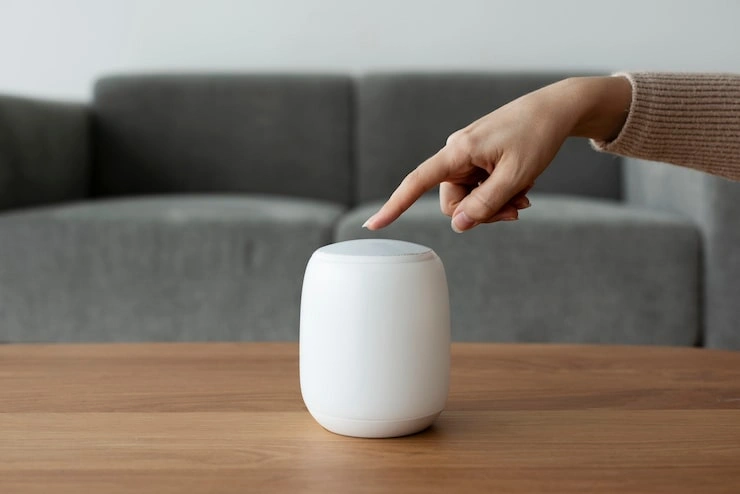
Pairing two HomePods together is one of the best things you can do with these speakers. A single HomePod already sounds good, but two of them working as a team create a real stereo experience. You get a left channel and a right channel. Music feels wider. Movies feel more intense. The sound fills the room in a way that one speaker simply cannot match.
This guide walks you through the entire process. You will learn what you need before you start, the exact steps to pair them in the Home app, how to fix common problems, and how to undo the pair if you ever want to. Everything is written in plain language so you can follow along without any confusion.
What You Need Before You Start?
Before you open the Home app, there are a few things you need to check. Getting these right first will save you time and frustration later.
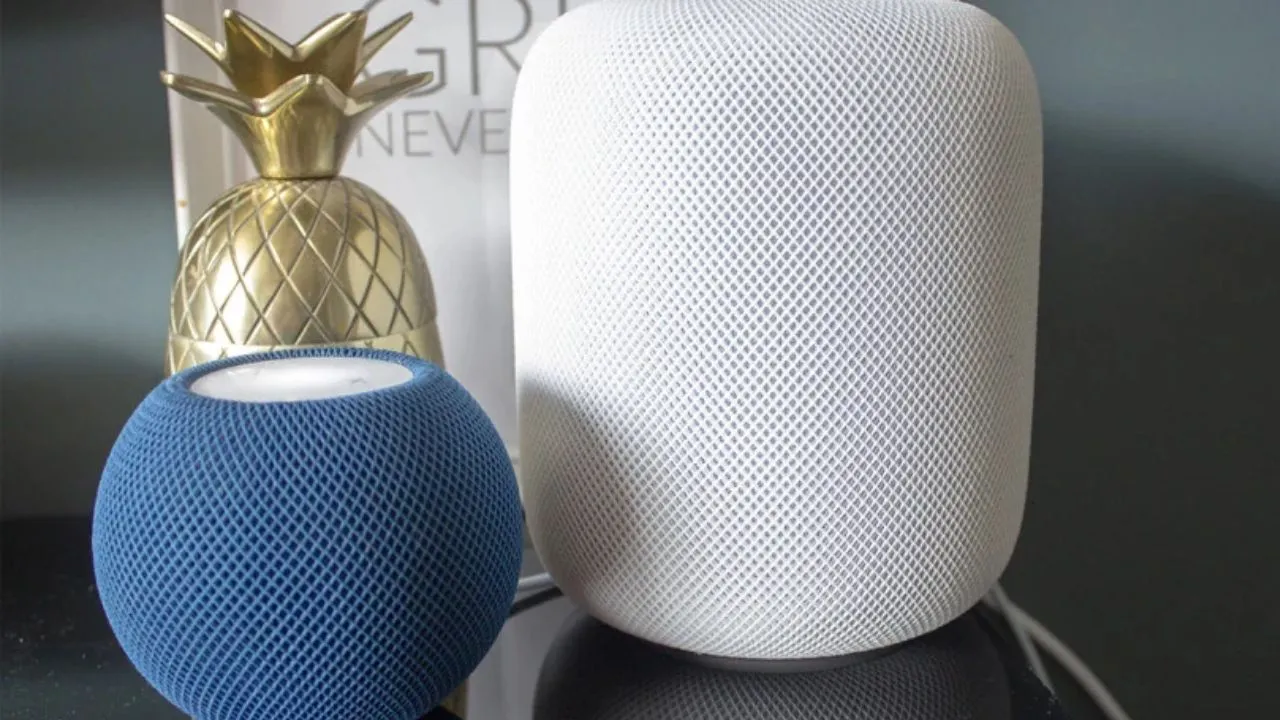
You need two HomePods of the same model. This is the most important rule. You can pair two HomePod minis together. You can pair two first-generation HomePods together. You can pair two second-generation HomePods together . What you cannot do is mix different models. A HomePod mini will not pair with a full-size HomePod. A first-generation HomePod will not pair with a second-generation HomePod. Apple designed the stereo feature around identical hardware, and the app will block you if the models do not match.
Both speakers must be in the same room in the Home app. The Home app organizes your smart home devices by room. If one HomePod is listed in the Living Room and the other is listed in the Bedroom, the pairing option will not appear. You need to assign both speakers to the same room before you try to pair them . You can change a speaker's room assignment in the Home app settings if you need to.
Your iPhone or iPad needs to be connected to the same Wi-Fi network as the HomePods. The Home app talks to your speakers over your home network. If your phone is on a different network, or if your HomePods are on a guest network, the setup will not work. Make sure everything is on the same main Wi-Fi network.
Your devices should be updated. Apple regularly releases software updates for HomePod and for the Home app. Running the latest version on both your phone and your speakers reduces the chance of bugs during setup. You can check for HomePod updates in the Home app settings.
Read Also: How To Fix HomePod Handoff Not Working
The Main Steps to Pair Your HomePods
Once your two HomePods are set up, assigned to the same room, and connected to the same network, the pairing process itself takes less than a minute. Here is exactly what to do.
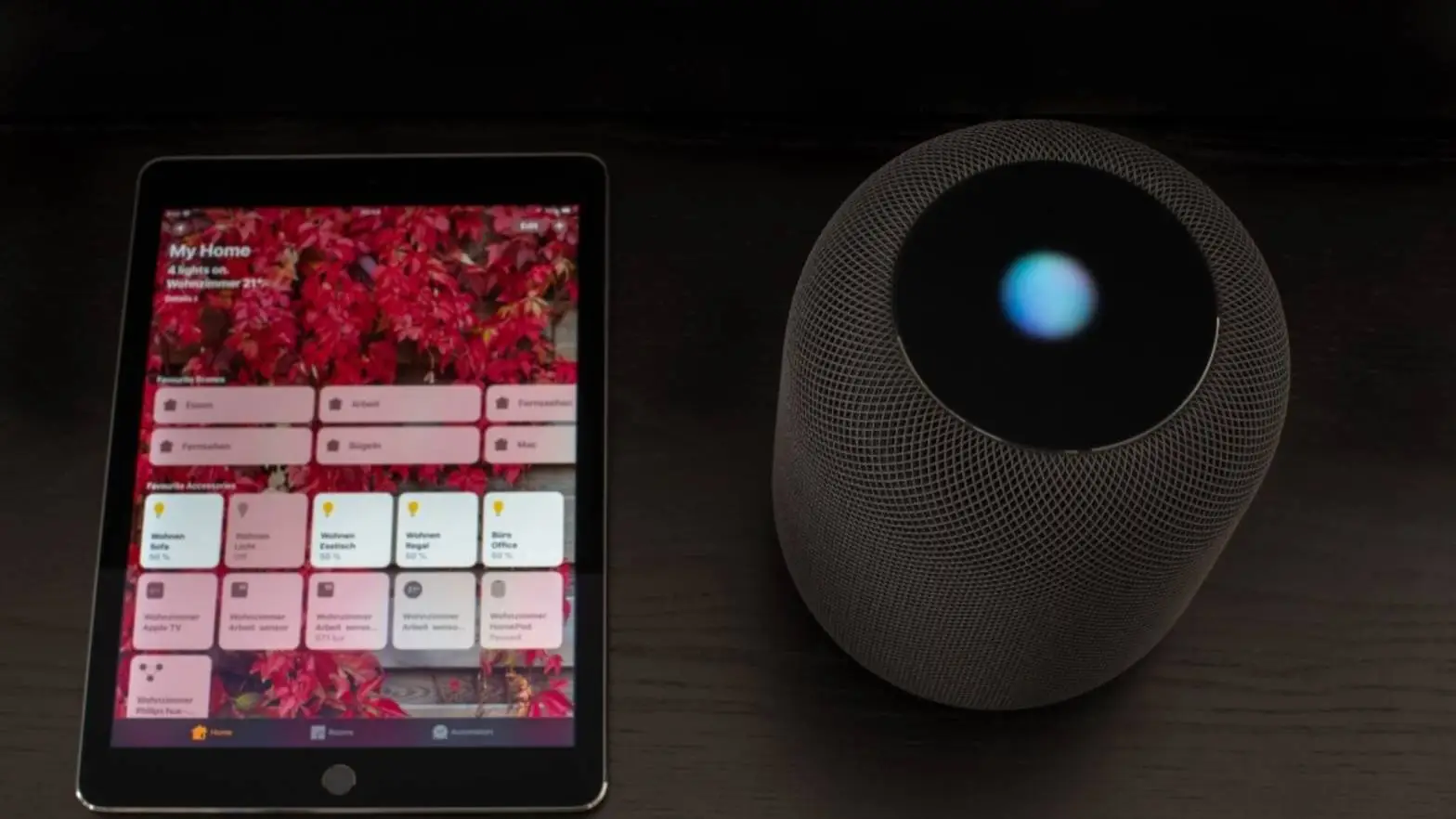
Open the Home app on your iPhone or iPad. The app icon looks like a house, and it comes pre-installed on most Apple devices. If you have deleted it, you can download it again from the App Store for free.
On the main screen, you will see tiles for all your smart home accessories. Find the tile for one of your HomePods and tap it. It does not matter which one you choose first. The app treats them as a set once you begin.
When the HomePod control screen opens, look for the settings button. It looks like a gear icon, usually in the top right corner or near the bottom of the screen depending on your version of the app. Tap that gear to open the speaker's settings.
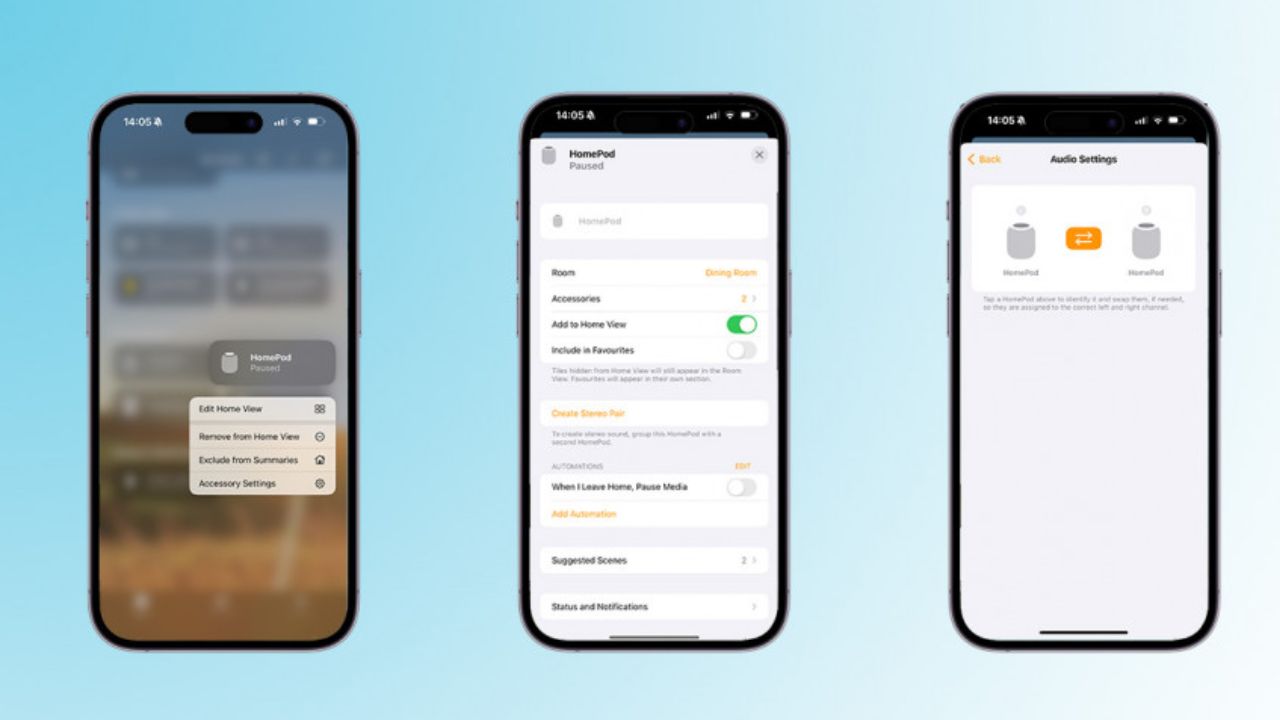
Scroll through the settings until you find the option labeled Create Stereo Pair. Tap it. The app will now show you the other HomePods in the same room that are eligible to be paired. Select the second HomePod from the list.
The app will confirm your choice and ask you to follow a few on-screen instructions. This usually involves confirming which speaker should be the left channel and which should be the right. You can swap these later if you change your mind, so do not worry too much about getting it perfect on the first try. Once you confirm, the app will link the two speakers together .
You will know it worked when the Home app shows the two HomePods as a single combined tile. The individual speakers will also show a brief visual confirmation. From that point forward, when you play music or a movie, the left speaker handles the left sounds and the right speaker handles the right sounds. The result is a much wider, more detailed soundstage than either speaker could produce alone.
What Changes After You Pair Them?
Pairing two HomePods does more than just split the audio into two channels. A few behaviors change once the pair is active, and knowing about them ahead of time prevents confusion.
Only one HomePod responds to Siri. When you say "Hey Siri" to your paired HomePods, only one of them will answer. This is normal. Apple designed the pair to work as a single unit for voice requests . You do not need to worry that one speaker is broken or disconnected. The pair decides between themselves which one is better positioned to hear you, and that one handles the request.
Alarms and phone calls go through one speaker. If you use your HomePod as a speakerphone or set alarms on it, those functions route through a single speaker in the pair. This keeps things simple. You will not have an alarm going off on both sides of the room at slightly different times.
You control the pair as one device. In the Home app, you will see one combined tile for the stereo pair rather than two separate tiles. Volume controls, playback controls, and settings all apply to the pair as a whole. If you need to adjust something on just one speaker, you can still access individual speaker details from the pair's settings menu.
You can swap left and right channels. Maybe you placed the speakers in a way that makes more sense with the channels reversed. Or perhaps you moved them and want to flip which side is which. You can do this in the Home app by opening the paired speaker settings and looking for the audio settings section . The app walks you through the swap.
Common Problems and How to Fix Them
The pairing process is usually smooth, but sometimes things do not go as planned. Here are the most common issues people run into and what to do about them.
The "Create Stereo Pair" option is missing. This almost always means one of the two HomePods is not assigned to the same room as the other. Go back to the Home app main screen and check the room assignment for each speaker. If they are in different rooms, move one of them. You can do this in the speaker's settings by changing its room. Once both are in the same room, the option will appear.
The app says the speakers are not compatible. This means you are trying to pair two different models. Double-check that both speakers are the same kind. Two HomePod minis are fine. Two second-generation HomePods are fine. A mini and a full-size HomePod are not. There is no workaround for this. Apple's stereo feature requires identical hardware .
The second HomePod does not appear in the list when you tap Create Stereo Pair. Make sure the second HomePod is powered on and connected to the same Wi-Fi network. If it is unplugged or on a different network, the app cannot see it. Give it a minute to reconnect, then try again. If it still does not show up, try restarting the second HomePod by unplugging it and plugging it back in.
The pairing fails partway through. Software hiccups happen. The first thing to try is closing the Home app completely and opening it again. If that does not work, restart both HomePods and your iPhone or iPad. Then try the pairing process again. In most cases, a simple restart clears the problem.
The speakers are paired but the sound seems off. Check the left and right channel assignment in the paired speaker's settings. If the channels are backwards, the sound will feel inverted. You can swap them with a few taps. Also make sure the speakers are physically positioned with some space between them. Placing them too close together reduces the stereo effect. Apple suggests a few feet of separation for the best result.
You May Also Like: HomePod Mini Humidity Sensor Not Working
How to Unpair Your HomePods?
There are several reasons you might want to separate your HomePods. Maybe you are moving one to a different room. Maybe you want to sell one. Maybe you just prefer using them as individual speakers. Whatever the reason, unpairing is quick and easy.
Open the Home app and find the combined tile for your paired HomePods. Tap it to open the pair's control screen. Tap the settings gear icon. Scroll down through the settings until you see the option labeled Ungroup Accessories . Tap it. The app will confirm that you want to separate the speakers. Once you confirm, the two HomePods will go back to being individual devices in the Home app. You can then move them to different rooms, use them separately, or pair them with different speakers in the future.
After unpairing, each HomePod returns to its normal standalone behavior. Both will respond to Siri again. Both will play alarms. All the individual features you had before the pair are restored.
A Few Extra Tips for the Best Experience
Getting the pairing done is the main goal, but a little extra care can make the experience much better.
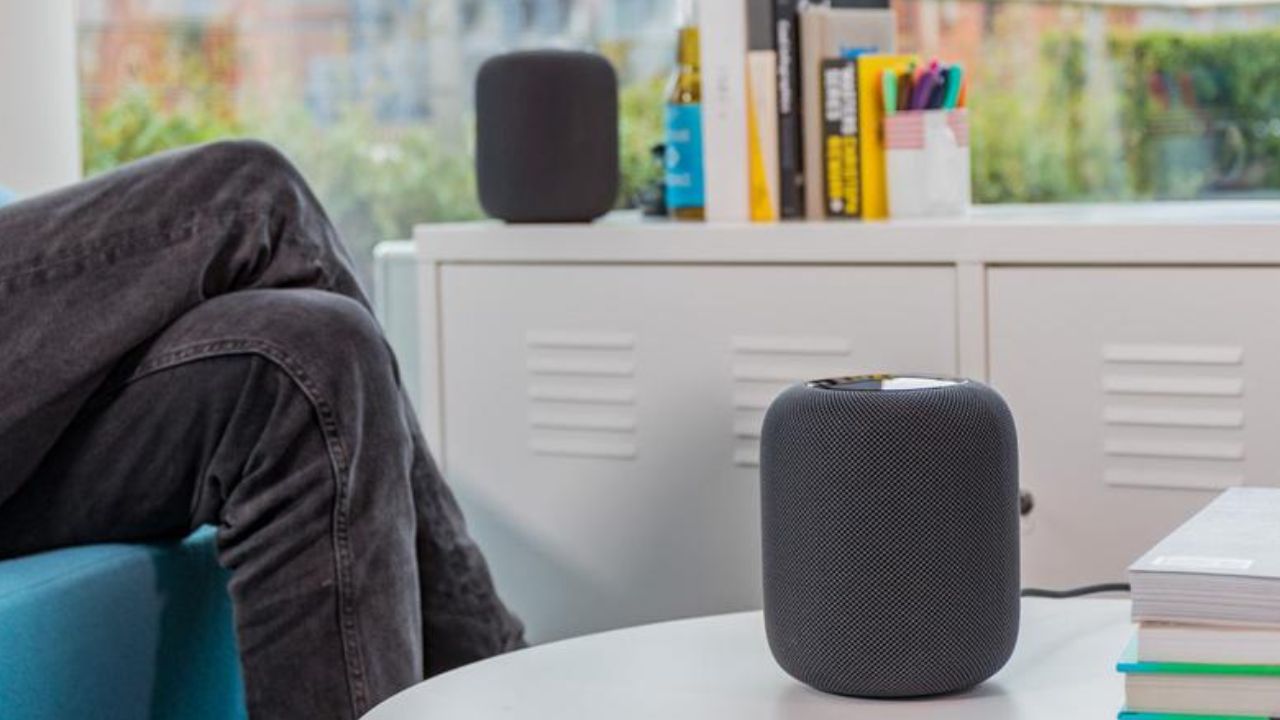
Place the speakers with some distance between them. A stereo pair works by creating a left and right channel. If the two speakers are sitting right next to each other, your ears will not perceive much of a difference. Try placing them a few feet apart, roughly at ear level when you are sitting in your usual listening spot. This simple adjustment makes a big difference in how wide the sound feels .
Use the pair for movies as well as music. A stereo pair of HomePods is excellent for music, but do not overlook video. If you have an Apple TV, you can set the paired HomePods as the default audio output. The left and right channels will handle the movie's soundtrack properly, and dialogue will sound clearer because it is anchored to a center position between the two speakers. Action scenes benefit from the wider spread of sound effects.
Keep both speakers updated. When Apple releases a software update for HomePod, make sure both speakers in the pair get it. Sometimes updates roll out gradually. If one speaker is on an older version than the other, you might run into small bugs or connection issues. You can check for updates in the Home app settings for each speaker.
You can add more HomePods to other rooms later. The stereo pair you create in your living room does not stop you from having a single HomePod in the kitchen or a pair in the bedroom. The Home app lets you organize your speakers by room, and AirPlay lets you send music to multiple rooms at once if you want the same song playing throughout your home. The stereo pair is just one part of a larger system you can build over time.
Final Thoughts
Pairing two HomePods together is a straightforward process once you know the requirements. The key is having two identical models, putting them in the same room in the Home app, and then using the Create Stereo Pair option. The whole thing takes under a minute from start to finish. The payoff is a listening experience that is genuinely better than what a single speaker can offer. Music gains depth, movies gain impact, and your room fills with sound in a way that feels natural and immersive. Whether you are setting up a pair for the first time or troubleshooting an existing setup, the steps in this guide should get you where you need to go.