
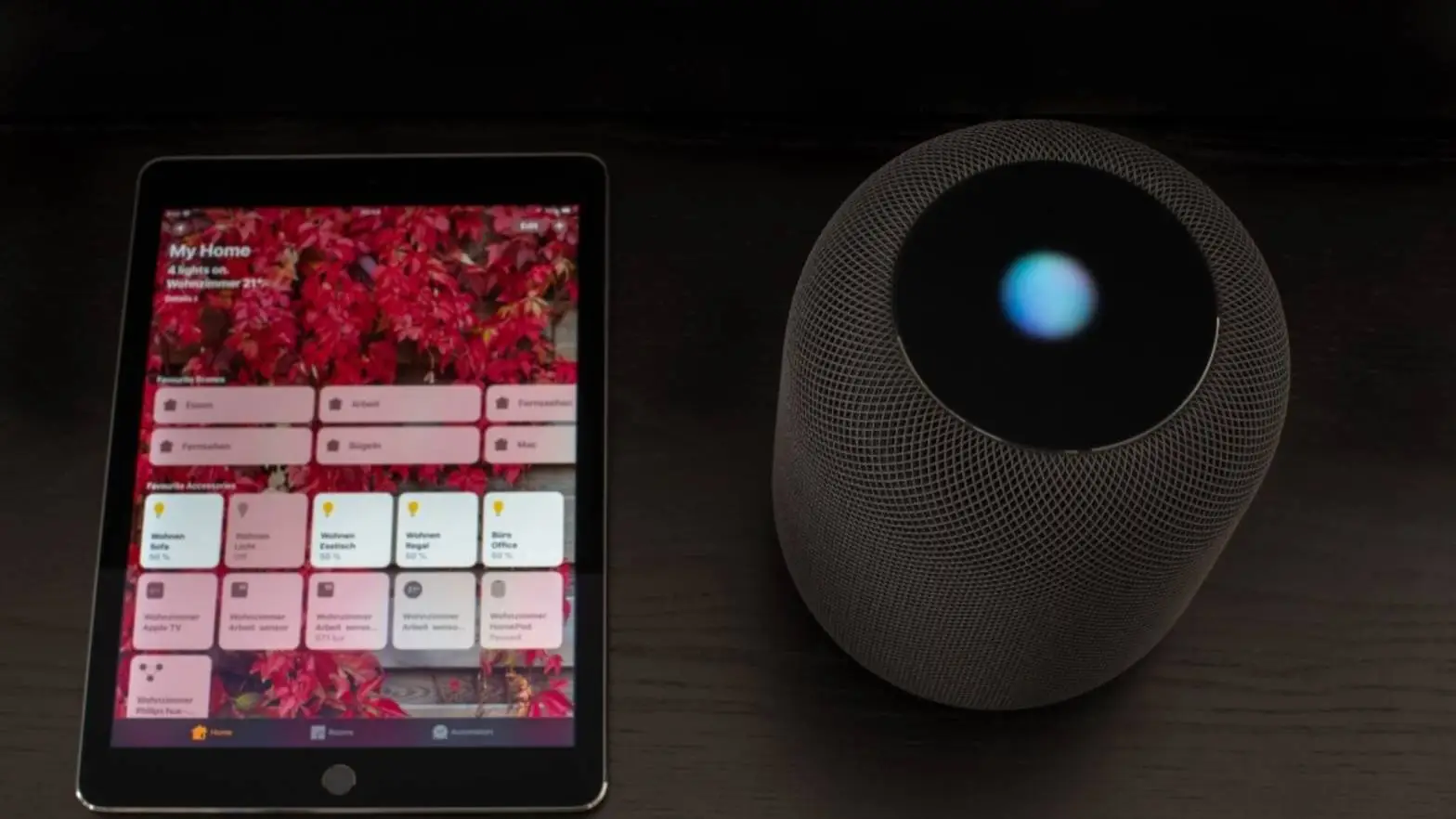
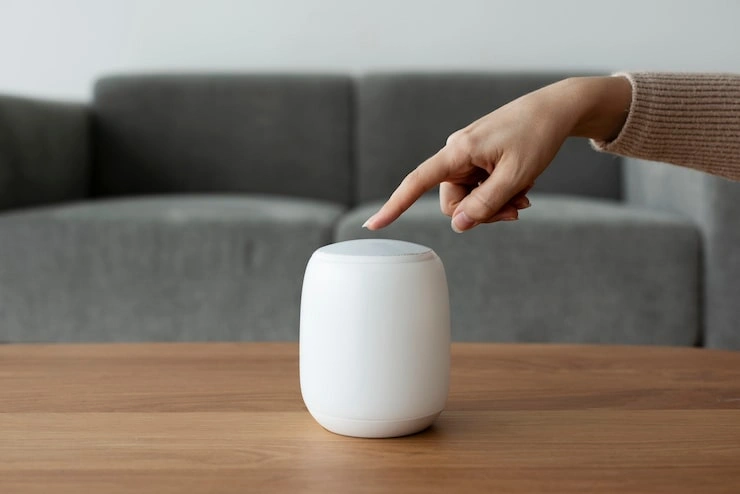
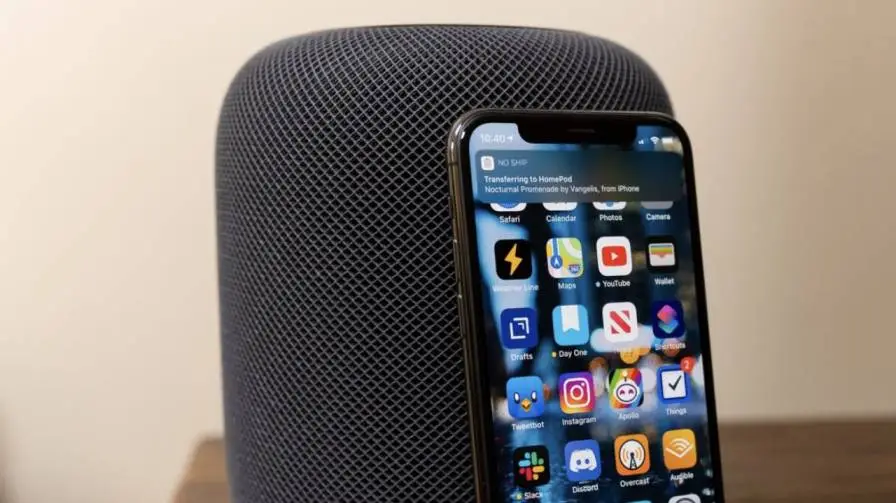
You pick up your iPhone, walk over to your HomePod, and bring the phone close to the top. Nothing happens. No prompt, no transfer, no music. Just silence.
It’s frustrating when a feature that usually feels like magic simply stops working. The good news is that HomePod Handoff problems almost always come down to a handful of specific settings or conditions. None of them require a trip to the Apple Store or a call to support.
This guide walks you through every fix that actually works, in the order you should try them. By the end, you’ll know exactly what’s blocking the handoff and how to get audio moving between your iPhone and how to fix homepod handoff not working.
What Handoff Is Supposed to Do?
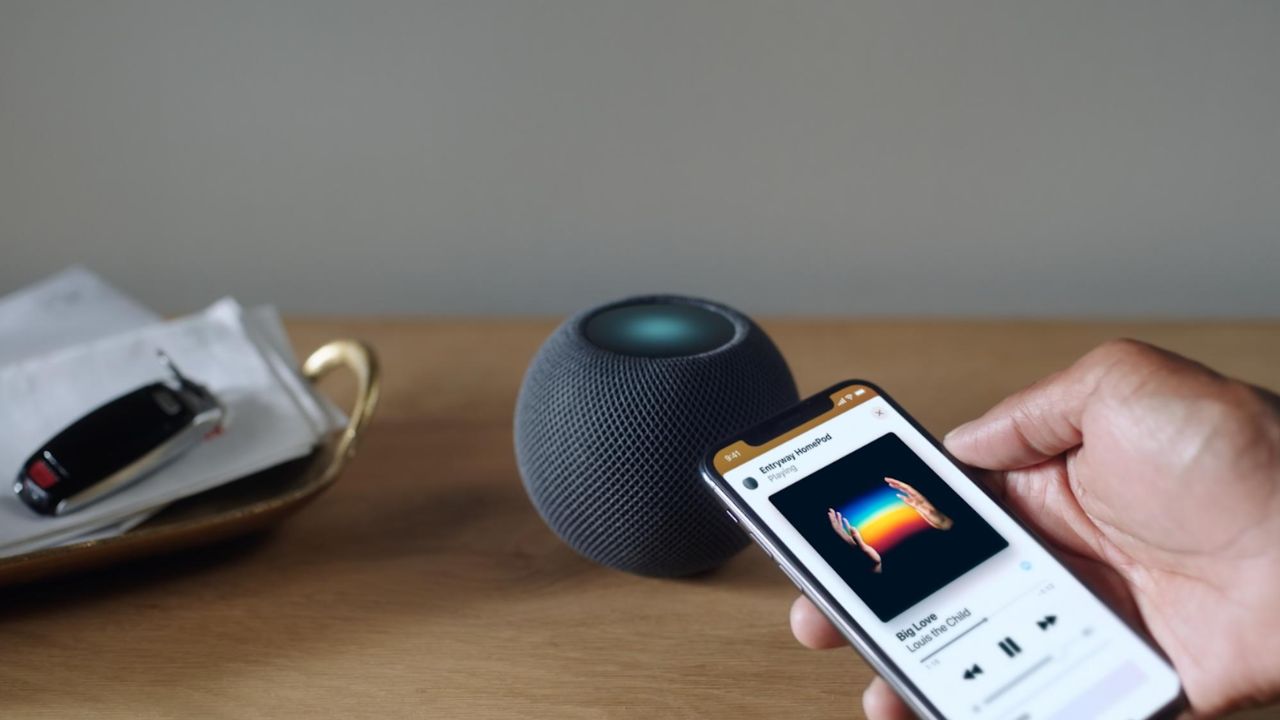
Handoff is the feature that lets you move whatever is playing on your iPhone over to your HomePod just by bringing the devices close together. You don’t need to open an app or tap a button. The phone senses the HomePod nearby, and the audio jumps across.
It works in both directions, too. If the HomePod is playing something and you need to leave the room, you can bring your iPhone close and pull the audio back to the phone so you can keep listening with headphones.
For this to happen, your iPhone and HomePod rely on a few technologies working quietly behind the scenes. Bluetooth helps them detect that they’re near each other. Wi-Fi handles the actual transfer. Your Apple ID confirms that both devices belong to the same person or household.
When one of those pieces is missing, Handoff stops working. That’s usually the whole story.
Read Also: HomePod Mini Humidity Sensor Not Working
Start With the Settings That Control Handoff
Before you assume something is broken, check the settings that tell your iPhone whether Handoff is even allowed to happen. These are the most common culprits, and they’re the easiest to overlook.
Open the Settings app on your iPhone. Tap General. Then tap AirPlay & Continuity.
Look for the option labeled Transfer to HomePod. If it’s turned off, that single toggle can prevent Handoff from working entirely. Turn it on. While you’re on this screen, make sure the main Handoff toggle is also switched on if it appears separately.
It sounds almost too simple, but this is the first thing to verify. Many people toggle Handoff off during troubleshooting for other features and forget to turn it back on.
Confirm Bluetooth and Wi-Fi Are Both On
Handoff depends on two wireless connections working together. If either one is off, the feature won’t trigger.
Pull down Control Center on your iPhone and check that both the Bluetooth icon and the Wi-Fi icon are lit up and active. Don’t rely on them appearing in the menu bar without checking. Sometimes they can look active while actually being in a limited state.
Bluetooth is what lets your iPhone sense the HomePod’s presence when you bring it close. Without it, the phone has no idea the HomePod is right there. Wi-Fi carries the audio once the transfer begins.
If either is off, turn it on and try the handoff again. This alone fixes the problem for a surprising number of people.
Make Sure Both Devices Are on the Same Wi-Fi Network
This is where things get a little trickier, because “same network” isn’t always as simple as it sounds.
Your iPhone and your HomePod need to be connected to the exact same Wi-Fi network. Not just similar names, and not one on a guest network while the other is on the main one.
Open the Home app on your iPhone. Tap your HomePod. Then tap the Settings button. Scroll down to the Wi-Fi Network section. You’ll see the name of the network your HomePod is using.
Now check your iPhone. Go to Settings, then Wi-Fi. Compare the network names. They should match exactly.
If your HomePod is on a different network, tap the Wi-Fi Network option in the Home app and move it to the same one your iPhone uses. The Home app usually makes this a one-tap process.
One more thing to watch for: if you use a mesh Wi-Fi system, some routers split your network into separate 2.4 GHz and 5 GHz bands with different names. If your iPhone and HomePod end up on different bands, Handoff may not work even though they’re technically on the “same” network. Check your router settings if this applies to you.
Bring the iPhone Closer Than You Think
Proximity is the trigger for Handoff. The iPhone needs to be close enough to the HomePod for Bluetooth to sense it clearly.
“Close” here means really close. Hold the top of your iPhone within an inch or two of the top of the HomePod. Don’t just wave it in the general vicinity. The sensors need to nearly touch.
If you have a thick case on your iPhone, especially one with metal in it, that can interfere with the proximity detection. Try removing the case and testing again.
Also make sure you’re holding the phone near the top of the HomePod, not the side or bottom. The detection area is specifically at the top surface.
Give it a few seconds. The transfer isn’t always instant. Hold the phone there and wait for the prompt or the haptic feedback to confirm the handoff is happening.
Restart Both Devices
Sometimes the software gets stuck in a state where Handoff simply stops responding. A fresh start clears out those temporary glitches.
Restart your iPhone normally. Then unplug your HomePod from power, wait about ten seconds, and plug it back in.
Let the HomePod boot up completely. You’ll know it’s ready when the light on top settles into its usual state and Siri responds if you speak to it.
Once both devices are back on and connected to Wi-Fi, try the handoff again. This basic step resolves a lot of unexplained connection problems because it forces both devices to rebuild their network connections from scratch.
Check That Both Devices Use the Same Apple ID
Handoff is designed for devices that belong to the same person or the same household. If your HomePod is signed into a different Apple ID than your iPhone, the transfer request won’t be authorized.
Open the Home app and tap your HomePod. Go to its settings and look for the account information. It should match the Apple ID you use on your iPhone.
If someone else in your home set up the HomePod with their account, that can cause Handoff to behave unpredictably. The HomePod needs to recognize your iPhone as belonging to an authorized user.
You can also check who is allowed to control audio on the HomePod. In the Home app, go to your HomePod settings and look for the option about who can access the speaker. Make sure it’s set to allow people on the same network or everyone in the home, depending on your preference.
Update Software on Both Devices
Apple regularly releases updates that fix bugs affecting features like Handoff. If your iPhone or HomePod is running older software, a known issue might be the reason the transfer keeps failing.
To update your iPhone, go to Settings, then General, then Software Update. Install anything that’s how to fix homepod handoff not working.
To update your HomePod, open the Home app, tap your HomePod, tap Settings, and look for a software update option. If an update is pending, let it install. The HomePod may take a few minutes to restart after updating.
Make sure both devices are updated to the latest versions available. A mismatch in software versions can sometimes cause compatibility problems with handoff features.
You May Also Like: Apple HomePod Mini: The Ultimate 2025 Smart Speaker Guide
Try Toggling Airplane Mode
This is a quick trick that resets the wireless radios on your iPhone without a full restart.
Open Control Center and tap the Airplane Mode icon to turn it on. Wait about fifteen seconds. Then tap it again to turn it off.
When Airplane Mode turns off, your iPhone reconnects to Wi-Fi and Bluetooth fresh. This clears small connection errors that can prevent Handoff from working even when all your settings look correct.
After the radios reconnect, wait a moment for Wi-Fi to fully come back, then try bringing your phone close to the HomePod again.
If Nothing Else Works, Use AirPlay Instead
Sometimes Handoff just refuses to cooperate, even after you’ve tried everything. In that case, you can still play audio on your HomePod. You just have to do it manually.
Open Control Center on your iPhone while music is playing. Tap and hold the audio playback card in the top right corner. You’ll see an AirPlay icon that looks like a triangle with circles. Tap it, then select your HomePod from the list.
This sends the audio to the HomePod over Wi-Fi without relying on proximity detection or Bluetooth. It works from anywhere on the same network, so you don’t even need to be near the speaker.
AirPlay isn’t quite as seamless as Handoff, but it gets the job done. You can keep using it as your primary method if Handoff continues to be unreliable on your setup.
A Quick Recap of the Fixes
- If you’re dealing with HomePod Handoff not working, run through this checklist in order:
- Turn on Transfer to HomePod in Settings, then General, then AirPlay & Continuity.
- Make sure Bluetooth and Wi-Fi are both active on your iPhone.
- Confirm your iPhone and HomePod are on the exact same Wi-Fi network.
- Hold your iPhone very close to the top of the HomePod and give it a few seconds.
- Restart both devices by rebooting the iPhone and power-cycling the HomePod.
- Verify that both devices use the same Apple ID and that your account has permission to control the HomePod.
- Update the software on both your iPhone and your HomePod.
- Toggle Airplane Mode on and off to refresh the wireless connections.
Most people find that one of the steps early in this list solves the problem. Settings issues and network mismatches account for the majority of Handoff failures.