
Is your HomePod Mini humidity sensor not showing any reading? Are you seeing a "calibrating" message that never goes away? This is a common problem that many people face. In this guide, I will walk you through everything you need to know to fix this issue. I will also show you how to use the sensor once it starts working.
What is This Sensor and Why Was It Hidden?
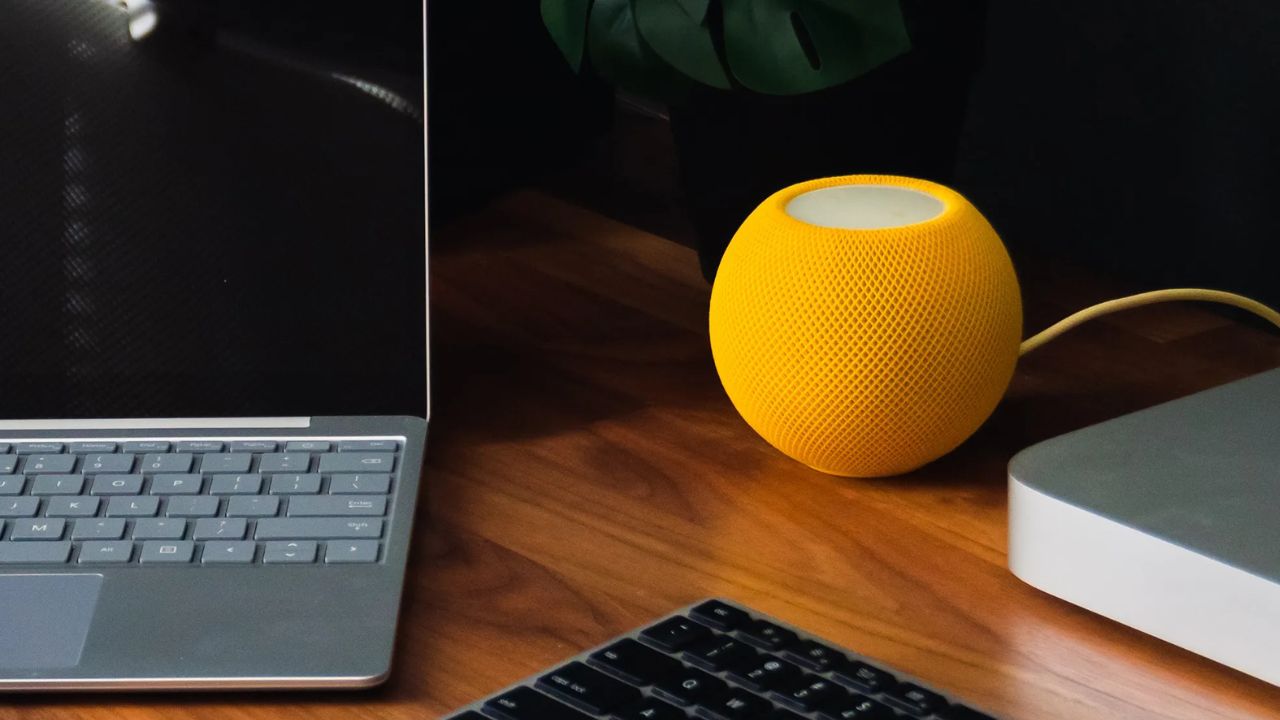
The HomePod Mini has a small sensor inside it. This sensor measures the temperature and the humidity of the room. When Apple first launched the HomePod Mini, this sensor was not active. It was hidden inside the device . Apple enabled this sensor through a software update in January 2023 . This update was called HomePod Software 16.3. After this update, people could finally see the temperature and humidity readings in their homepod mini humidity sensor not working.
The sensor is made by a company called Texas Instruments. It is called the HDC2010 humidity and temperature digital sensor . It is placed near the bottom of the device. This placement helps it measure the air outside the speaker, not the heat from the electronics inside .
Read Also: How To Connect HomePod To Apple TV
The Most Common Reason Your Sensor is Not Working
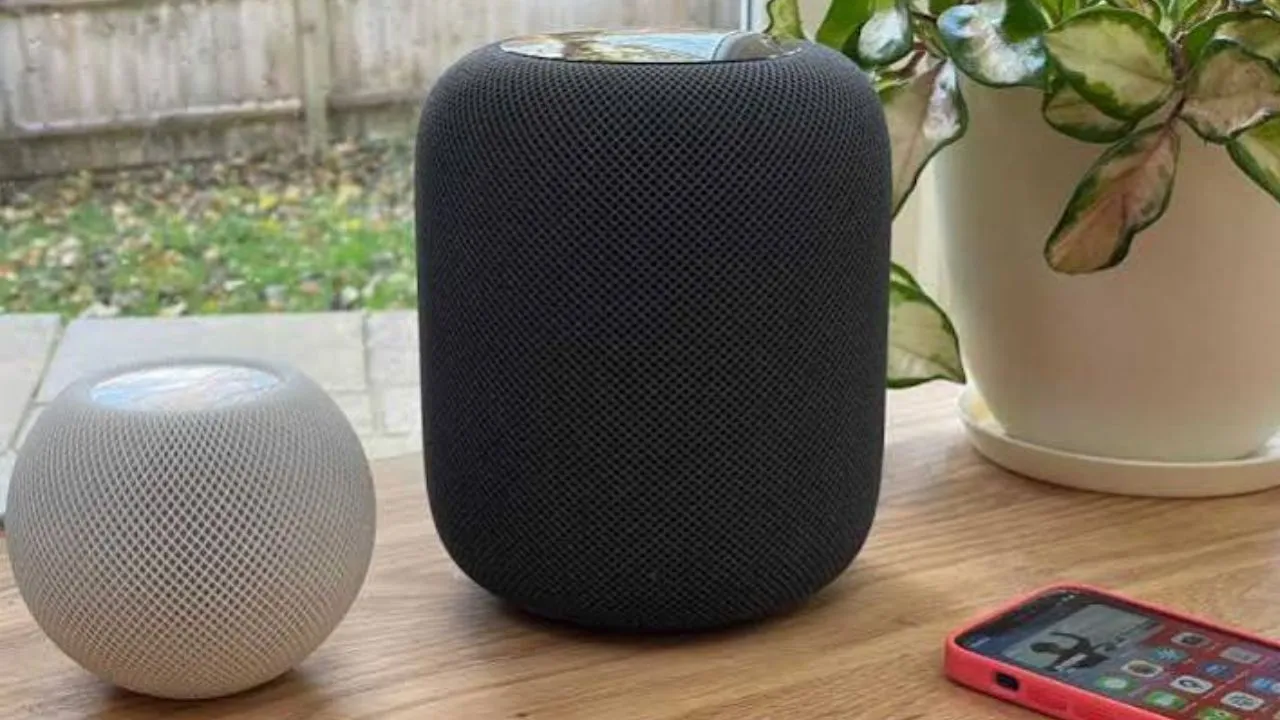
The sensor is available on the HomePod Mini and the HomePod 2nd generation . The original large HomePod does not have this sensor. If your sensor is not working, the most likely reason is that you have not updated the software. The sensor simply does not exist on the older software. You need to be on version 16.3 or later .
To check your software version:
-
Open the Home app on your iPhone or iPad.
-
Tap the HomePod Mini tile.
-
Go to Settings.
-
Look for Software. If there is an update available, install it.
How to Check If Your Sensor is Working?
Once your software is updated, the sensor should show readings automatically. You do not need to turn it on. It just appears.
Here is how to check:
-
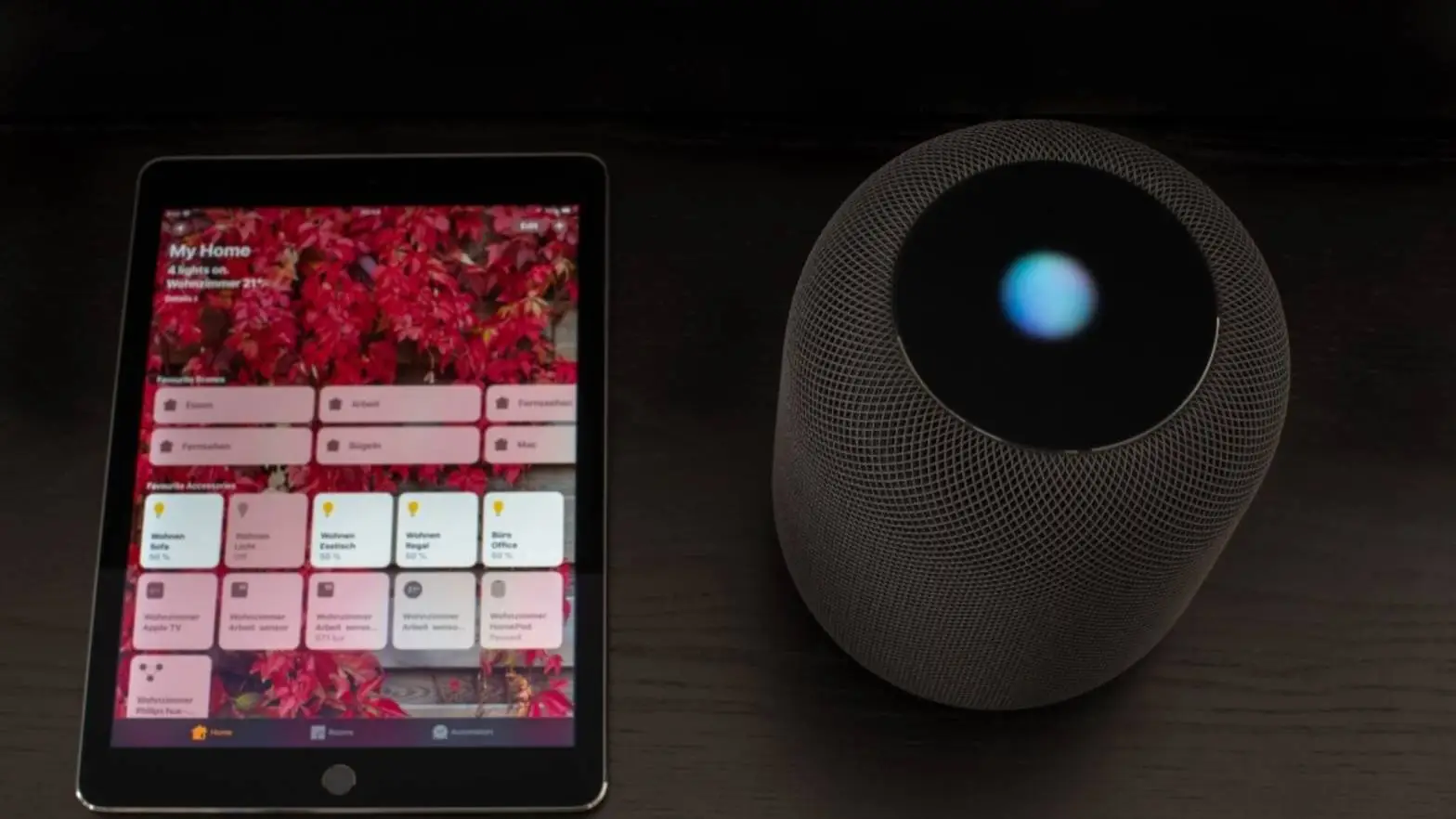
Through the Home App: Open the Home app. You will see a Climate section at the top. Tap on it. You should see the temperature and humidity for the room where your HomePod Mini is placed . If you have multiple HomePods in different rooms, you will see readings for each room.
-
Ask Siri: You can simply ask Siri. Say, "Hey Siri, what is the temperature in this room?" or "Hey Siri, what is the humidity in the living room?" . Make sure you use the room name that the HomePod is assigned to.
What to Do When the Sensor Does Not Show Up?
Many people have faced this issue where the sensor does not appear even after updating . If this happens to you, do not worry. There are some easy steps you can try.
Step 1: Restart Your HomePod Mini
A simple restart can fix many problems. It is the first thing you should try.
To restart:
-
Unplug your HomePod Mini from the power outlet.
-
Wait for 10 seconds.
-
Plug it back in .
Wait for a few minutes for the HomePod to start up completely. Then, check the Home app to see if the sensor appears.
Step 2: The Nuclear Option – Reset and Re-pair
If a restart does not work, you may need to reset your HomePod Mini. This is a common fix that has worked for many people . Resetting removes the HomePod from your Home app. Then you set it up again like it is new.
You can reset the HomePod Mini in two ways.
Method A: Reset Using the Home App
This is the easiest way.
-
Open the Home app on your iPhone or iPad.
-
Tap on the HomePod Mini tile.
-
Go to Settings (the gear icon).
-
Scroll to the bottom and tap "Reset HomePod" .
-
Tap "Remove Accessory" .
-
The HomePod will reset. You will see a white spinning light on the top. Wait for it to disappear .
Once the reset is complete, bring your iPhone near the HomePod. A setup screen will appear. Follow the steps to set it up again.
Method B: Manual Reset
If you cannot use the Home app, you can reset the HomePod manually.
-
Unplug the HomePod from the power outlet.
-
Wait for 10 seconds.
-
Plug it back in.
-
Wait for 10 seconds.
-
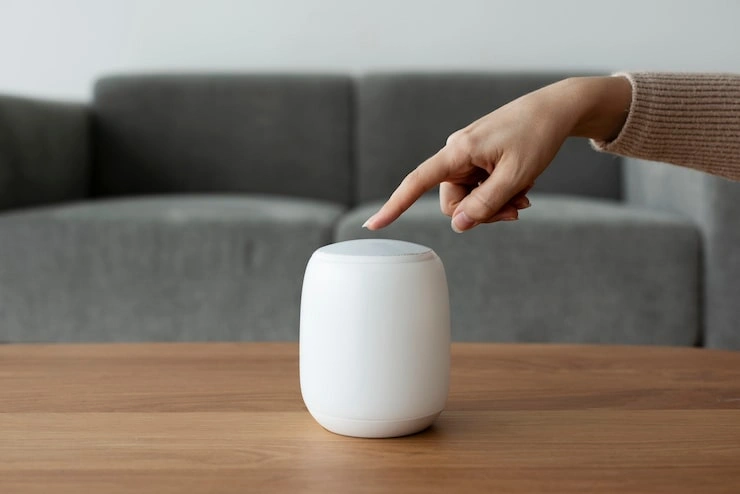
Place your finger on the top of the HomePod. Hold it there.
-
The light on top will start spinning white. Then it will turn red.
-
Keep holding your finger. Siri will say that your HomePod is about to reset.
-
Wait until you hear three beeps. Then you can remove your finger .
The HomePod is now reset. You can set it up again using your iPhone.
Step 3: Give It Time to Calibrate
After you start up or reset your HomePod, the sensor needs some time to calibrate. This is a normal process. During this time, you might see a message that says "Calibrating" in the Home app . Do not worry. This is not a problem.
The calibration time can vary. Some people say it takes about 30 minutes to an hour. Some people say it can take up to two days . Do not keep restarting or resetting the HomePod during this time. Just be patient and give it time to finish. The sensor will start showing readings once it is done.
You May Also Like: Homepod Mini Gaming Setup Ideas
Why Your Readings Are Wrong or Inaccurate?
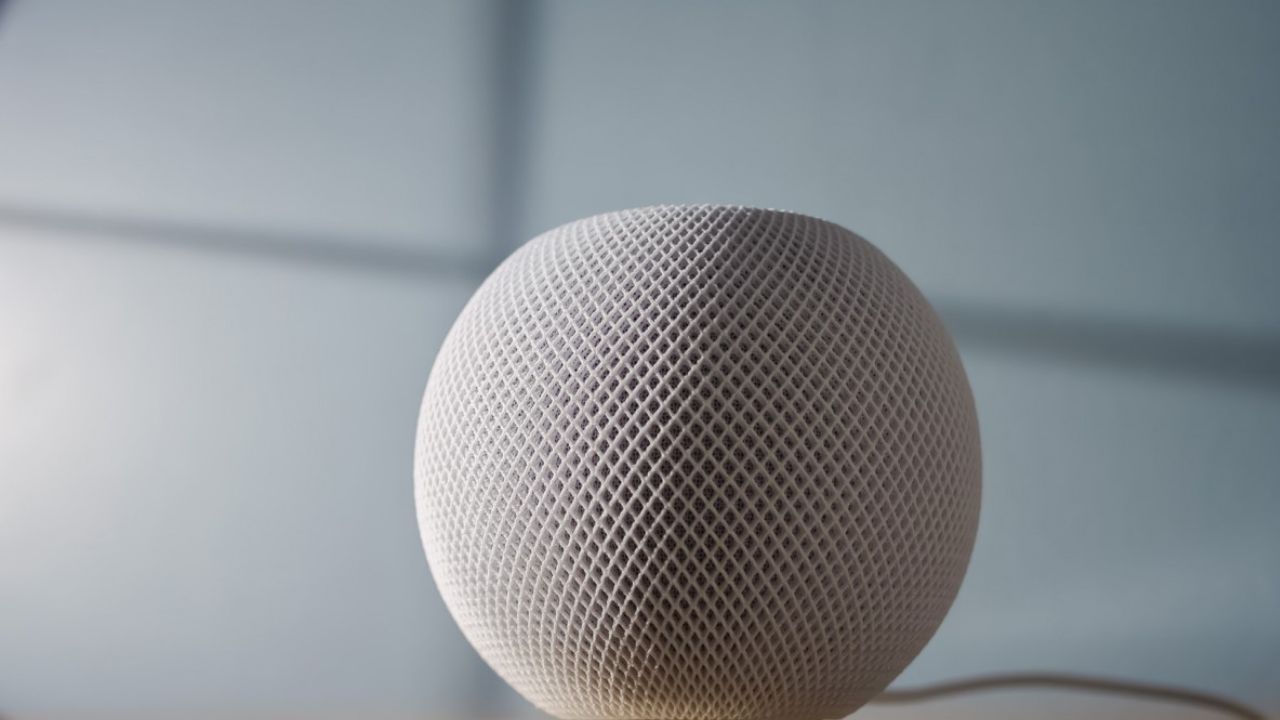
Sometimes the sensor works, but the readings seem wrong. The temperature or humidity shown is not correct. This is often due to where you have placed the HomePod Mini.
The HomePod Mini sensor measures the air right around the speaker . If the air around the speaker is not the same as the air in the rest of the room, the reading will be off.
Here are some things that can give you a wrong reading:
-
Direct Sunlight: Do not place your HomePod on a windowsill. The sun will heat up the device and give a high temperature reading .
-
Near Heat Sources: Do not place it near a heating vent, a radiator, or other warm electronics like a router or a game console .
-
Enclosed Spaces: Do not put it inside a bookshelf or a cabinet. These spaces trap warm air. This will make the reading higher than the homepod mini humidity sensor not working .
-
Playing Loud Music: The HomePod itself generates heat. If you are playing loud music for a long time, this heat can affect the sensor . The reading may be slightly higher.
For the most accurate reading, place your HomePod Mini in an open area at counter height. Keep it away from any other heat sources.
The sensor is designed for normal indoor home use. Apple says it works best when the room temperature is between 15°C and 30°C (59°F to 86°F). It works best when the humidity is between 30% and 70% . Outside these ranges, the sensor may not be very accurate.
How to Use the Sensor to Make Your Home Smart?
Once your sensor is working, it is very useful. You can use it to create automations. An automation is like a command. You tell your smart home to do something when a condition is met. For example, you can say, "When the temperature rises above 30°C, turn on the fan."
Here is how you can set this up :
- Open the Home app.
- Go to the Automation tab.
- Tap the plus (+) icon to add a new automation.
- Scroll down and select "A Sensor Detects Something" .
- Choose the temperature sensor or the humidity sensor of your HomePod Mini.
- Now, set the condition. For example, you can choose "Temperature rises above 28°C."
- Then, choose what you want to happen. You can turn on a smart plug. If you have a fan connected to that plug, the fan will turn on .
- You can also set a condition for humidity. For example, "Humidity rises above 65%." You can then turn on a dehumidifier .
You can also use this to control your smart thermostat. You can set an automation to turn on the air conditioning when the room gets too hot .
If All Else Fails
If you have tried all these steps and your sensor still does not work, you may have a hardware problem. The sensor inside your HomePod Mini may be faulty. In this case, the only option is to contact Apple Support. You can take your HomePod to an Apple Store or contact them online. They will be able to check your device and help you further.
Final Thoughts
The HomePod Mini humidity sensor is a very useful feature. It can help you monitor your home and even automate your smart devices. However, like any technology, it can sometimes have problems. Most of these problems are easy to fix. A software update, a restart, or a reset will solve the issue for most people. If you are seeing a "calibrating" message, the best thing to do is to just wait. It is also important to place your HomePod correctly to get accurate readings. If nothing works, then it might be a hardware issue and you should reach out to Apple.