
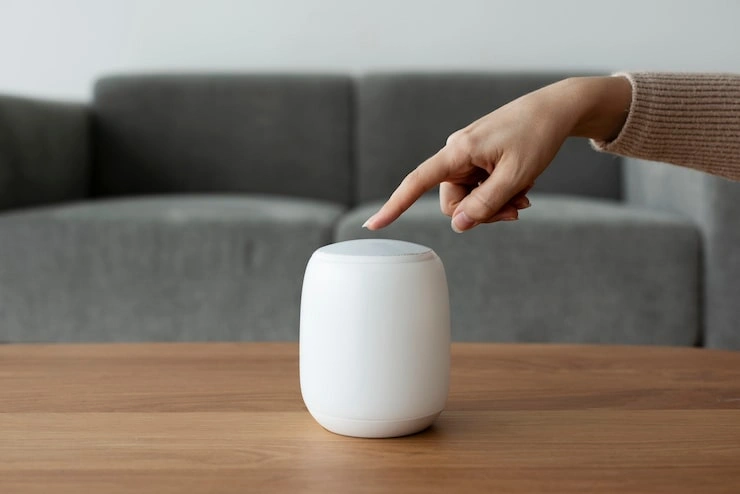
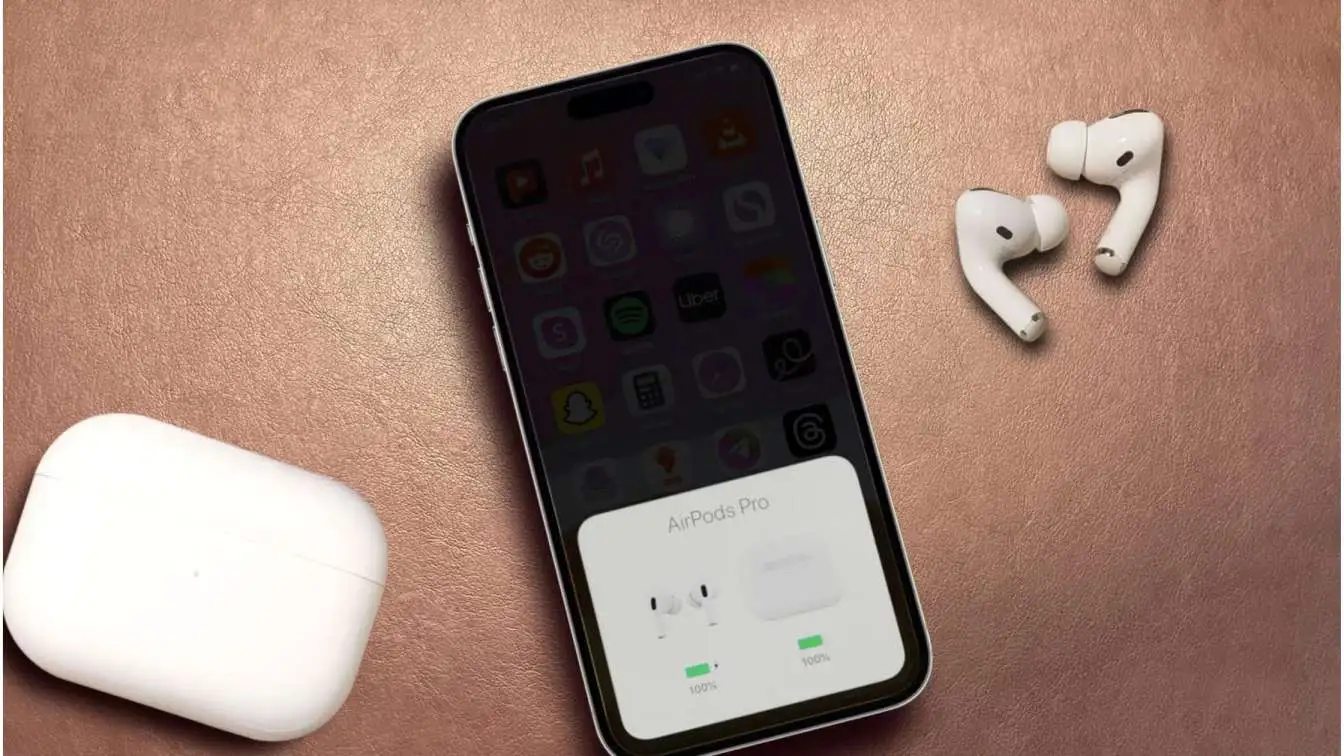
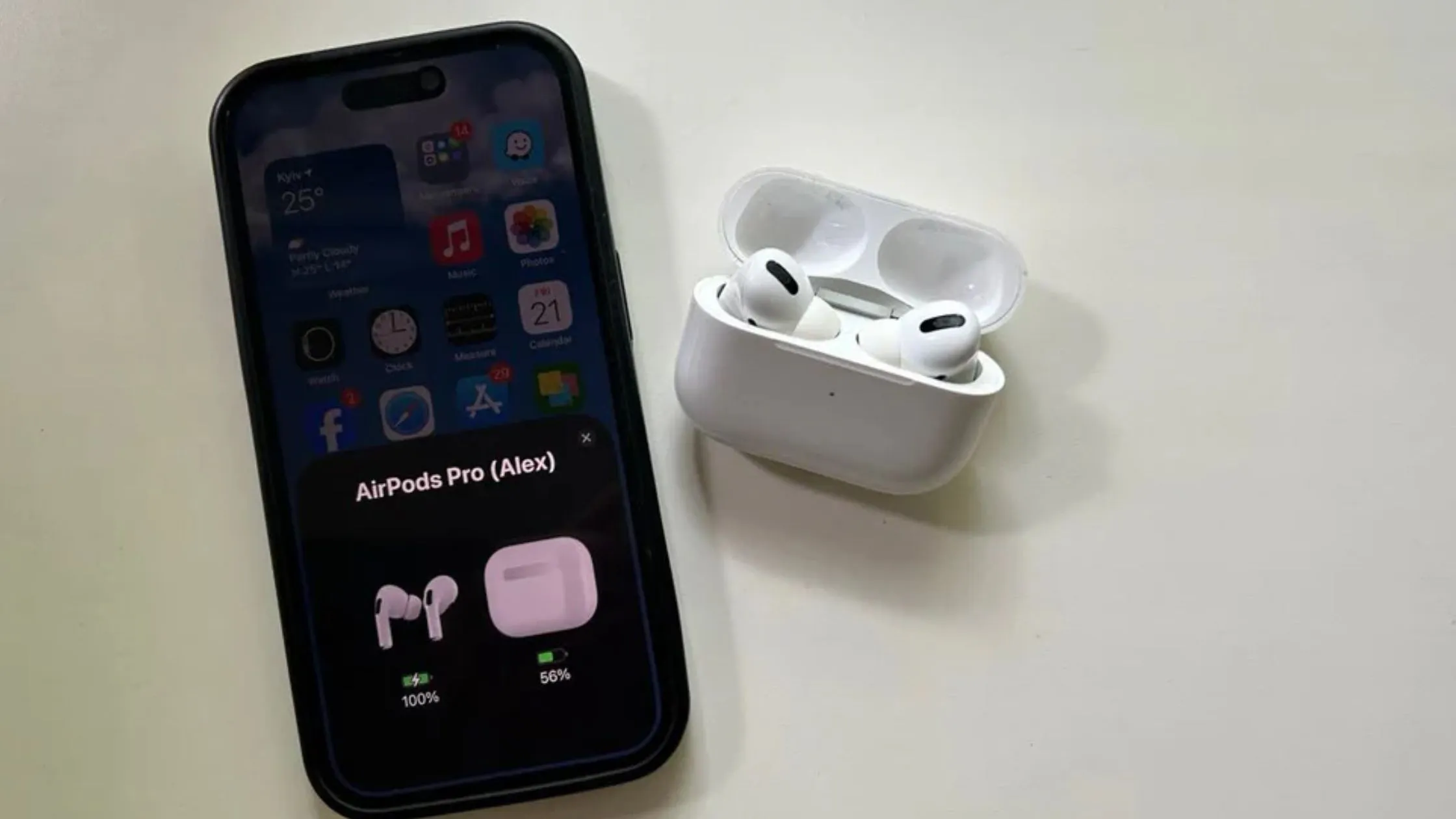
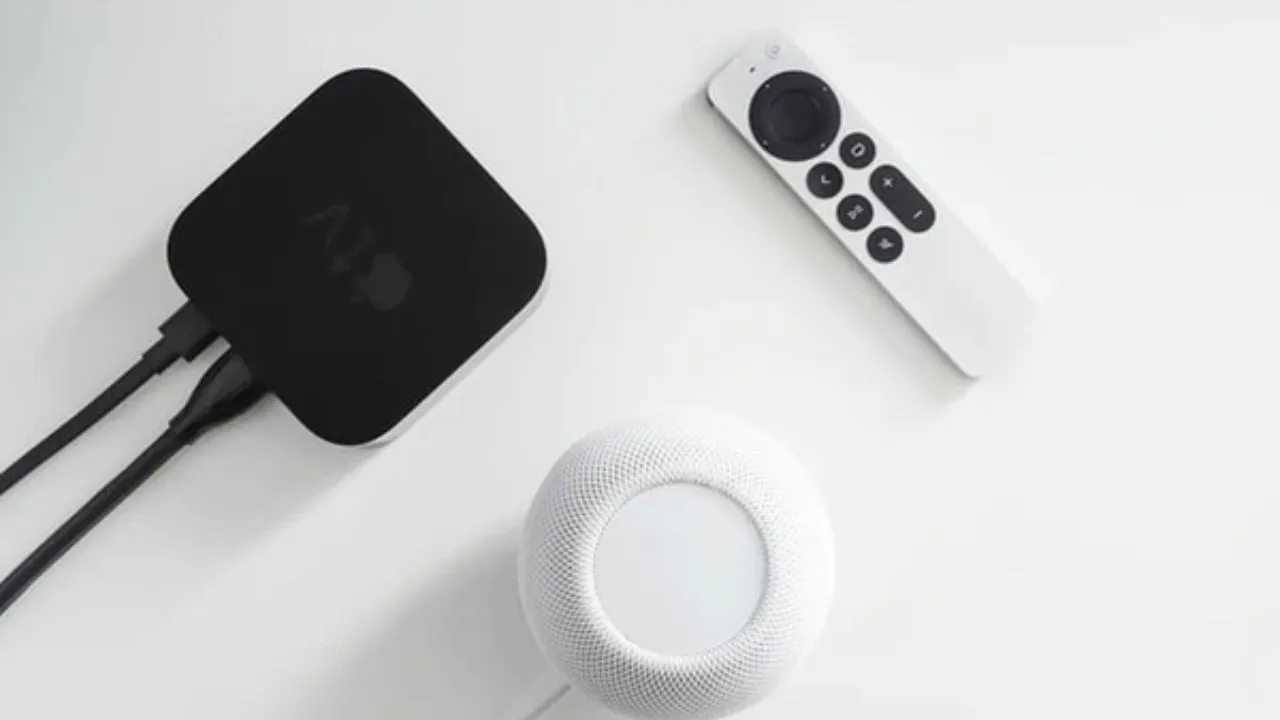
I have been using Apple TV for years. I bought a HomePod last year. The first thing I did was try to connect them together. It took me some time to figure out all the ways this can work. So I am writing this guide to save you that time.
Let me be clear about something. Most people do not know that HomePod can replace your TV speakers. They think it is just for music. That is wrong. When you connect it properly, your movies sound completely different. You hear things you missed before.
I will show you every method. I will also tell you what goes wrong and how to fix it. No fancy words. Just how to connect homepod to apple tv.
What You Must Have Before Starting?
Before we do anything, let us check if you have the right stuff.
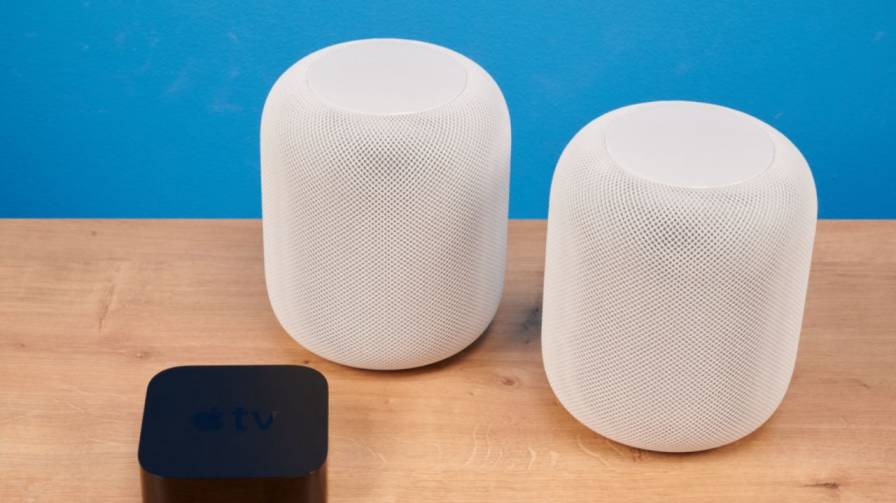
Your Apple TV cannot be too old. It must be fourth generation or newer. If you have an Apple TV 4K, that is perfect. The newer Apple TV 4K models have extra features that make things better. Your HomePod can be the big one or the mini one. Both work. If you have two, you can pair them. That gives you sound from both sides.
Both devices need to be on the same Wi-Fi. I cannot stress this enough. I once spent an hour trying to connect them. Then I realised my Apple TV was on my 5G network and my HomePod was on the 2.4G network. They could not see each other. Both need the latest software. Go to settings and check for updates. Do not skip this. Both need to be signed in with the same Apple ID. This is how they recognise each other. If any of these are missing, the connection will fail. So check these first.
Read Also: HomePod Not Responding To Siri Fix After Reset
The Easy Way to Connect
- This is the method I use most of the time. It takes less than a minute.
- Turn on your Apple TV. Go to the home screen. Find Settings and open it.
- Scroll down until you see Video and Audio. Tap on it.
- Now look for Audio Output. Tap on that.
- You will see a list of speakers. Your HomePod should be there. If it is not showing, go back to the Wi-Fi check I mentioned earlier.
- Select your HomePod from the list.
- That is it. Your Apple TV now sends all sound to your HomePod. Every app, every game, every menu click. All the sound comes from the HomePod.
- There is another way to do this faster. When nothing is playing on your Apple TV, press and hold the play/pause button on your remote. A small menu pops up. You can pick your HomePod from there. This is quicker than going through settings every time.
The ARC Method for All TV Audio
This method is different. It does something the first method cannot do.
When you use the quick method, sound only comes from apps on the Apple TV. But what if you have a gaming console connected to your TV? What if you watch cable TV? Those sounds will still come from your TV speakers.
ARC fixes that. With ARC turned on, your HomePod plays sound from anything connected to your TV. Your PlayStation, your Xbox, your set-top box, your DVD player. Everything.
But ARC has requirements.
You need an Apple TV 4K. Not the first generation. It must be second generation or newer.
Your television must have an HDMI port that supports ARC or eARC. Not every TV has this. Look at the back of your TV. Find the HDMI ports. One of them should have ARC written next to it. If you cannot find it, check your TV manual. Or search online for your TV model and the word ARC.
You also need a HomePod or HomePod mini.
If you have all three, here is how to connect homepod to apple tv.
- Go to Apple TV Settings. Select Video and Audio. Then Audio Output.
- Under Default Audio Output, make sure your HomePod room is selected.
- Now scroll down. Look for Audio Return Channel. Select Play Television Audio.
- The screen will show On (ARC) or On (eARC). That means it is working.
- Once this is done, any sound that goes to your TV comes out of your HomePod. It does not matter where the sound comes from.
- This is the best setup if you use your TV for many things. You never have to switch speakers. Everything just comes out of the HomePod.
Using Your Phone to Connect
Some people prefer using their iPhone. The Home app lets you do everything without touching the Apple TV remote.
Open the Home app on your iPhone. Make sure both devices are in the app. They should be in the same room. For example, both should say Living Room or Bedroom.
Tap on your Apple TV in the app. You will see a gear icon at the bottom right. Tap on it.
Scroll down to Default Audio Output. Tap on it.
Select your HomePod from the list.
That is all. The Apple TV now uses your HomePod for sound.
I use this method when I am sitting on the couch and do not want to reach for the remote. It is convenient.
Setting Up Two HomePods
If you have two HomePods, you should pair them. The sound becomes much wider. It feels like the audio is coming from all around you.
Place one HomePod on the left side of your TV. Place the other on the right side. Apple says they should be about four feet apart. But you can adjust based on your room.
To pair them, open the Home app on your iPhone.
Tap the plus sign. Select Add Accessory. Follow the steps on your screen.
Once paired, they show up as one speaker in the audio list. Select that paired speaker as your default output.
I want to mention one thing. HomePod mini does not support Dolby Atmos. So you will not get that surround sound effect. But two HomePod minis still sound much better than one. And definitely better than your TV speakers.
Why You Should Do This?
You might ask, is it worth the effort?
Yes. Here is why.
TV speakers are terrible. They are small. They face the back or the bottom. The sound gets muffled. You have to turn up the volume to hear dialogue. Then an action scene comes and it is too loud.
HomePod fixes this. The sound is clear. Voices are crisp. Action scenes have punch. You will notice sounds you never heard before. Background music. Footsteps. Ambient noise. All of it comes through.
You also get Siri control. Once connected, you can say things like, Hey Siri, pause this. Or Hey Siri, turn it up. This is great when your hands are full with snacks or a drink.
The connection stays. You do not have to reconnect every time you turn on the TV. Once you set it as default, it remembers.
Problems You Might Face
Things do not always work smoothly. Here are the issues I have seen and how to fix them.
Your HomePod does not show up in the list.
This happened to me. I checked everything. Then I realised my Wi-Fi was the problem. Both devices need to be on the same network. Go to Settings on Apple TV and check the network name. Then check the Home app on your phone to see what network your HomePod is using.
Another reason is the room assignment. Open the Home app. See if both devices are in the same room. If not, change it.
Restart both devices. This fixes a lot of small bugs. Turn off the Apple TV and the HomePod. Wait a minute. Turn them back on.
The sound is delayed.
Audio lag is annoying. The picture moves but the sound comes later. This usually happens because of your Wi-Fi. If your network is slow or crowded, the sound takes time to reach the HomePod.
Try restarting your router. Move it closer if you can. Reduce the number of devices using the network while watching.
If you are using ARC, the TV might be the issue. Some TVs have a setting called Lip Sync. Look for it in your TV audio settings and adjust it.
ARC is not working.
Check that your TV actually supports ARC. Look at the HDMI ports. If none say ARC, your TV does not have it.
Sometimes the TV needs a setting turned on. Go into your TV settings. Look for audio or HDMI settings. Turn on ARC or HDMI-CEC. Every TV calls it something different. So you might have to search.
Unplug the HDMI cable. Plug it back in firmly. This resets the connection.
Sound keeps stopping.
This is almost always a network problem. Your Wi-Fi might be weak. Other devices might be using too much bandwidth. If someone is downloading a large file, it affects your HomePod connection.
Check the Home app. If the HomePod shows a red or yellow status, there is a connection issue. Restart it.
You May Also Like: Homepod Mini Gaming Setup Ideas
Small Tips for Better Sound
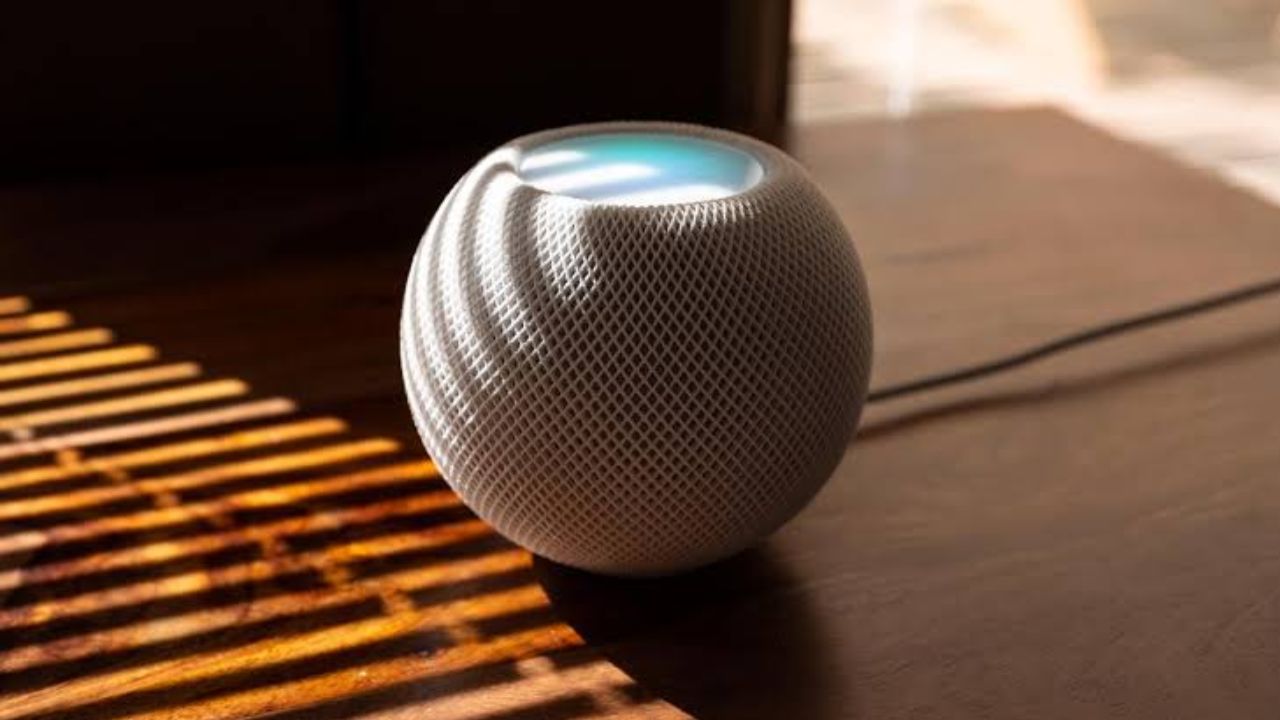
A few things can make your sound even better.
Place your HomePod near a wall. About ten inches away is good. The sound bounces off the wall and fills the room better. Do not put it in a corner. That makes the bass too heavy.
Turn on Enhance Dialogue. This is a setting on Apple TV. Go to Settings, then Video and Audio. Turn on Enhance Dialogue. It makes voices louder and clearer. Very useful for movies with loud background music.
Keep everything updated. Apple releases updates that fix problems and improve performance. Check for updates once in a while.
FAQs
Can I use two HomePods with one Apple TV?
Yes. Pair them as a stereo pair. Then select that pair as your audio output.
Does this work with old Apple TV models?
No. You need fourth generation or newer.
Can I use HomePod with a non-Apple TV?
Only if you use ARC. The HomePod connects through Apple TV. The Apple TV then receives sound from your other devices through the HDMI cable.
Does HomePod play sound from all Apple TV apps?
Yes. Everything. Netflix, YouTube, games, music, system sounds. All of it.
My HomePod keeps disconnecting. What do I do?
Check your Wi-Fi. Restart both devices. Look for software updates. These three steps fix most issues.
Conclusion
Connecting HomePod to Apple TV is something every Apple user should do. It changes how you watch things. The sound quality is not just a little better. It is a lot better. Start with the quick wireless method. It is simple and works for most people. If you have a newer Apple TV and a TV with ARC, try that method too. It takes more time to set up but gives you the most flexibility.
Do not worry if it does not work the first time. Check the network. Restart the devices. Go through the steps again. Most problems have simple solutions. Once it works, you will not go back. Your TV speakers will sound hollow compared to the HomePod. Watch a movie you have seen before. You will hear new things. That is the HomePod effect.