

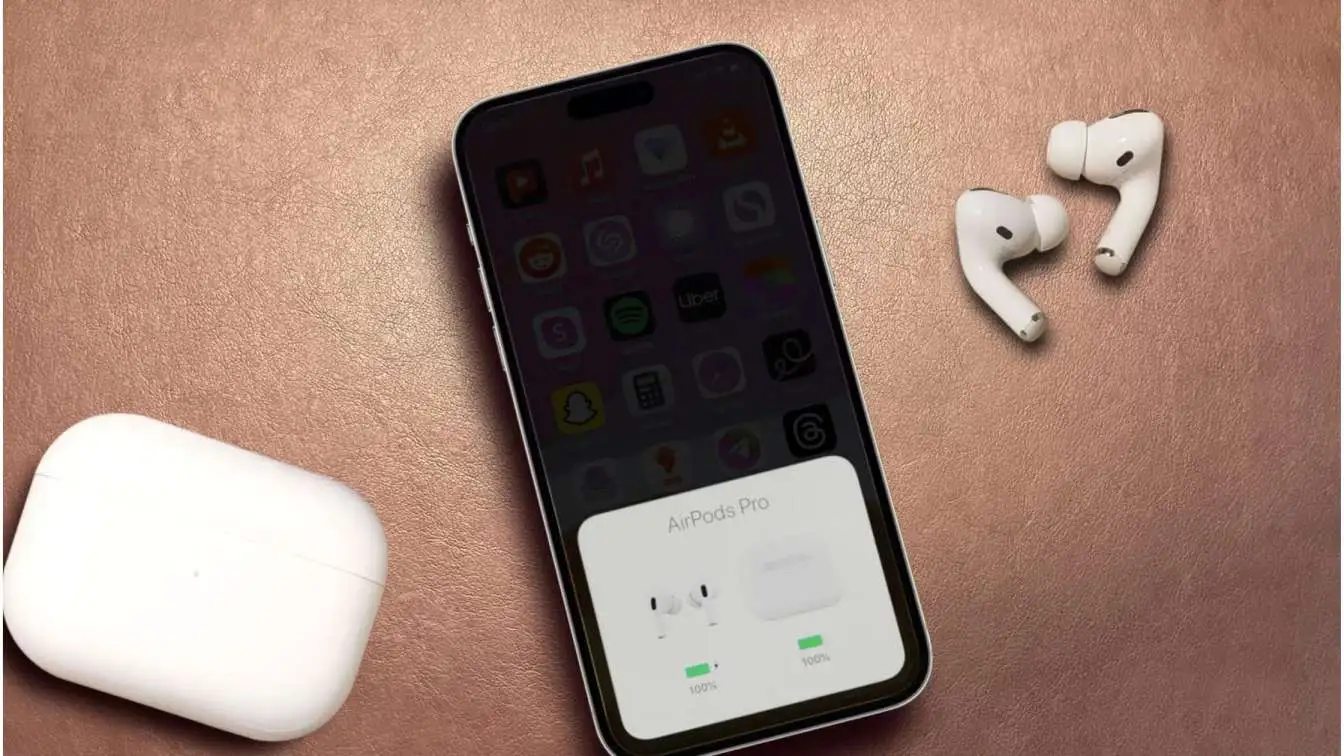
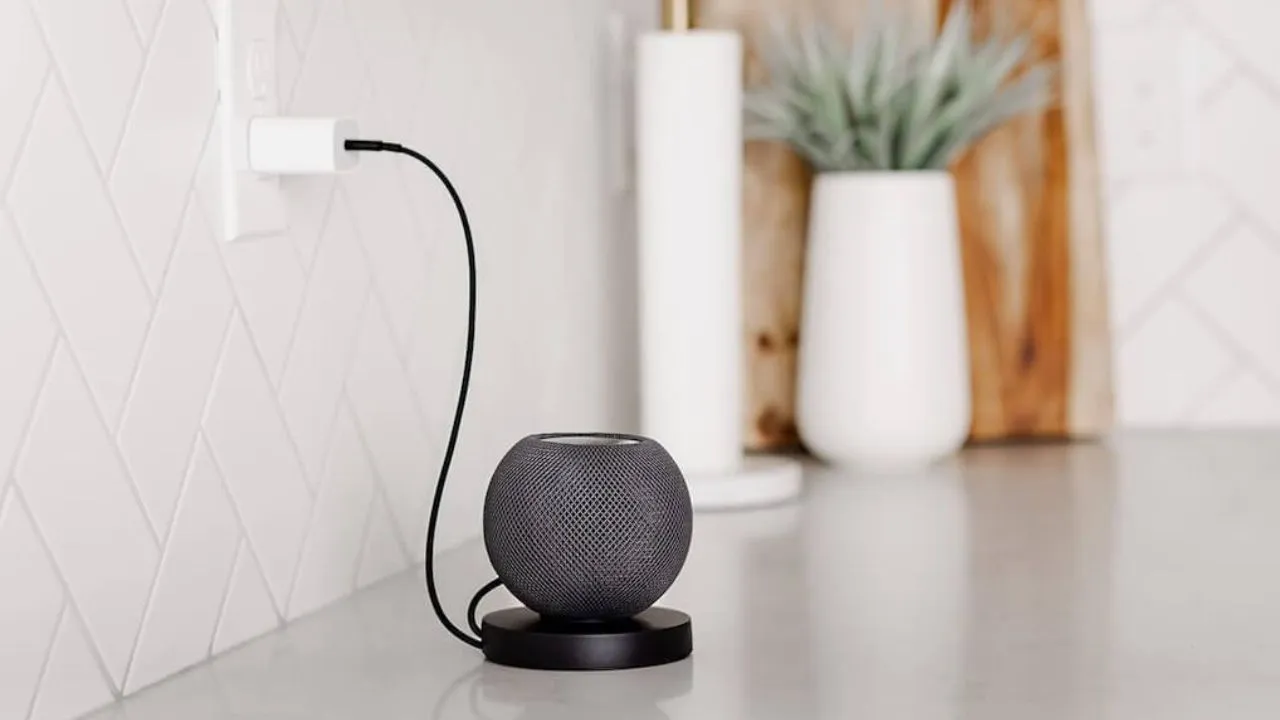
I reset my HomePod last week. I was sure it would fix everything. The white light came on. The chime played. It looked like a brand new speaker sitting on my shelf. Then I said "Hey Siri." Nothing came back. No voice. No response. Just silence. I spent three hours fixing it. I want to save you that homepod not responding to siri fix after reset.
The Reset Is Not The Problem
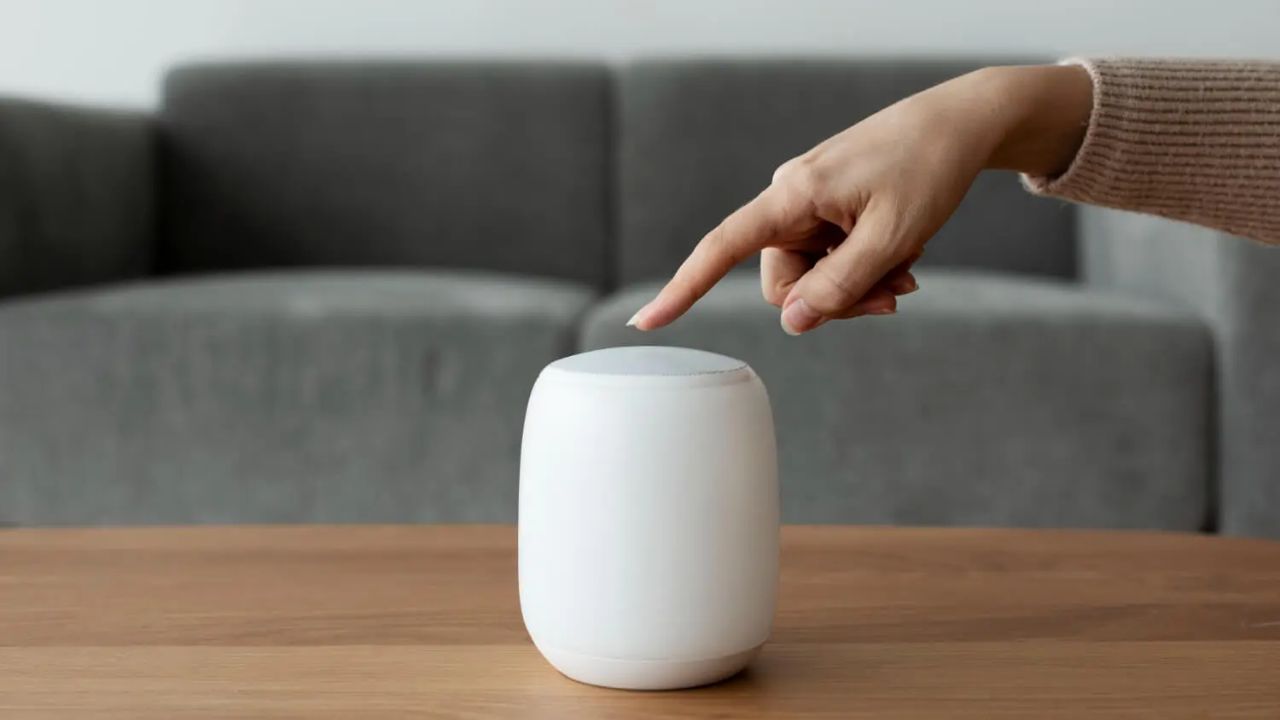
Most people think the reset fails. That is not true. The reset works every time. The HomePod clears its memory. It deletes your Wi-Fi password. It removes your Apple ID. It forgets your music preferences. All of that gets wiped clean. The problem starts after the reset finishes.
When you set the HomePod up again, you make choices. You pick a network. You confirm your account. You decide which room it belongs to. Each choice matters. One wrong choice and Siri will not respond.
The reset itself is perfect. The setup is where things fall apart.
Read Also: Homepod Humidity Sensor Automation Ideas
Check This One Thing First
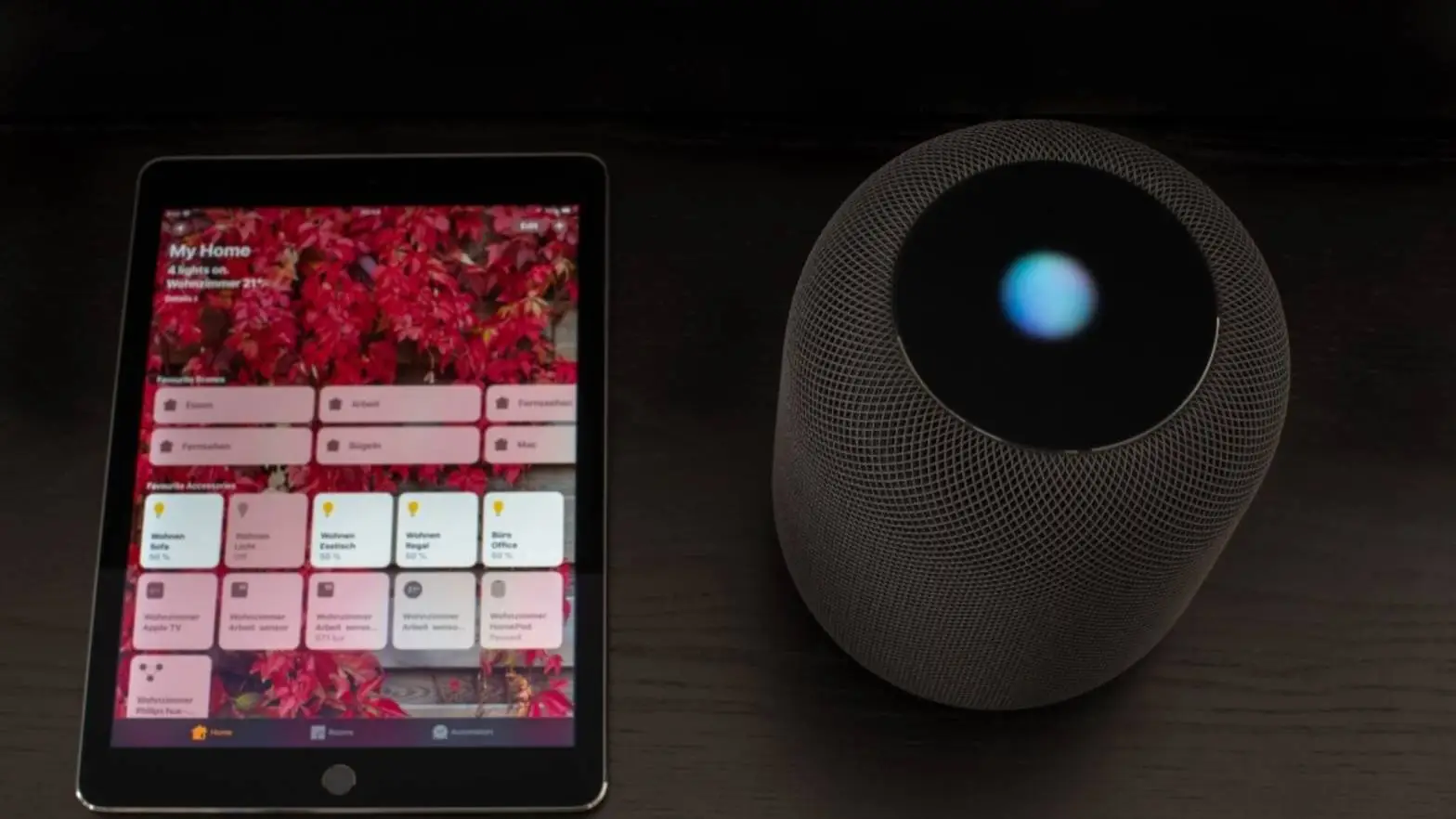
Before you do anything else, open the Home app.
Look at your HomePod on the screen. Does it say "Not Responding" in grey letters? If yes, your phone cannot see the speaker. This is not a Siri issue. This is a connection issue. Tap the tile anyway. Sometimes the app sends a wake signal. The HomePod lights up and connects again. Wait ten seconds. Look at the screen again. If the status changes to "Connected," try Siri. Say "What time is it?" If she answers, you are done. No reset needed. If the status stays grey, move on.
The Wi-Fi Signal
Your HomePod needs the internet to hear you. Siri does not work offline. Your voice goes from the speaker to Apple servers. Then the answer comes back. This happens in less than a second when everything works. But if the Wi-Fi signal is weak, that trip takes too long. Or it never completes. Siri hears your voice but cannot send it anywhere. Open the Home app. Tap your HomePod. Scroll down until you see Wi-Fi Network. Next to that, there are small bars.
One bar means the signal is barely there. The HomePod might connect for a minute and then drop. This makes Siri miss your commands. Two bars means the signal is average. Siri might respond sometimes. Other times she stays quiet. Three bars means the signal is strong. Siri should work without any trouble. If you have one or two bars, move the speaker closer to your router. Even moving it two feet can make a big difference. Walls block signals. Metal shelves block signals. Other electronics near the HomePod can cause problems too.
The Network Mismatch
This is the number one reason Siri stops working after a reset.
Your iPhone and your HomePod must use the same Wi-Fi network. If they do not match, they cannot talk to each other. Siri will not respond because the command never reaches the right place.
Here is how to check.
Go to Settings on your iPhone. Tap Wi-Fi. Look at the name with a checkmark next to it. That is your network. Now open the Home app. Tap your HomePod. Scroll down to Wi-Fi Network again. Read the name. Do they match? If they do not match, you found the problem. Change the HomePod network. Tap the Wi-Fi name inside the Home app. Pick the same network your iPhone uses. Enter the password. Wait one minute. Try Siri again.
Reset The HomePod Manually
- If the checks do not help, reset the speaker again. But do it manually this time. The app method sometimes leaves old data behind.
- Unplug the HomePod from the wall. Not from the back of the speaker. From the wall outlet.
- Count to ten. Count slowly. One. Two. Three. All the way to ten.
- Plug it back in.
- Wait exactly ten seconds.
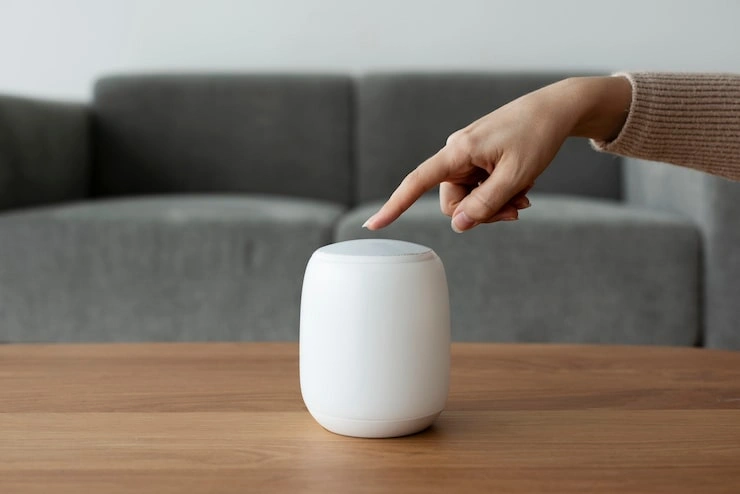
- Put your finger on the top of the HomePod. Press down and hold.
- A white light will start spinning. Keep holding.
- After a few seconds, the light changes to red. Siri speaks. She says the HomePod will reset. Do not lift your finger.
- Wait for three beeps. They come quick. When the third beep sounds, lift your finger.
- The HomePod chimes. A white light pulses on and off. The reset is complete.
Setting Up Again
Bring your iPhone close to the HomePod. Unlock the phone. A setup screen should appear. If it does not appear, wait. Sometimes it takes thirty seconds. Do not force it. Just wait. When the screen shows up, follow the instructions. But pay close attention to two things.
First, the Apple Account. Make sure it is the same one you used before. If you use a different account, the HomePod cannot access your saved settings. It does not know your music. It does not know your calendar. It does not know your voice.
Second, the Wi-Fi network. The setup screen shows the network your iPhone uses. Confirm it. Do not change it. Do not skip past it. This step is easy to miss because it looks like a default setting. It is not a default. You must actively confirm it.
After setup finishes, the HomePod checks for software updates. This takes a few minutes. Let it finish. Do not unplug the speaker. Do not move it.
Voice Recognition Must Be On
After the reset and setup, one setting often turns off by itself. Voice recognition.
Siri needs to know who is speaking. If voice recognition is off, Siri does not respond to personal requests. Sometimes it does not respond to any requests at all.
- Turn it back on.
- Open the Home app.
- Tap the More button. It looks like three dots in a circle.
- Tap Home Settings.
- Scroll down to People. You will see your name there. Tap it.
- Find "Recognize My Voice." Turn it on.
- Now Siri knows your voice. It will respond when you speak.
Language Settings
Your iPhone and HomePod must use the same language for Siri. If they do not match, Siri gets confused. It hears your voice but cannot translate it into commands.
- On your iPhone, open Settings.
- Tap Siri & Search.
- Look at the language setting. It might say English. It might say Hindi. It might say something else.
- Now check your HomePod. Open the Home app. Tap your HomePod. Scroll down to find Language.
- Make sure the two match exactly.
- If they are different, change the HomePod language to match your homepod not responding to siri fix after reset.
Other Devices Getting In The Way
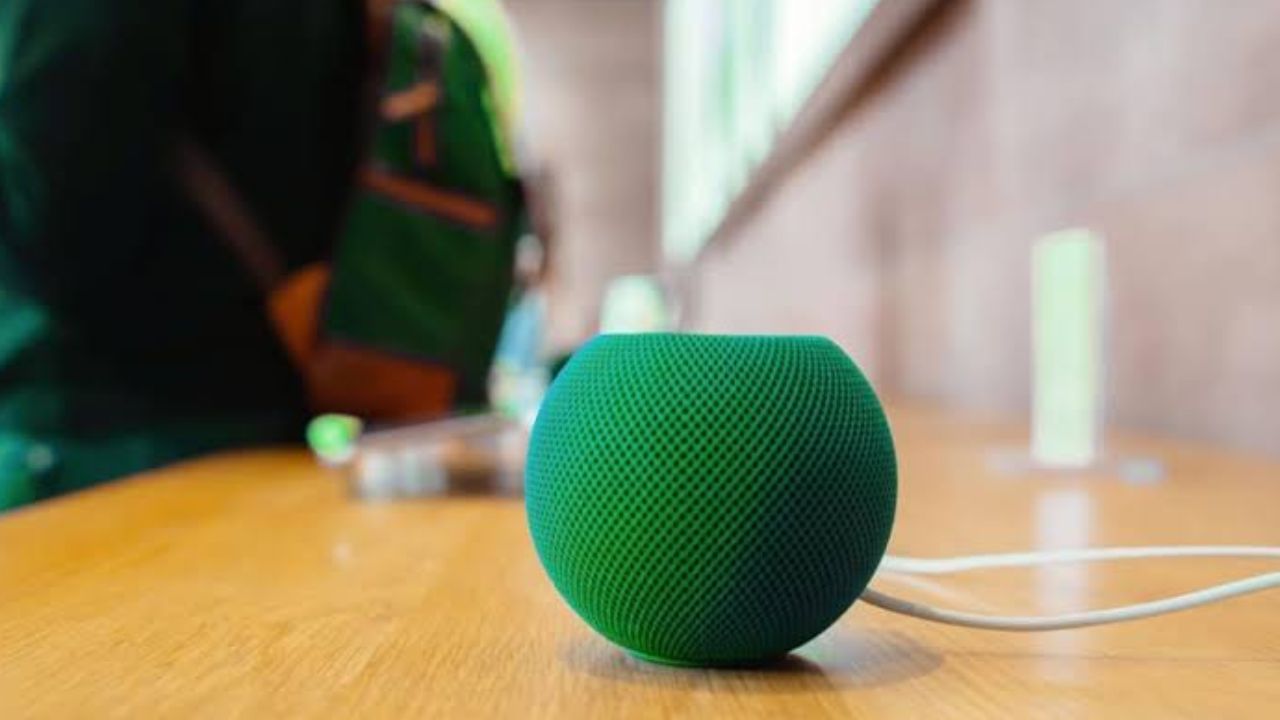
Sometimes Siri works but the wrong device answers.
You say "Hey Siri" and your iPhone lights up. Or your iPad answers. Or your Mac chimes in.
Apple devices use Bluetooth to decide who responds. The device closest to you usually answers. If your iPhone is in your hand and the HomePod is across the room, your iPhone will take over.
If you want the HomePod to respond, put your iPhone face down. This tells Siri to stay quiet on the phone. The HomePod will then handle your request.
You can also turn off "Hey Siri" on your iPhone. Go to Settings. Tap Siri & Search. Turn off Listen for "Hey Siri." This stops your iPhone from jumping in.
You May Also Like: HomePod Mini Tips And Tricks For Beginners
Restore Through A Computer
- This method only works for the HomePod mini.
- Plug your HomePod mini into your computer with the USB-C cable. The cable came with the speaker.
- On a Mac, open Finder. On a Windows PC, open the Apple Devices app.
- Your HomePod mini appears on the left side of the screen. Click it.
- You will see a button labeled Restore HomePod. Click that button.
- This is not the same as a reset. This downloads brand new software from Apple. It installs everything fresh. It fixes problems that a normal reset cannot touch.
- The restore takes about five to ten minutes. Do not unplug the cable during this time. Do not close the Finder window.
- When the restore finishes, the HomePod mini restarts on its own. Set it up again using your iPhone.
Hardware Problems
Sometimes none of this works. It is rare but it happens.
The microphone could be broken. Water damage causes this often. The HomePod sits on a shelf and someone spills a drink. The liquid gets inside. The microphone stops working. The internal chip could have failed. Power surges can damage electronics. A lightning strike near your home can fry sensitive parts.
If you have tried every step and Siri still does not respond, check your warranty. The HomePod comes with a one year warranty. Apple will repair or replace it for free during that time. Contact Apple Support. Tell them what you did. They will run remote tests on the speaker. These tests check the hardware without you going to a store. If the warranty expired, take the HomePod to an Apple Store. They will inspect it. They will tell you the cost to repair. Sometimes it is cheaper to buy a new speaker. Sometimes the repair is affordable.
Conclusion
I fixed my HomePod by checking the Wi-Fi network. I was on my guest network. The HomePod was on my main network. They did not match. That was the whole problem. I changed the HomePod network to match my iPhone. Siri came back immediately. Check that first. It will save you hours. If this helped you, save it somewhere. You might need it again. Resets do not happen often. But when they do, you will know exactly what to do.