
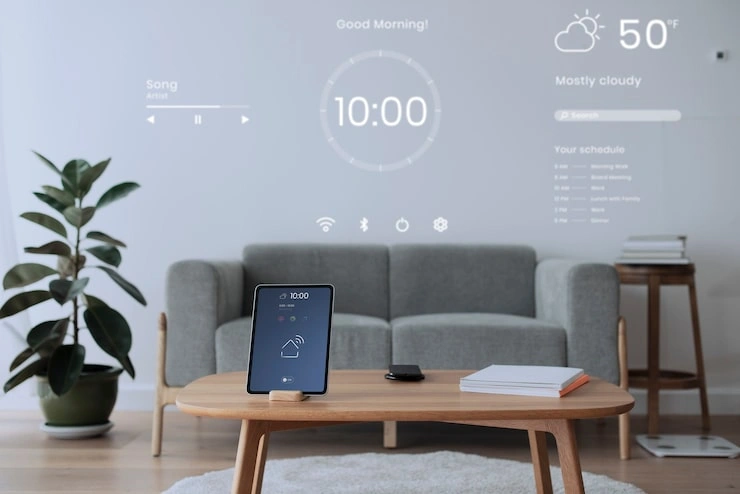
You know what I noticed the other day? My HomePod Mini has a sensor inside it. I did not buy it for that. I bought it for music. But Apple put this thing in there and then turned it on with an update. It measures the air. The wetness. The heat. All of it.
I started playing with it. Just to see what happens. And honestly, it is homepod humidity sensor automation ideas.
Most people do not know about this. They ask Siri for songs. They set timers. They check the weather outside. They never look at the air inside their own house. But you should. Because the air in your home changes all the time. Cooking changes it. Showering changes it. Just breathing changes it.
This sensor can do things for you. It can turn stuff on and off. It can warn you about problems. It can make your house feel better without you doing anything.
Let me walk you through it.
Discover the Benefits of HomePod Humidity Sensors
You need the right speaker.
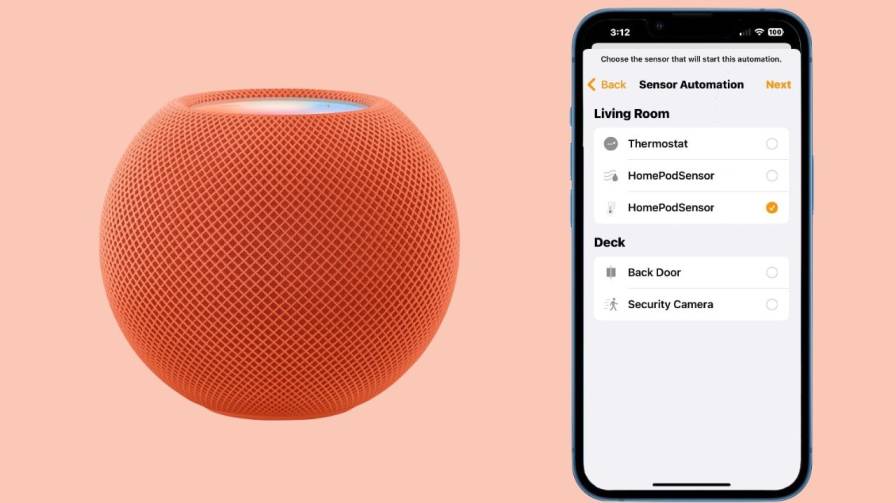
The original HomePod from years ago does not have this sensor. Sorry if you have that one. The HomePod Mini has it. The newer HomePod that came out recently has it too. Check which one you own before you go any further.
You also need to update the software. Both the HomePod and your iPhone need version 16.3 or newer. If you have not updated in a while, go do that. The sensor will not appear until you do.
One more thing. You need something to control. A fan. A heater. A humidifier. A dehumidifier. Something that plugs into the wall. That device has to work with Apple HomeKit. Or you can get a smart plug that works with HomeKit. You plug your fan into that smart plug. Then the Home app can talk to the plug. That is how the automation works.
Read Also: Homepod Mini Gaming Setup Ideas
Finding the Numbers
After the update, the sensor starts working. But it takes time. It has to learn the room first. This is called calibration. The sensor measures the air again and again. It figures out what is normal. This can take minutes. Or hours. You will see a message that says calibrating.
When it finishes, open the Home app.
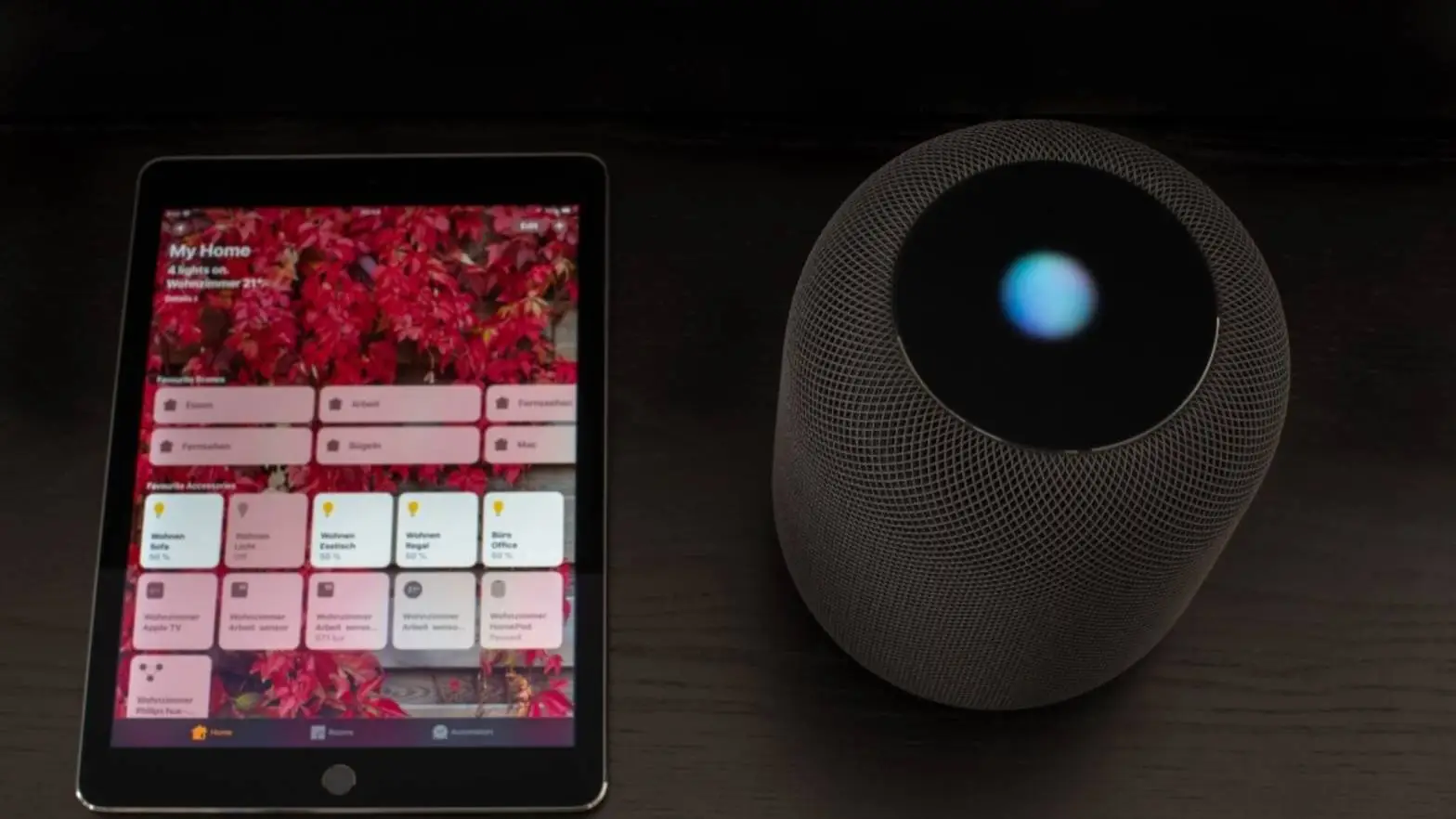
Look at the top of the screen. You will see Climate. Tap it. The temperature and humidity show up for every room that has a HomePod. Tap the numbers to see more details.
You can also ask Siri. Just say something like "Hey Siri, what is the humidity in here?" Or "Hey Siri, how hot is the bedroom?" The HomePod will tell you the number out loud. Just make sure you say the room name. If you do not, Siri might give you the outdoor weather. And that is not helpful.
Making Your First Rule
An automation is a rule. It says if this happens, then do that. For humidity, it might say if the room gets too damp, turn on the fan.
Here is how you build one.
Open the Home app. Tap the plus sign in the top corner. Choose Add Automation. Scroll down. Pick A Sensor Detects Something. The app shows you all your sensors. Pick the humidity sensor for the room with your HomePod.
Tap Next.
You see a dial. You can choose Rises Above or Drops Below. If you want the fan to turn on when the room gets muggy, pick Rises Above. Set the number to 60 percent. That is a good place to start.
Tap Next.
You can pick a time. Any time. Daytime only. Nighttime only. A specific hour. This matters if you only care about certain times of day. Like the basement at night. Or the baby room during naps.
You also see a setting for people. You can run the rule only when you are home. Or only when nobody is home. It depends on what you want.
Tap Next.
Pick the device you want to control. If you have a smart plug with a fan, select that plug. Tell it to turn on.
Tap Next. Give your rule a name.
Tap Done.
That is it. You are finished.
Ideas to Try
Once you understand how one rule works, you can make more. These sensors can do a lot.
Fix the Air Balance
Your skin feels the air. Dry air makes your lips crack. Wet air makes everything sticky. If the humidity goes above 65 percent, make a rule to turn on a dehumidifier. Or a bathroom exhaust fan. This stops mold. Mold grows in corners. Behind furniture. In closets. It is bad for your lungs. It is bad for your walls.
If the humidity drops below 30 percent, make a rule to turn on a humidifier. This adds moisture back. Your skin feels better. Your plants look better.
You need two rules for one device. One rule turns it on. One rule turns it off. Turn the humidifier on when the air drops below 30 percent. Turn it off when the air rises above 45 percent. That keeps the room balanced.
Manage the Heat
The temperature sensor works the same way. If a room gets too hot, make a rule to turn on a fan. If you have a portable air conditioner, plug it into a smart plug. Control it that way.
If a room gets too cold, make a rule to turn on a space heater when the temperature falls below 68 degrees. Just be careful with space heaters. Keep them away from things that can catch fire.
You can also adjust your main thermostat if it works with HomeKit. If the bedroom is colder than the rest of the house, make a rule to raise the temperature for a couple of hours.
Problems That Happen
Sometimes the sensor gives you a number that seems wrong.
This happens because the sensor is inside the speaker. If you play loud music for a long time, the speaker heats up. That heat makes the temperature reading higher than the actual room temperature. Move the HomePod away from direct sunlight. Move it away from other electronics that give off heat.
Sometimes your rules do not run.
This usually means your Wi-Fi is having problems. Check your internet. Restart your router. The HomePod needs to be online for any of this to work.
Sometimes your smart plug stops responding.
This happens with all smart home devices. Unplug the device and plug it back in. Or restart the HomePod through the Home app. That usually fixes it.
A Trick If You Do Not Have Smart Devices
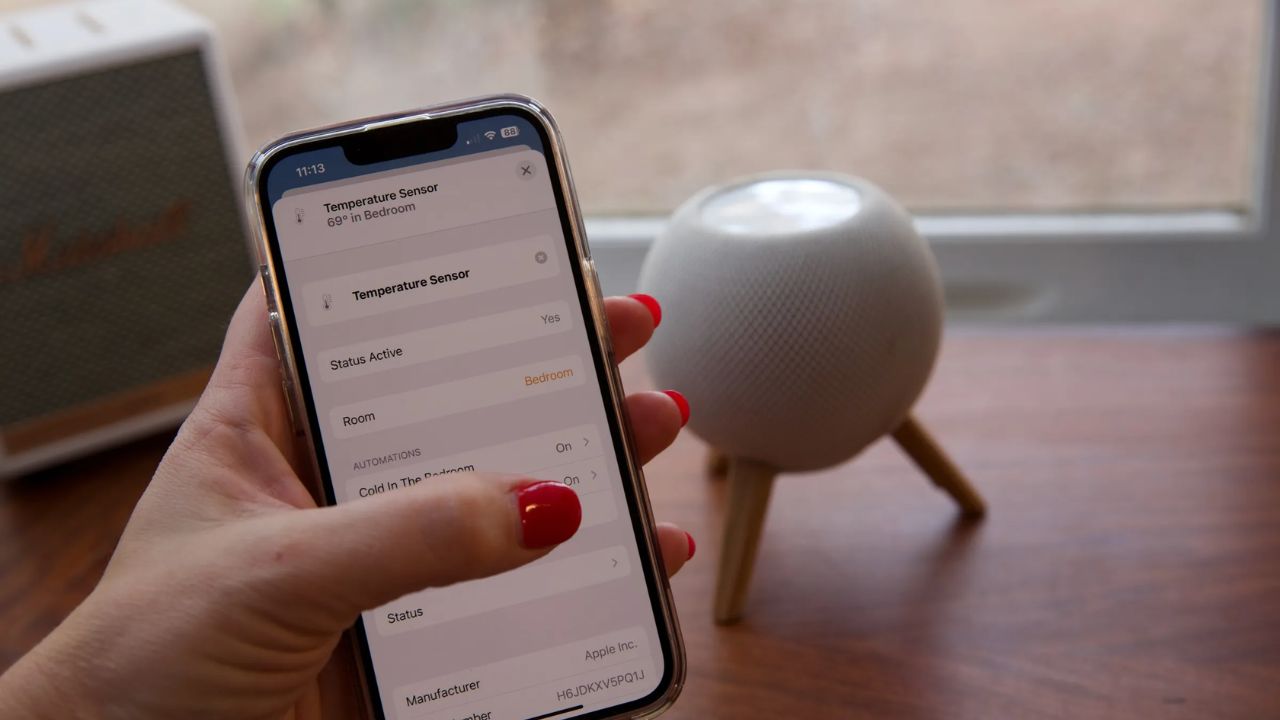
Maybe you do not have a smart fan or a smart dehumidifier yet. That is fine. You can still use the sensor to get a warning. Here is the trick. Make a rule using the sensor. When you get to the step where you choose a device, pick your HomePod. Tap Play Audio. Choose a sound. Choose a song. You can even record your own voice in the Voice Memos app and pick that recording. When the humidity or temperature hits your set level, your HomePod will play that sound. This turns your speaker into a monitor. You do not need to buy anything else.
Getting More Control
The Home app is simple. It works for basic rules. But if you want to combine conditions, you need a different app. There are free apps called Controller and Eve. They connect to your HomeKit setup. They let you add more conditions to your rules. For example, you can say if the humidity is above 70 percent and the temperature is above 75 degrees, then turn on the fan. This makes your homepod humidity sensor automation ideas.
You May Also Like: HomePod Productivity Tips to Boost Your Daily Efficiency
A Few Things to Remember
This feature only works on the HomePod Mini and the HomePod 2nd generation. The original HomePod does not have it. All your devices need the latest software. Check for updates regularly.
The sensor measures the air in the room where the HomePod sits. If you want to know the conditions in another room, you need a separate sensor for that space.
If you are unsure about the accuracy, compare the reading to another thermometer in the same room. Make sure the HomePod is not sitting near a window or a heating vent.
FAQs
Do I have to buy anything extra?
No. The sensor is already inside your HomePod.
Can I use this with any fan or heater?
You can use any device that plugs into a wall. Connect it to a smart plug that works with HomeKit. The automation controls the plug. The plug controls your device.
How often does the sensor check the air?
The sensor checks regularly. You can open the Home app at any time to see the current reading.
Can I check my home from work?
Yes. If you have a Home Hub connected, like an Apple TV or another HomePod, you can check the readings from anywhere using your iPhone.
Why does my HomePod not show the humidity?
Check the software version first. It must be 16.3 or later. If the software is right, give it time to calibrate. If nothing works, restart the HomePod through the Home app.
Final Thoughts
This sensor is free. It is already inside your speaker. Most people ignore it. But it can do real work for you. Try one automation. Just one. See how it feels. Then try another. Your home will feel better. You will not have to think about it. The air will just stay right. And you will wonder why you did not do this sooner.