


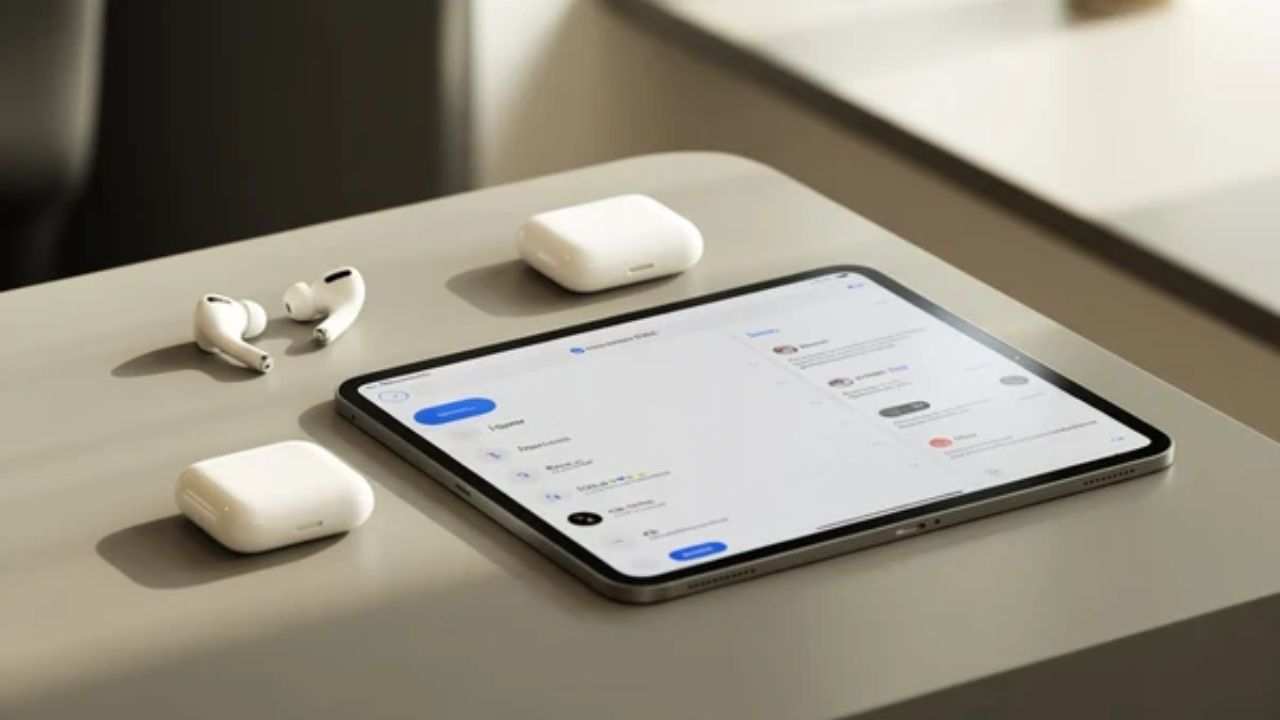
AirPods cannot play sound from two devices at the same time, but they can be paired with multiple devices simultaneously. This is the most core answer. Many people think "connect to multiple devices" means listening to music on the computer while taking a call on the phone, but that's not the case. The actual situation is: AirPods remember multiple devices, but at any given moment, the sound only comes from one device.
Pairing vs. Connection: Clearing Up This Key Distinction
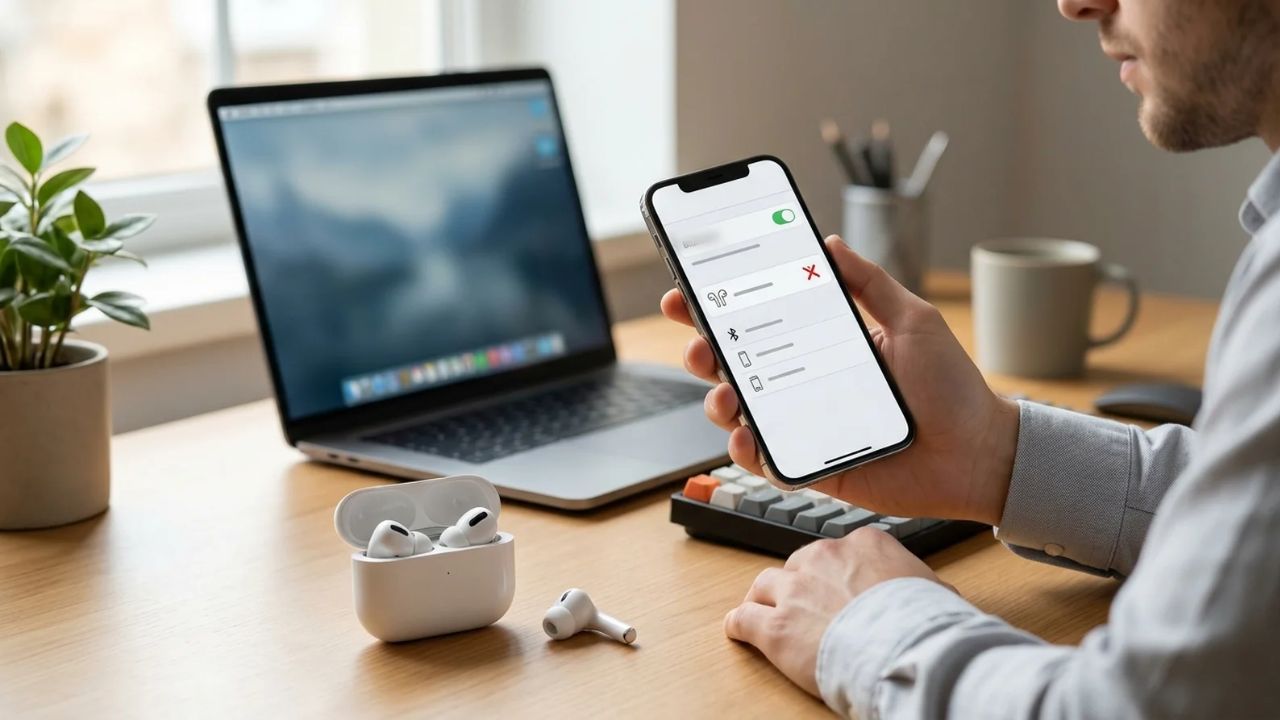
First, let's clarify what you're really asking. Bluetooth headphones typically have two concepts: "pairing" and "connection."
Pairing is like introducing two devices to each other. Once you've paired your AirPods with your iPhone, iPad, and Mac, all three devices remember your AirPods. Connection is who is actually transmitting sound right now. AirPods can be paired with many devices, but at any given moment, they can only be connected to one device for audio playback .
So, if you have a movie playing on your Mac and a call comes in on your iPhone, the movie audio on your Mac pauses, and the call audio takes over. AirPods don't mix the two sounds together, nor do they let you hear both at the same time.
Read Also: How To Reset Apple Airpods Correctly
If You're All Using Apple Devices: Automatic Switching Is the Closest Thing to "Seamless"
The good news is that if you own multiple Apple devices and they all use the same Apple Account, AirPods have a feature called "Automatic Switching." This feature is the closest thing to "connecting to multiple devices" in your imagination.
The supported models are quite extensive: AirPods 2, AirPods 3, AirPods 4, all AirPods Pro models, and all AirPods Max models support this feature . The prerequisite is that all your devices need to be updated to a relatively new operating system and logged in with the same Apple Account with two-factor authentication enabled .
How does it work in practice? Suppose you're listening to a podcast on your iPad, then you pick up your iPhone and start playing a song. The AirPods will automatically switch from the iPad to the iPhone, with no need for you to manually disconnect and reconnect . Similarly, if you're watching a video on your Mac and your Apple Watch receives a call that you answer, the call audio will automatically route to your AirPods .
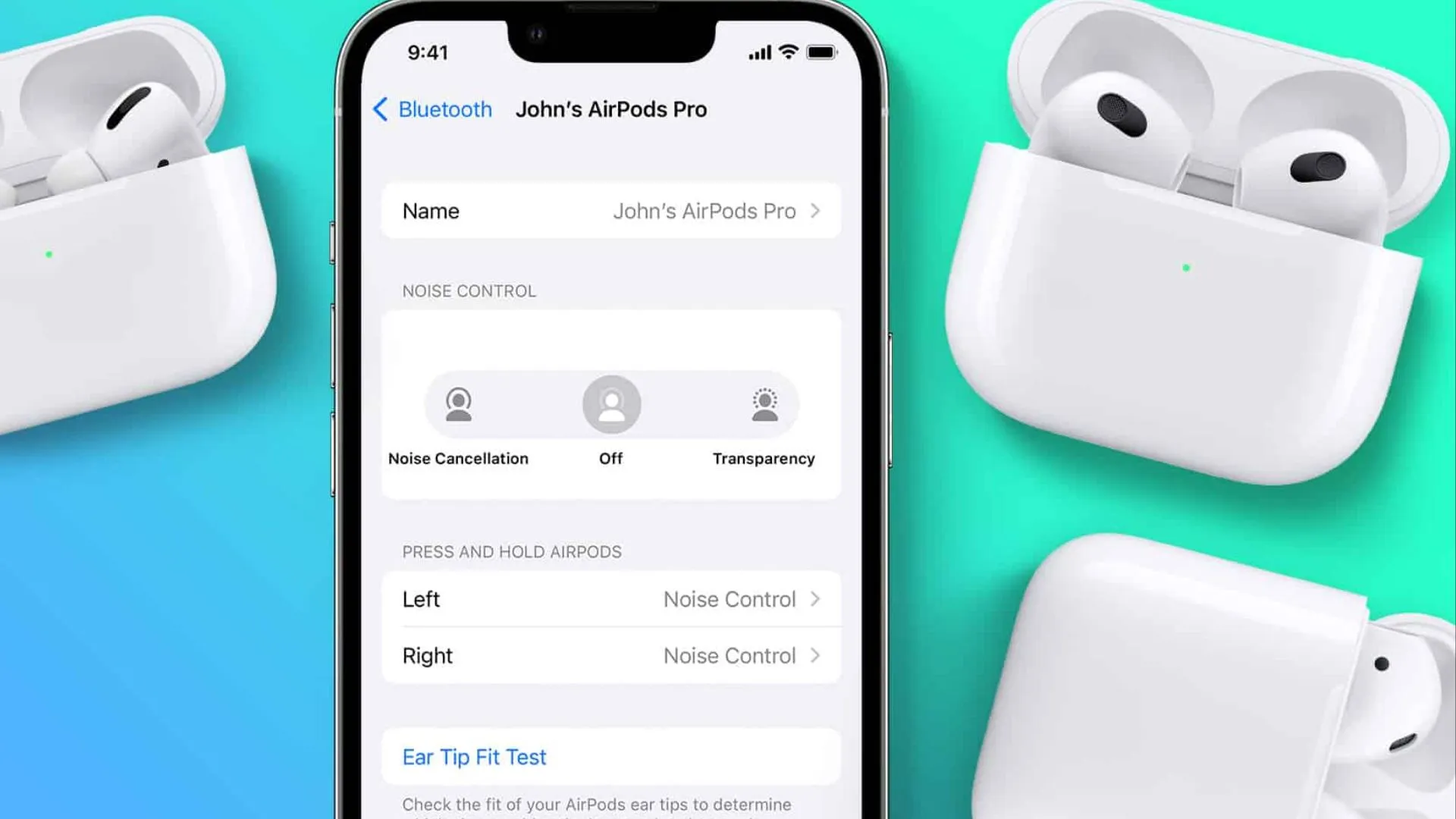
This feature is indeed very convenient, but it also has times when it can be annoying. Sometimes you might just want the AirPods to stay connected to your computer, but they automatically jump to your phone because you accidentally tapped play on your iPhone. If you find this disruptive, you can turn off automatic switching. On iPhone, go to Settings > Bluetooth, tap the "i" icon next to your AirPods, tap "Connect to This iPhone," and then change "Automatically" to "When Last Connected to This iPhone" . After this setting, AirPods will only connect to the device they were last connected to and won't automatically jump around.
If Your Devices Use Different Accounts or You're Using Non-Apple Devices: You Can Only Switch Manually
Things get different if the devices don't use the same Apple Account, or if one is an Apple device and the other is a Windows computer or Android phone. AirPods can still be paired with all of them, but automatic switching won't work.
For example, if you've paired your AirPods with both your personal iPhone and your work MacBook, but these two devices are logged in with different Apple Accounts, when you want to switch from the phone to the computer to listen, you'll need to manually select the AirPods in the computer's Bluetooth settings or sound output menu . It won't switch automatically.
The same applies to non-Apple devices. AirPods can connect to any standard Bluetooth device, including Windows laptops and Android phones, but between these devices and Apple devices, you have to switch manually every time.
You May Also Like: Why Airpods Keep Disconnecting From Iphone
If You Find Automatic Switching Annoying: How to Turn It Off
As mentioned earlier, automatic switching can sometimes be disruptive. You might be watching a video on your Mac, and your phone suddenly receives a notification that makes a sound, and the AirPods get pulled over to the phone. Or you might be listening to music on your iPhone, and as soon as you open your iPad, the audio jumps over there.
If you're frequently bothered by this, just turn off automatic switching. On iPhone or iPad, go to Settings > Bluetooth, tap the "i" icon next to your AirPods, tap "Connect to This iPhone" or "Connect to This iPad," and then select "When Last Connected" instead of "Automatically" . This way, the AirPods will stay connected to the device they were last connected to and won't switch just because another device starts playing audio.
On Mac, the operation is similar: System Settings > Bluetooth > tap the "i" icon next to AirPods > "Connect to This Mac" > select "When Last Connected to This Mac" .
After turning it off, you can still switch between devices manually, just with one extra step. On iPhone or iPad, open Control Center, tap the AirPlay icon, and select your AirPods . On Mac, click the Control Center in the menu bar, click Bluetooth, and select AirPods .
One Final Point
AirPods cannot achieve "true multipoint connection" like some Bluetooth headphones (for example, some Sony or Bose models), where two devices connect at the same time and you can hear sound from both at once. AirPods' design philosophy is "automatic switching"—it decides for you which device to listen to, rather than letting you manage two audio sources simultaneously. Once you understand this, you won't be confused by terms like "multiple devices" or "simultaneous." It remembers many devices and automatically switches within the Apple ecosystem, but it will never give you two sounds at the same time.