
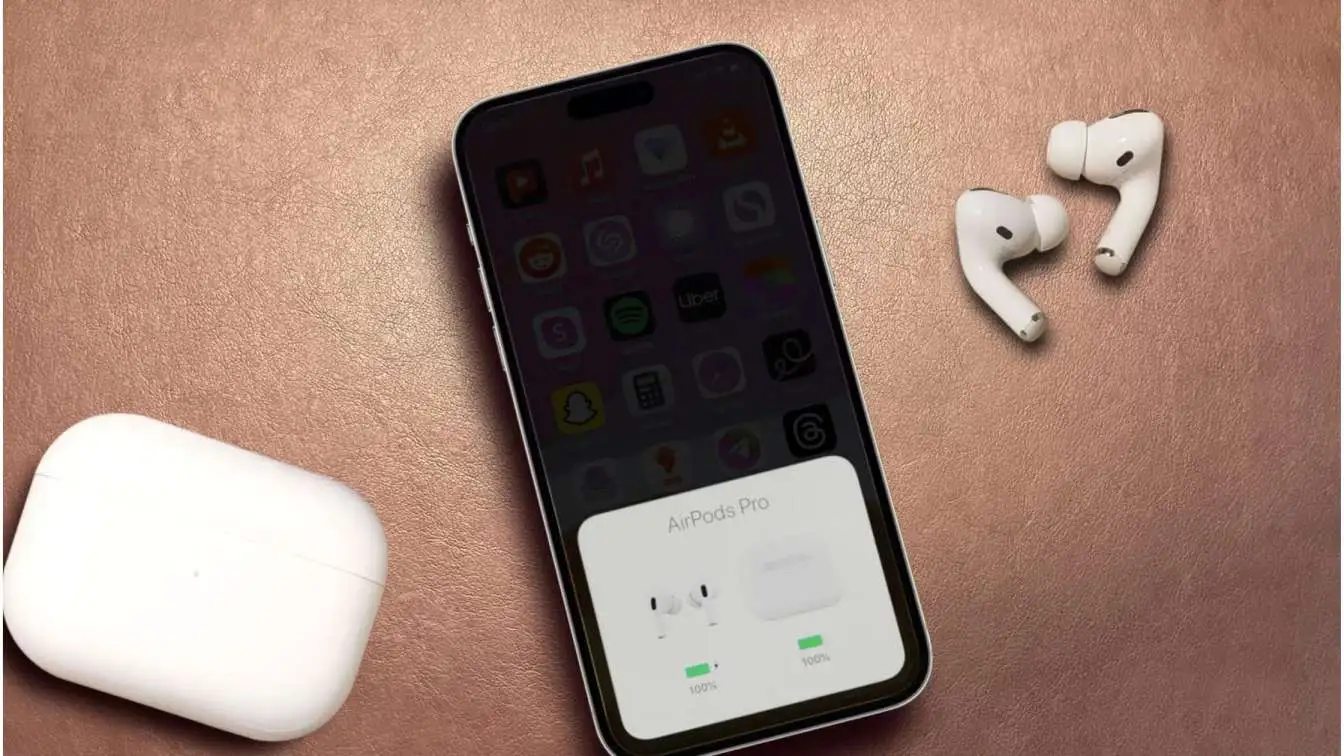
AirPods break down. It happens all the time. One day they work. The next day they do not. They stop connecting to your phone. They cut out during calls. Only one side plays music. The battery dies faster than normal.
Most people panic. They think they need new ones. They do not. A reset fixes almost everything. But you have to do it right. Doing it wrong wastes your time. Doing it wrong makes the problem worse.
This guide is different. It covers every model separately. It tells you exactly what to press. It tells you exactly when to let go. You will also learn the one thing most guides forget. That one thing stops you from selling your AirPods. People make that mistake every single day.
What A Reset Actually Does?
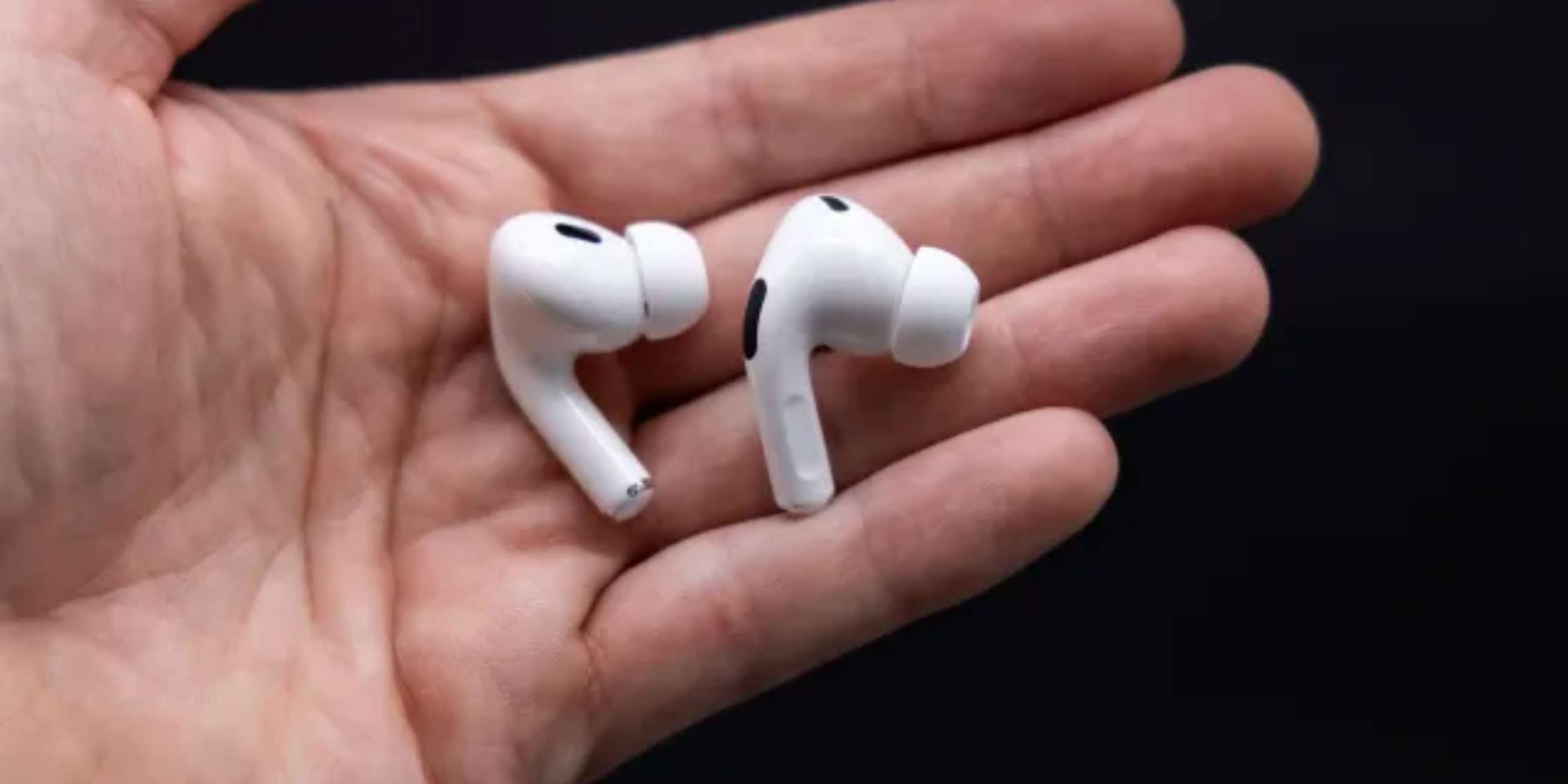
Resetting wipes the memory. Your AirPods forget every device they ever connected to. They forget your iPhone. They forget your iPad. They forget your Mac. They forget your friend's phone you connected to one time.
They go back to factory settings. Think of it as a fresh start. All the bad settings get erased. All the glitches get cleared out.
But here is the catch. Resetting does not remove your Apple ID. That is a separate thing. Many people do not know this. They reset their AirPods. They sell them online. The buyer gets them and cannot use them. Why? Because the old Apple ID is still attached.
We will show you how to remove that too. Do not skip that part.
Read Also: Apple Airpods Keep Disconnecting Fix
Prepare Before You Reset
Do not just pick up your AirPods and start pressing buttons. You need to do one thing first. You need to remove them from your phone's Bluetooth list. Go to Settings. Tap Bluetooth. Find your AirPods in the list. Tap the small "i" icon. Tap Forget This Device. Confirm it.
Why do this? Because your phone will try to reconnect during the reset. That messes everything up. The reset will fail. You will get confused. You will think your AirPods are broken. They are not. You just forgot this step. If your AirPods do not show up in the Bluetooth list, skip this. Move to the next part.
Reset AirPods With A Button On The Case
This applies to a lot of models. AirPods 1. AirPods 2. AirPods 3. AirPods Pro 1. AirPods Pro 2. All of these have a round button on the back of the case. That is your reset button.
Follow these steps. Do not rush. Do not skip.
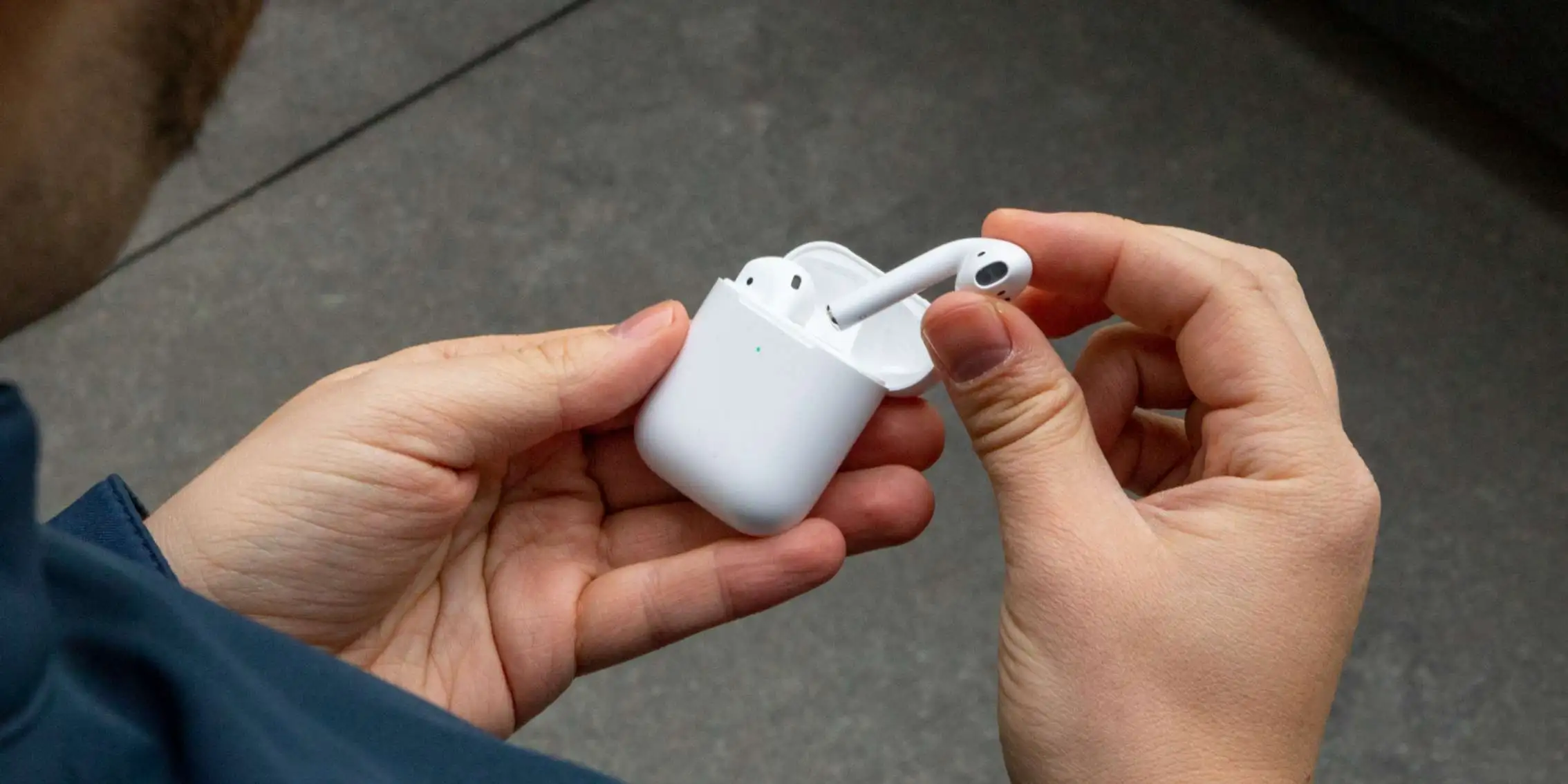
Put both AirPods inside the case. Close the lid. Wait 30 seconds. This pause matters. It lets the case recognize both AirPods are inside. Now open the lid. Look at the back. Find the round button. Press it. Hold it down. Do not let go.
Keep holding. Watch the front light. It will flash amber first. Keep holding. Keep holding. Keep holding. After about 15 seconds, the light will flash white. That is your signal. Let go of the button. That is it. Your AirPods are reset. But wait. Did the light never flash white? Did it just turn off? That means your case battery is dead. Plug it in. Charge it for 20 minutes. Try again.
Reset AirPods 4 And AirPods Pro 3
These are different. Apple removed the button. They replaced it with a tapping method. People get confused by this. They tap wrong. They tap too fast. They tap too slow.
Here is the exact way.
- Put both AirPods in the case. Close the lid. Wait 30 seconds.
- Now open the lid. Look at the front of the case. You will see the status light.
- Double-tap the front of the case. Not the lid. Not the back. The front. Right where the light is. Double-tap means two quick taps. The light will flash white. Good.
- Double-tap again. Two quick taps. The light will flash faster now. Good.
- Double-tap a third time. Two quick taps. The light will flash amber. Then it will flash white. That means it worked.
- If the light does not change, you tapped too slow. Do it again. But this time tap faster. Tap with purpose. Tap with confidence. AirPods 4 and Pro 3 are picky about this. You have to be precise.
Reset AirPods Max
AirPods Max are big over-ear headphones. They do not have a case with a button. The reset happens on the headphone itself.
Look at the right ear cup. You will see two buttons. One is the Digital Crown. It looks like a watch dial. The other is the Noise Control button. It is flat.
Press both buttons at the same time. Hold them. Keep holding. Watch the small LED light near the charging port. It will flash amber. Keep holding. It will flash white. Let go.
That is it. AirPods Max reset done.
But do not hold the buttons too long. Some people hold them for 30 seconds. That resets it again. It goes into a loop. Just hold until you see white. Then stop.
What To Do When Reset Does Not Work?
Resets fail sometimes. Do not get frustrated. Try these fixes.
Charge everything. This is the number one reason resets fail. Plug the case into a charger. Leave it for 15 minutes. Try again. Low battery stops the reset process.
Clean the contacts. Open the case. Look inside. See those metal prongs at the bottom? They get dirty. Dust builds up. Skin oil builds up. Take a dry cloth. Wipe them clean. Wipe the bottom of each AirPod too. Then try the reset again.
Check other devices. Your AirPods might be connected to your iPad. Or your Mac. Or your Apple Watch. Go to each device. Forget the AirPods on all of them. Then restart your iPhone. Then try the reset.
Update your phone. Old software causes problems. Go to Settings. General. Software Update. Install any update waiting there. Then try again.
If nothing works, your AirPods might have hardware damage. Water damage. Dropped too many times. Internal failure. Contact Apple Support. Tell them what you tried. They will run diagnostics.
The One Thing Everyone Forgets
You reset your AirPods. The light flashed white. You are happy. But then you list them for sale online. Someone buys them. They receive them. They try to connect. They get a message.
- "These AirPods are linked to an Apple Account."
- They cannot use them. They return them. You lose the sale. You waste time. You waste money.
- This happens because resetting does not remove your Apple ID. That is a separate process. You have to do it manually.
- Go to Settings on your iPhone. Tap your name at the top. Tap Find My. Tap Find My iPhone. You will see a list of devices. Find your AirPods in that list. Tap Remove This Device. Confirm it.
- Or use the Find My app. Open it. Tap Devices. Find your AirPods. Swipe up on the card. Tap Remove This Device. Tap Remove again.
- Now your AirPods are truly free. The new owner can connect them without problems. They will thank you.
You May Also Like: Apple AirPods Pro 3: Everything We Expect from the Next Big
Pair Your AirPods After Reset
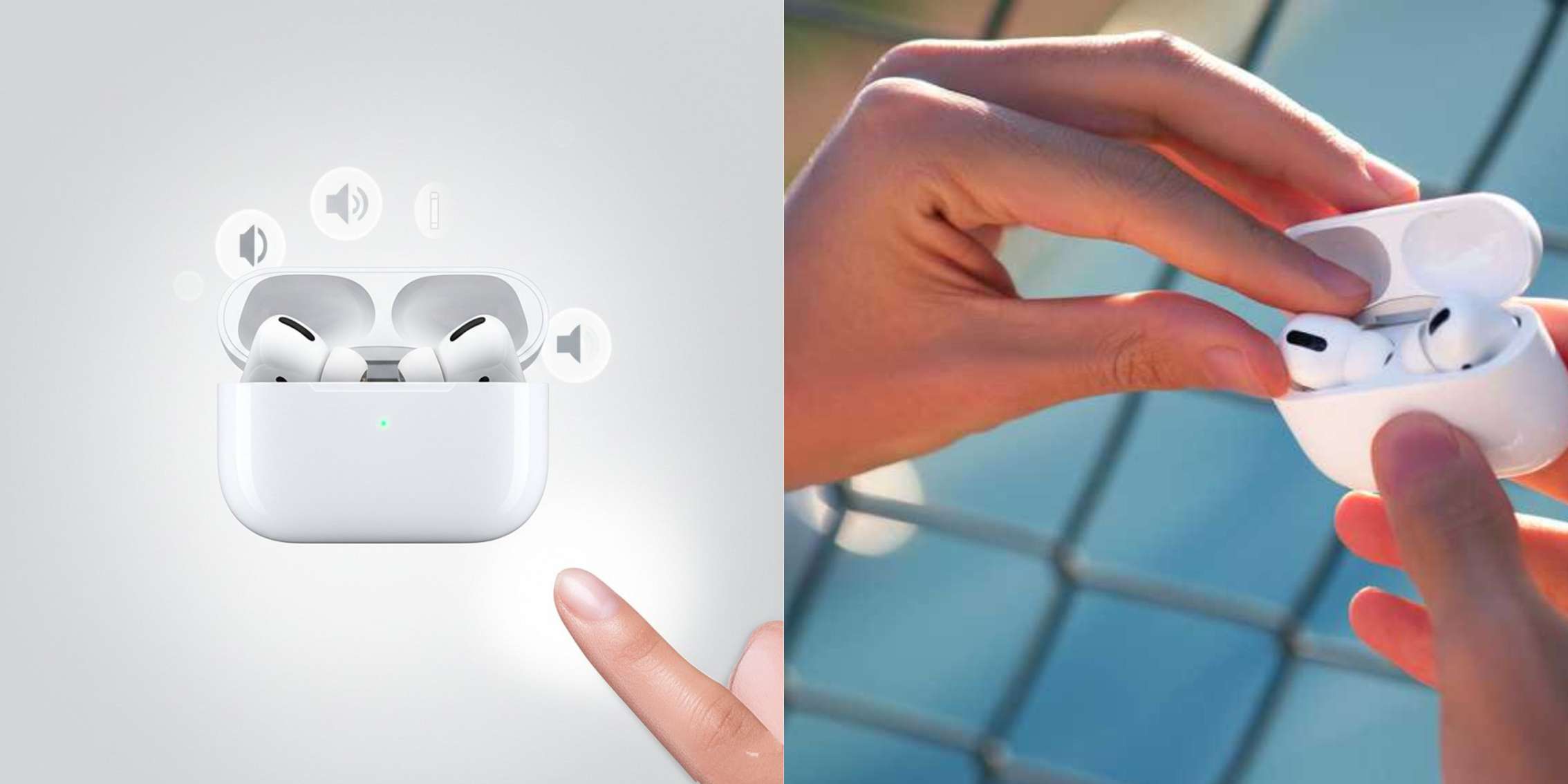
After resetting, your AirPods are in pairing mode. The white light keeps flashing. That means they are ready.
For iPhone or iPad, hold the case near your phone. Open the lid. A popup appears on your screen. Tap Connect. Follow the instructions. It takes 10 seconds.
For Mac, open System Settings. Click Bluetooth. Make sure Bluetooth is on. Hold your AirPods near the Mac. Open the lid. They appear in the Bluetooth list. Click Connect.
For Android or Windows, open Bluetooth settings. Put your AirPods in pairing mode. The white light must be flashing. Look for your AirPods in the list. How to reset apple airpods correctly.
When Should You Reset?
You should reset when things go wrong. Not just for fun. Resetting too often does not help. It just wastes your time.
Reset when your AirPods will not connect. Reset when they keep disconnecting. Reset when one side stops working. Reset when they show the wrong name. Reset when they do not charge properly. Reset when you switch to a new Apple Account. Reset before you sell them or give them away.
Do not reset just because you are bored. Do not reset to fix battery life. Battery life is a hardware issue. A reset will not fix a dying battery.
Conclusion
Resetting fixes many problems. But it does not fix everything. If your AirPods have physical damage, a reset will not help. If they got wet, a reset will not help. If the battery is completely dead, a reset will not help.
If you tried everything in this guide and nothing worked, take them to an Apple Store. Let them check it. They have special tools. They can see things you cannot see. Sometimes the problem is internal. Sometimes the problem is permanent. But most of the time, a reset fixes it.