


Turning off Siri on a HomePod mini is not the same as turning off the speaker itself. Many people look for a power button or a switch and come up empty because the device does not have one. The process is simpler than expected, but it helps to understand what actually happens when you tell Siri to stop listening. This guide walks through the real steps, what changes afterward, and what stays the same. It also covers the small details that trip people up, like what to do when you want Siri back or when the touch controls feel unresponsive.
What Turning Off Siri Actually Does?
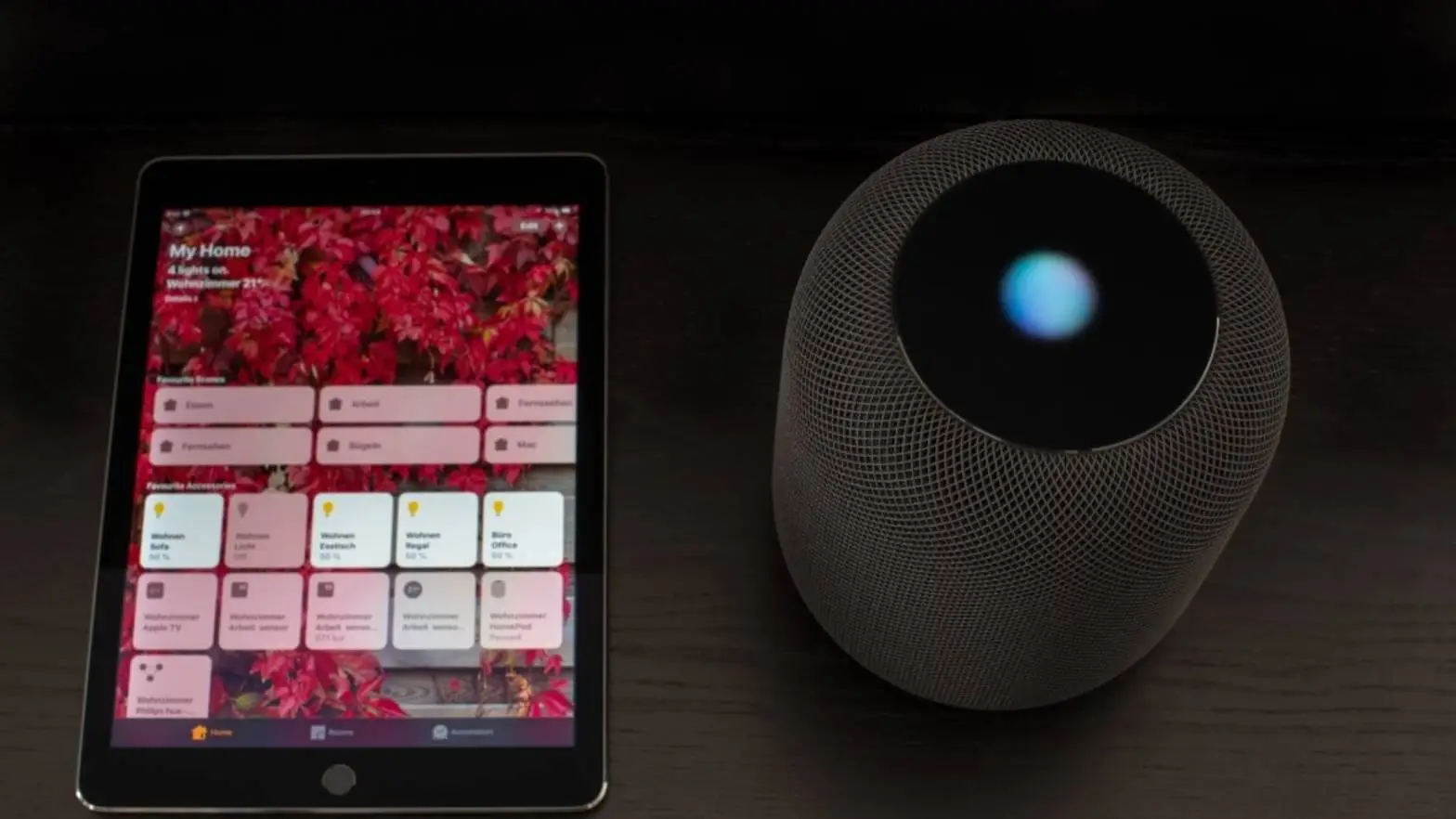
Before touching any settings, it is worth knowing what changes. When you turn off Siri on a HomePod mini, the speaker does not shut down. It stays connected to power and to your Wi-Fi network. It can still play music if you start playback from your iPhone or iPad. It can still act as a home hub for smart accessories. What stops is the always-listening voice activation. The microphone no longer waits for “Hey Siri,” and the device will not respond to spoken commands until you turn that feature back on or use the touch surface to trigger Siri manually .
This distinction matters because some people want privacy, some want to stop accidental activations, and some simply want the speaker to stop talking back. The method below addresses the voice activation side, which is what most people mean when they search for how to turn off Siri on this device.
Read Also: How To Pair Two Homepods Together
The Fastest Way: Use Your Voice
The quickest method requires no phone and no app. You simply speak to the HomePod mini the same way you would when asking for weather or music. Say clearly: “Hey Siri, stop listening.” The speaker will confirm the change, and the voice activation turns off . The wording matters. Phrases like “turn off Siri” or “disable Siri” may not trigger the same result because Apple designed the command around the listening behavior, not the feature name. The exact phrase “stop listening” is what the system recognizes.
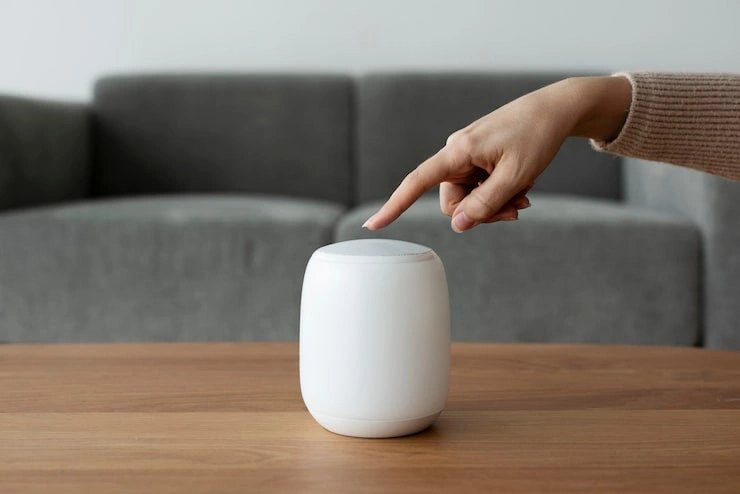
Once this command is accepted, the change is immediate. The next time you say “Hey Siri,” nothing happens. The light on top will not glow in response to your voice. If you want to use Siri again without re-enabling voice activation, you can press and hold the top of the HomePod mini. That manual press still activates Siri for a single request, which is a useful middle ground for people who want control without fully giving up voice assistance .
The Settings Route Through the Home App
If speaking to the device feels unreliable or you prefer a visual confirmation, the Home app on your iPhone or iPad gives you a clear toggle. Open the Home app and locate your HomePod mini. Long-press or tap the device icon to open its settings. Look for the Siri section. The exact label may appear as “Siri” or “Hey Siri,” depending on your software version. Inside that section, you will find the toggle for voice activation. Turning it off produces the same result as the spoken command. The speaker stops waiting for its wake word .
This route is helpful because it also shows you related settings in one place. You can see whether Siri is allowed to control accessories, whether personal requests are enabled, and whether the listening history is being updated. None of those need to be changed to turn off voice activation, but seeing them together helps you understand what Siri was doing on the device beyond just answering questions.
What Still Works After Siri Is Off
A common worry is that the HomePod mini becomes a useless brick once Siri is silenced. That is not the case. The speaker still plays audio. You can AirPlay music, podcasts, or any other audio from your phone. You can still use it as a speaker for your TV if you have an Apple TV. The touch controls on top still work for play, pause, and volume. You can still use it to control smart home accessories through the Home app, though voice control for those accessories stops until Siri is re-enabled .
The device also remains available as a home hub. If you have smart lights, locks, or thermostats that rely on a HomePod mini to stay connected, turning off Siri does not break that function. The hub role and the voice assistant role are separate. This is worth knowing if you use the speaker mainly as a home automation bridge and only want to stop the voice listening part.
You May Also Like: HomePod Mini Humidity Sensor Not Working
Turning Siri Back On
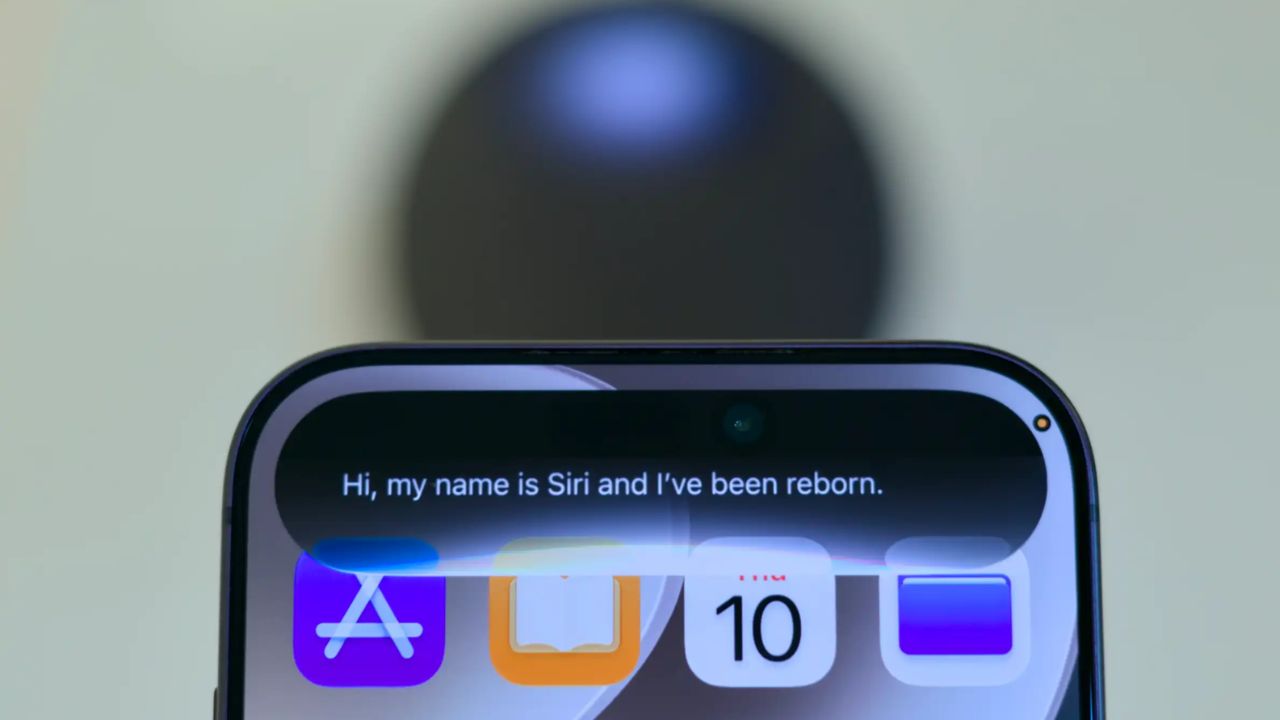
Reversing the change is just as straightforward. You can say “Hey Siri” while pressing and holding the top of the HomePod mini, then ask Siri to turn listening back on. Or you can return to the Home app settings and flip the toggle back to the on position. Once re-enabled, the speaker resumes waiting for its wake word. You may need to repeat the voice training if you use the “Recognize My Voice” feature, though in most cases the existing voice profile stays intact .
If the toggle does not seem to stick, or if Siri stops responding to the wake word even after you turn it back on, a simple restart of the HomePod mini often clears the issue. Unplug it for a few seconds and plug it back in. The device boots up with the last saved settings, so whatever state you left it in should persist.
A Note on Privacy and the Listening Light
Apple designed the HomePod mini so that nothing you say is sent to Apple servers until Siri is activated, either by the wake word or by a touch on the top surface. The colored light on top indicates when Siri is listening or processing a request . When you turn off voice activation, that light will not respond to sound. Some people find this visual cue reassuring because it confirms the microphone is not actively waiting for a command. The privacy settings in the Home app also let you review and adjust related options, though turning off Siri itself is the main step for stopping voice listening.
Why Some People Get Confused?
The confusion usually comes from looking for an off switch. The HomePod mini has no power button. It is designed to stay on and stay connected. Even the “turn off” language in Apple’s own documentation refers to disabling Siri or the microphone, not cutting power . Once that is clear, the process makes sense. You are not shutting down a device. You are telling a feature to stop waiting for you to speak. The speaker keeps doing everything else it was built to do, minus the voice assistant part.
For anyone who wants a temporary pause rather than a permanent change, the manual press-and-hold method is a good alternative. You get Siri only when you intentionally reach for it. That approach gives you control without digging through settings or remembering a voice command. Either way, the choice stays in your hands, and reversing it takes only seconds.