
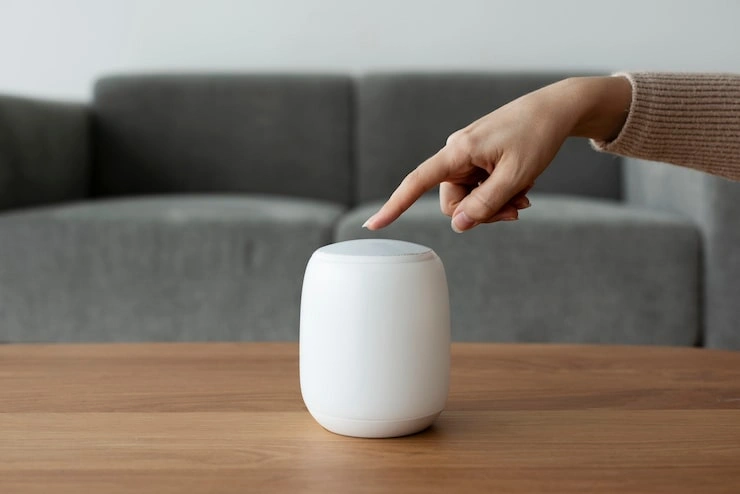
Pairing two HomePod mini speakers changes how you listen. One speaker fills a room with sound from every direction. Two speakers working together separate that sound into distinct left and right channels. This creates a wider, more detailed listening experience. Music sounds like it is coming from a stage in front of you instead of a single point in the corner. The process takes only a few minutes, and Apple designed it to work without technical knowledge.
What You Need Before You Start?
Two HomePod mini speakers are required. They must be the exact same model. You cannot pair a HomePod mini with a larger HomePod. You also cannot mix different generations of the same speaker. Two HomePod minis are the only combination that works for this guide.
Both speakers must connect to the same Wi-Fi network. They also must belong to the same home in the Apple Home app. If one speaker is listed in your living room and the other in your bedroom, the pairing option will not appear. You will need to move them into the same room first.
Your iPhone or iPad needs the latest version of iOS or iPadOS. The Home app comes installed on these devices by default. You will use this app for the entire process.
How To Pair Two HomePod Mini Speakers?
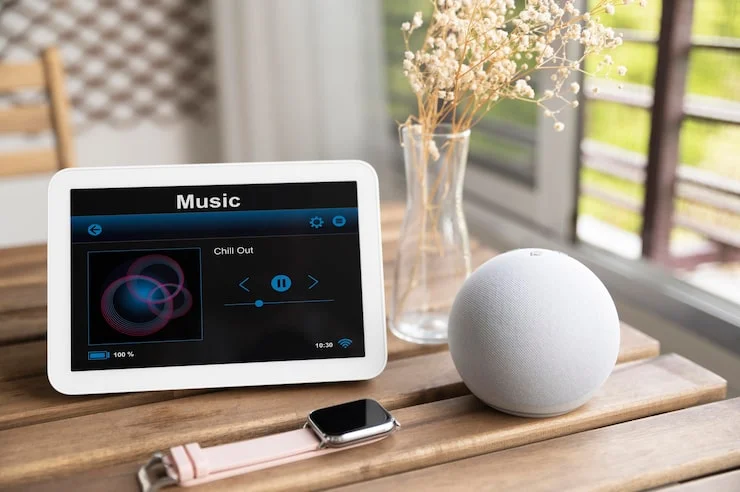
Open the Home app on your iPhone or iPad. The app shows every Apple smart home device connected to your account. Find one of your HomePod mini speakers in the list. Press and hold the speaker icon until a menu appears.
Tap the settings icon in the corner of the screen. This opens a detailed menu for that specific speaker. Scroll down until you see an option labeled “Create Stereo Pair.” Tap it.
The app now searches for other HomePod minis in the same room. A list appears showing available speakers. Select the second HomePod mini you want to pair. The app then asks you to assign left and right channels. Tap one of the speakers to play a test sound. This helps you confirm which physical speaker is on which side. If the sides are wrong, tap the swap button to switch them.
After you confirm the setup, the app begins configuring the pair. A message appears saying the speakers are being configured. This takes a short time. When it finishes, both speakers appear in the Home app as a single combined device. The icon changes to show two speakers instead of one.
You can also create a stereo pair during the initial setup of your second HomePod mini. When you first add the second speaker to your home, the Home app may ask if you want to pair it with an existing HomePod mini. Tap yes, choose the left and right sides, and the app handles the rest automatically.
Read Also: How To Set Up HomePod Mini For The First Time
Where To Place the Speakers?
Position matters for getting the best sound from a stereo pair. Place the two speakers on either side of where you normally sit or where your television sits. Apple recommends keeping them about one meter apart for the best separation between left and right channels. This distance creates a wider soundstage that makes music and movies feel more spacious.
Keep both speakers at roughly the same height. Placing one on a high shelf and the other on the floor will distort the stereo effect. The left and right channels should reach your ears at the same time for the illusion of a single sound source to work properly.
How To Use the Paired Speakers?
Once paired, the two HomePod minis act as one unit for audio playback. When you play music through Apple Music, Spotify, or any other app, the sound comes out of both speakers at once. The left channel goes to the left speaker and the right channel goes to the right speaker. This creates the stereo separation that makes the audio feel more immersive.
You control the volume for both speakers together. Adjusting the volume on one speaker changes the volume on both. This keeps the left and right channels balanced at all times.
One change you will notice involves Siri. Only one speaker in the pair responds to voice commands. The other speaker stays silent when you say “Hey Siri.” This is normal behavior. Apple designed the pair to use a single microphone for voice input to avoid confusion about which speaker should respond.
How To Unpair the Speakers?
You can separate the two speakers whenever you want. Open the Home app and find the paired stereo device. Press and hold the icon, then tap settings. Scroll down and look for an option called “Ungroup Accessories” or similar wording depending on your software version. Tap it, and the speakers become individual devices again.
After unpairing, each speaker appears separately in the Home app. You can move one to a different room and use them independently. You can also pair them again later if you want to restore the stereo setup.
Read: How To Connect HomePod To Apple TV
Common Problems and Fixes
If the “Create Stereo Pair” option does not appear, check that both speakers are in the same room in the Home app. This is the most common reason the pairing option is missing. Move one speaker to the other's room and try again.
If one speaker does not show up in the list of available devices, make sure it is plugged in and connected to the same Wi-Fi network. You can check its status in the Home app. If the speaker shows as offline, restart it by unplugging the power cord and plugging it back in.
If the speakers are not playing in sync, restart both speakers and your iPhone. Software updates sometimes resolve audio synchronization issues. You can check for updates by opening the Home app, selecting a speaker, and looking for a firmware update option in the settings menu.
Using the Pair with Apple TV
A stereo pair of HomePod minis can also serve as speakers for an Apple TV 4K. This turns the speakers into a home theater audio system. Connect your Apple TV and the stereo pair to the same room in the Home app. Then open the Apple TV settings, go to Video and Audio, and select the HomePod stereo pair as the default audio output.
The HomePod mini does not support Dolby Atmos surround sound. It cannot produce the height channels that make Atmos audio feel like it is coming from above you. However, a stereo pair still delivers clear dialogue and balanced sound for television shows and movies. The stereo separation improves the experience compared to a single speaker.
Final Thoughts
Pairing two HomePod minis takes only a few taps in the Home app. The key requirements are simple: two identical speakers, the same Wi-Fi network, and the same room in the Home app. Once paired, you get better sound for music, movies, and anything else you play. The setup is easy to reverse if you ever want to use the speakers separately again.