
An Apple Music family plan allows you and your family to enjoy millions of songs without paying for separate subscriptions. You can share this plan with up to five other people, and everyone gets their own personal music collection and recommendations .
The setup may look simple, but sometimes things do not work as expected. This guide will walk you through the complete process and help you fix common problems.
What You Get with an Apple Music Family Plan?

Before you start setting up your plan, it helps to understand what you are getting.
Up to Six Members: The plan covers you and five other people. That is six people total on one subscription .
Personal Libraries: Each person has their own music library. You do not mix your songs with your family members. Apple Music learns what you like and gives you suggestions based only on your listening habits .
Shared Purchases: Your family group can share songs, movies, apps, and books bought from Apple . Some app subscriptions can also be shared if the app developer allows it .
What Cannot Be Shared: Individual subscriptions, student plans, and certain in-app purchases like coins or gems are not shareable . Also, if someone hides a purchase, the rest of the family cannot see it .
Read Also: Apple Music Vs Spotify Sound Quality 2026
Before You Start: The Prerequisites
You cannot start the Apple Music Family Plan setup without first doing one thing. You must set up Family Sharing .
What Is Family Sharing?
Family Sharing is a feature from Apple that lets you connect your family members' Apple accounts together. Once connected, you can share subscriptions like Apple Music, iCloud storage, and purchases .
How to Set Up Family Sharing
-
Open the Settings app on your iPhone or iPad.
-
Tap your name at the top.
-
Tap Family Sharing.
-
Tap Set Up Your Family.
-
Follow the steps on the screen. You will be asked to invite family members .
You can invite people using their Apple account email address. They will get a request, and they must accept it to join your family group.
Important: Everyone in your family group must use an Apple account registered in the same country or region . If someone's account is from a different country, they cannot join your family group.
How to Get an Apple Music Family Plan?
Once Family Sharing is set up, getting the plan is simple.
Step 1: Open the Apple Music app on your iPhone, iPad, or Mac.
Step 2: Go to the Home tab.
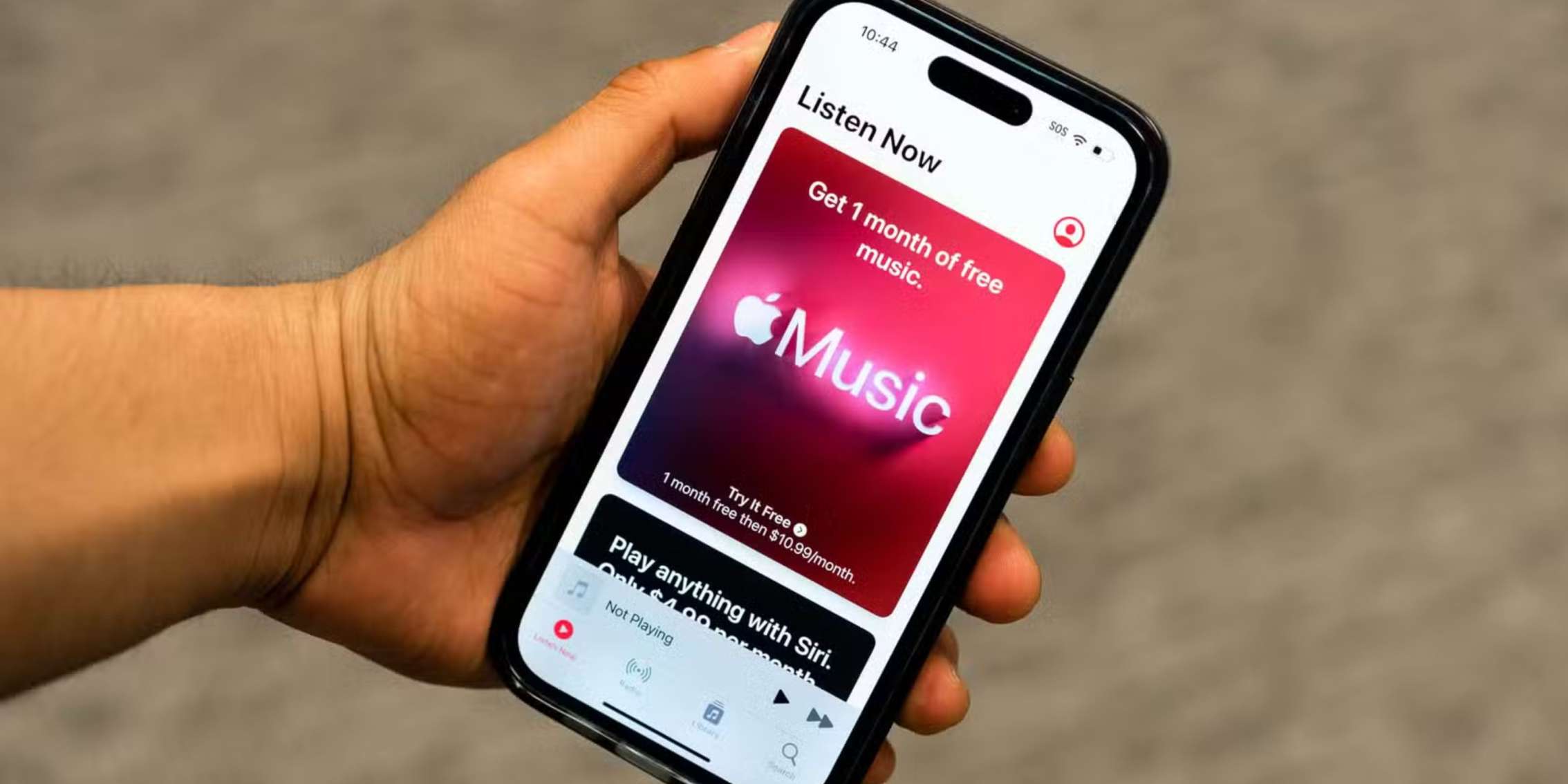
Step 3: Look for the trial offer and tap or click it. Then, choose See More Plans .
Step 4: Select Family, then tap Start Trial .
Step 5: Sign in with the Apple account you use for purchases. If you do not have an Apple account, you can create one during this step .
Step 6: Check your billing information and add a payment method .
Step 7: Tap Join.
When you finish, everyone in your family group can access Apple Music .
If You Already Have a Different Apple Music Plan
Many people already pay for an individual or student plan. If you are the family organizer, you do not need to cancel your old plan first.
You can change your current subscription directly to a family plan . You do not lose your music library or playlists.
When you switch, the renewal of your old plan stops automatically . You do not need to call Apple or ask for a refund.
What If Someone in the Family Group Already Has Their Own Plan?
If a family member already has their own individual or student plan, Apple cancels the renewal automatically when the family organizer subscribes to the family plan . They keep access until their paid period ends, and then they switch to the family plan.
What to Do When Apple Music Family Sharing Is Not Working?
Sometimes, you set everything up, but a family member cannot access Apple Music. This is a common issue, and there are clear fixes .
Check the Apple Account
The most common reason for failure is mismatched Apple accounts . If a family member uses a different Apple account for Apple Music than the one they use for Family Sharing, they cannot get access.
How to check this on iPhone or iPad:
-
Go to Settings.
-
Tap your name at the top.
-
Check the Apple account shown there. This is the account used for Family Sharing.
-
Tap Media & Purchases.
-
Check if the Apple account here is the same as the one in the Family Sharing setting .
If they are different, sign out of Media & Purchases and sign in with the correct account.
How to check this on Mac:
-
Open System Settings.
-
Click your name.
-
Click Media & Purchases.
-
Check the account details .
Check if Apple Music Is Enabled for Sharing
Sometimes, the family organizer does not turn on sharing for Apple Music specifically.
How to check on iPhone or iPad:
-
Go to Settings.
-
Tap your name.
-
Tap Family.
-
Tap Subscriptions.
-
Make sure Apple Music is listed and shows as shared .
How to check on Mac:
-
Open System Settings.
-
Click Family.
-
Click Subscriptions.
-
Confirm Apple Music appears .
Sign Out and Sign Back In
This fixes many software problems.
On iPhone or iPad:
-
Open Settings.
-
Tap your name.
-
Scroll down and tap Sign Out.
-
Sign back in with your Apple account .
On Mac:
-
Open System Settings.
-
Click your name.
-
Scroll down and click Sign Out.
-
Sign back in.
Remove and Re-add a Family Member
If a specific person cannot access the service, remove them from the family group and then add them back.
On iPhone or iPad:
-
Go to Settings > Family.
-
Tap the name of the member.
-
Tap Remove [Name] from Family .
On Mac:
-
Open System Settings > Family.
-
Click the name of the member.
-
Click Remove .
After removing, send a new invitation.
Check for Active Trial Periods
If a family member still has an active Apple Music trial, they may face problems joining the family plan . The family plan only works once their trial ends. They may need to wait for the trial period to finish before they can join .
Ensure Device Compatibility
Family Sharing works on certain devices only. Check these requirements:
iPhone, iPad, iPod touch: Must be running iOS 8 or later .
Mac: Must be running OS X Yosemite or later .
If someone uses an older device, they need to update it. If the device cannot be updated, it will not work with Family Sharing.
Wait for Synchronization
After you make changes, such as adding a new member or changing a subscription, the update may take some time to reach all devices . Ask the family member to wait a few minutes and check again.
Restart the Device
A simple restart often fixes temporary bugs. Ask the family member to turn off their device and turn it back on .
You May Also Like: Apple Music CarPlay Troubleshooting: How to Fix Common Issues
Managing Your Family Plan
Once your plan works, a few things are helpful to know.
Who Pays?
The family organizer pays for the subscription . If Purchase Sharing is turned on, the organizer pays for all purchases made by family members.
You can turn off Purchase Sharing. If you do, each family member must use their own payment method for buying things . The family can still share subscriptions like Apple Music Family Plan setup, but they cannot share individual purchases like apps or books.
What Happens When You Add a New Member?
When you add a new member to the family group, eligible subscriptions like Apple Music are shared automatically . The new member does not need to do anything. They open the Apple Music app, and it works.
Hiding Purchases
If you do not want others to see or download something you bought, you can hide it. Hidden purchases are not visible to family members . You can unhide them later if you change your mind.
Summary of the Setup Process
Here is a quick list to help you check your progress.
Step 1: Set up Family Sharing.
Step 2: Invite your family members.
Step 3: Subscribe to the Apple Music family plan through the Music app.
Step 4: Ask each family member to check they are using the same Apple account for Family Sharing and Media & Purchases.
Step 5: If someone cannot access the music, check the settings, restart the device, or remove and add the member again.
Final Tips
The Apple Music family plan saves money compared to paying for multiple individual plans. The setup is fast if you follow the steps. The most important thing to remember is that Family Sharing must be set up first. After that, the subscription process is easy. When things do not work, the problem is almost always related to using the wrong Apple account. Always ask your family members to verify the account they are using. Check device compatibility if someone still cannot get access. Old devices that do not meet the requirements will not work with Family Sharing. If all else fails, remove the person from the family group and add them back. This often fixes stubborn problems.